
Your photographer captures the first dance, the vows, and the cutting of the cake. But who gets the shot of your grandfather leading an impromptu line dance at 10 PM? Or the kids chasing each other across the lawn during cocktail hour? Guests do — and those candid moments are often the ones couples want most.
The challenge is getting those photos off their phones. Guests mean well. Most fully intend to share. But life after a wedding moves fast, and photos that sit in a camera roll usually stay there.
The fix doesn't require chasing down individual guests or juggling multiple collection systems for different phone types. It requires removing friction at the right moment. This guide walks through every practical method and shows you exactly how to set up a system guests will actually use.
Why Guest Photos Go Missing After the Wedding
The candid moments your photographer can't cover
A professional photographer can't be everywhere. They're focused on the ceremony, formals, the first dance, the key toasts. What they're not capturing is the table conversation between childhood friends, the spontaneous dance circle that formed around midnight, or the kids who commandeered the lawn during cocktail hour.
Guests sitting at those tables capture all of it. They pull out their phones without being asked. The result is a different kind of documentation — unposed, in-the-moment, often more emotionally true than anything staged. These are the photos that show how your wedding actually felt, not just how it looked in the schedule.
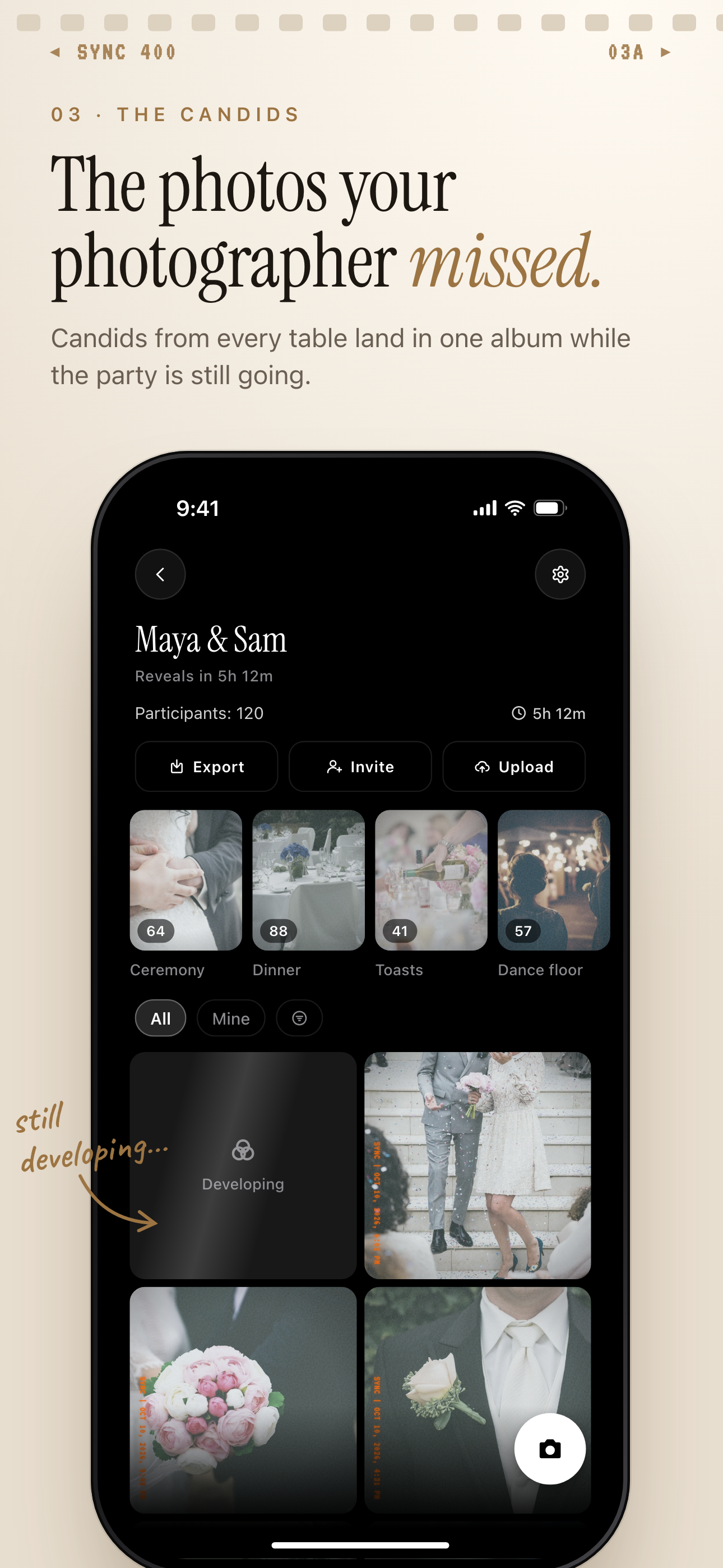
Guest candids from every table land in one wedding album, grouped into moments like Ceremony and Dinner.
The 'I'll send them later' problem
After the celebration ends, guests go home with the best intentions. They'll send those photos. They just need to find the right moment.
That moment rarely comes. A photo sitting on a phone competes with every other notification, task, and life event in the weeks after a wedding. Without a clear, low-effort way to submit photos, the window closes and those images stay put.
The friction gets worse on mixed-platform weddings. iOS guests and Android guests can't both upload easily to the same native photo album. iCloud Shared Albums require an Apple ID — every Android guest is automatically locked out. Google Photos shared albums require a Google account, which not everyone has or wants to tie to a wedding gallery. Without a neutral, account-free solution, cross-platform sharing breaks down before it begins.
Four Ways to Collect Photos from Wedding Guests
Every option involves trade-offs. Some have privacy implications couples don't anticipate. Here's what each one actually delivers — and where it falls short.
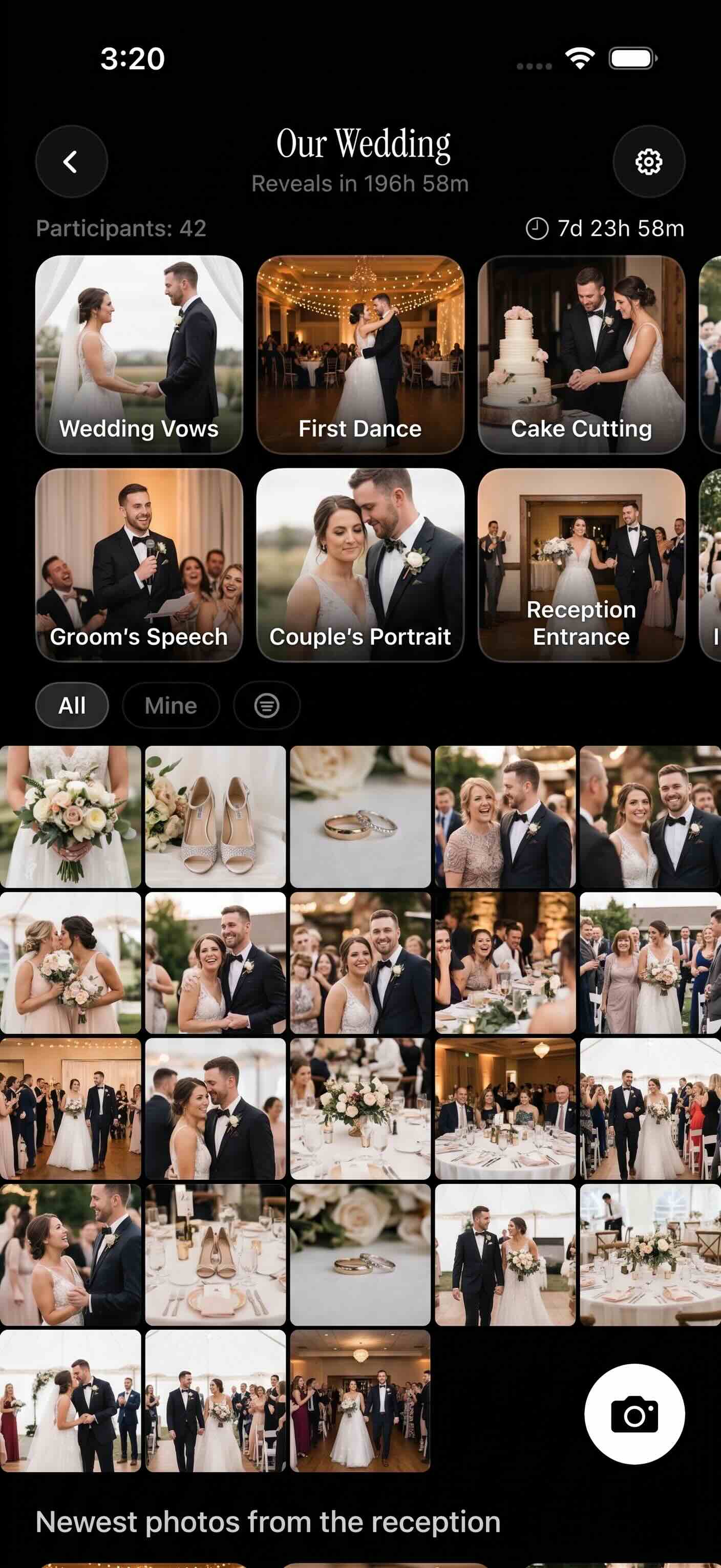 A multi-contributor wedding gallery in SYNC — one private place for every guest's photos, regardless of whether they're on iOS or Android.
Wedding hashtag on Instagram or TikTok
A wedding hashtag is easy to announce and easy for guests to use. Print it on a sign, mention it in the MC's opening remarks, and guests already on Instagram or TikTok will likely tag it.
The core problem: hashtags are public by default. Anyone can search the tag — strangers, acquaintances, people you specifically didn't invite. If privacy matters to you at all, an Instagram wedding hashtag is not a safe way to collect photos.
Even for couples who don't mind public sharing, hashtags scatter photos across a platform mixed with ads, reels, and unrelated posts. Finding all of them later and downloading them in usable quality takes hours of manual work.
Shared cloud album (iCloud or Google Photos)
Shared cloud albums work — but only when everyone is on the same platform.
An iCloud Shared Album requires an Apple ID. Any guest on Android cannot participate. A Google Photos shared album requires a Google account, which some guests won't have and others won't want to use for this purpose. Google Photos does allow non-Google users to view albums through a link, but uploading still requires signing in. That step alone stops many guests from contributing.
On a typical wedding guest list with a mix of iOS and Android users, neither option covers everyone cleanly. You end up managing two separate collection points or accepting that some guests simply can't participate.
Disposable cameras at each table
Disposable cameras have a retro charm guests genuinely enjoy. The novelty gets people shooting things they might not otherwise photograph.
The practical downsides are significant. You pay per camera and per roll of film developed. Development typically takes several days to a few weeks depending on the lab. The image resolution is far lower than any modern smartphone. For couples who want digital files quickly, disposables aren't the right fit.
Dedicated wedding photo app
A dedicated app like SYNC solves the problems the other options don't. Any guest — iOS or Android — joins the event via a single QR code scan. No account creation required. No app download required on iOS thanks to App Clip support. The gallery stays private. The host gets full-resolution downloads of everything after the event.
It handles the cross-platform problem, the privacy problem, and the low-friction problem in one setup. The comparison of wedding photo app options breaks down how SYNC stacks up against alternatives.
How to Collect Wedding Guest Photos with SYNC — Step by Step
Here's the full setup flow from event creation to the day itself.
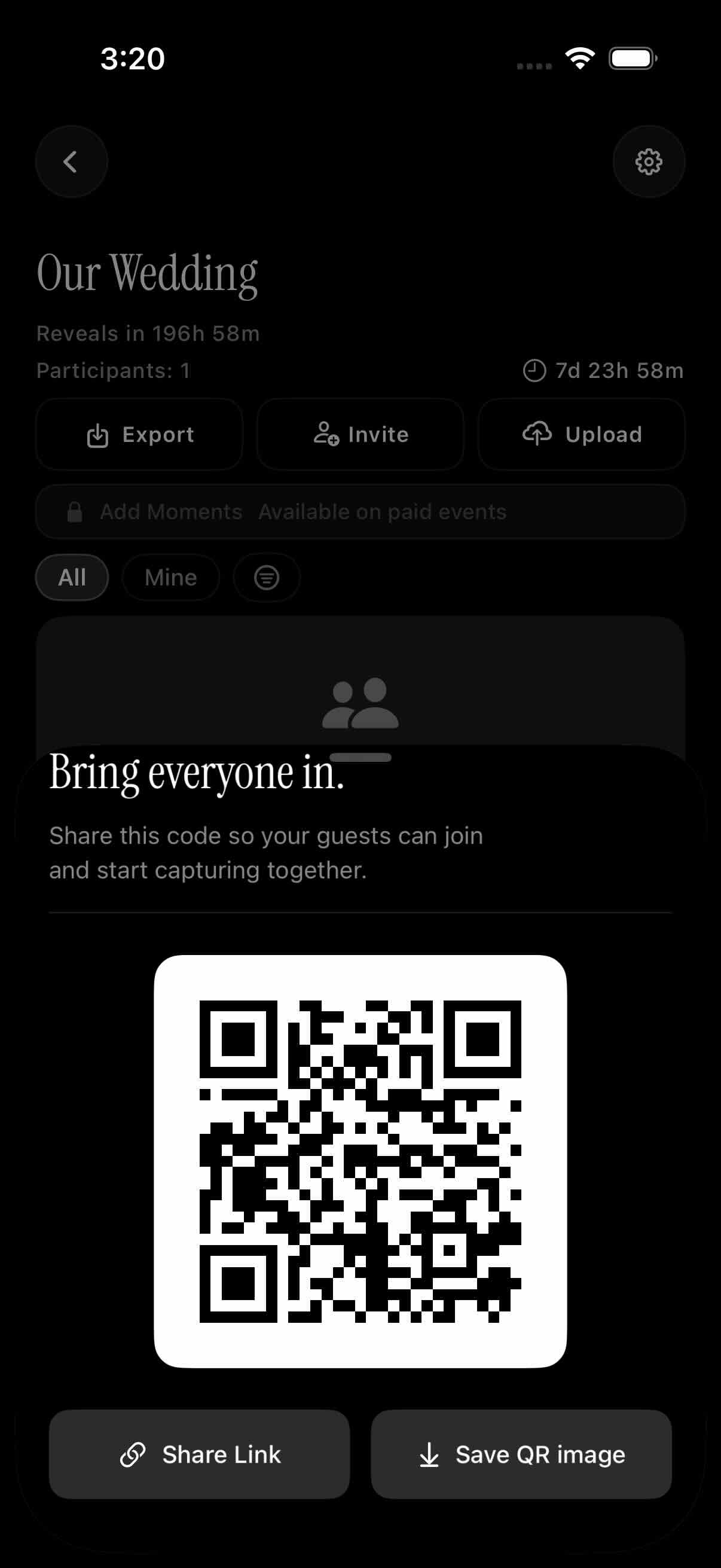 The QR code is the entire invite mechanic — one scan from any phone, and the guest is inside the private event gallery.
Create your event before the wedding day
Open the SYNC app and create a new event. Name it and set an event date range — a start and end date that covers your wedding day, plus any pre-wedding events you want to include like a rehearsal dinner. Only photos uploaded within that window are accepted. That filter keeps random camera roll screenshots and old photos out of your collection.
Create the event at least a week in advance. That gives you time to share the join link before the wedding so guests arrive already connected.
Share the QR code with guests
SYNC generates a shareable QR code as soon as your event is created. You can share it two ways:
- Digitally — paste the link into your wedding website, WhatsApp group, or digital invitation. Guests who join early won't need to scan anything on the day itself.
- Physically — print the QR code on table cards, menus, or a sign near the photo area or bar. Physical placement puts it in front of guests at the exact moment they want to share something.
For guests who have trouble scanning, the join link works just as well pasted directly into a text message.
Choose your gallery reveal setting
SYNC's gallery reveal setting is a feature many couples don't expect — but appreciate once they understand it.
You choose when the gallery becomes visible to participants. Three options are available:
- During the event — photos appear as guests upload them, visible to everyone in real time
- After the event ends — photos are collected privately and revealed once the event date range closes
- After a custom delay — you pick a specific date; useful for couples who want a private first look before family members can browse
See the gallery reveal feature walkthrough if you want to understand how each option behaves before committing.
Free plan vs. paid plan: what you need to know
The free plan supports up to 7 guests. That works for an intimate celebration but not a typical wedding guest list.
The paid plan removes the guest cap entirely, with unlimited uploads from as many guests as you invite. For most weddings, you'll want the paid tier. The pricing page has the full breakdown of what's included at each level.
Tips to Get More Guests to Actually Share Their Photos
The setup handles the technical side. Getting people to actually use it takes a little more thought.
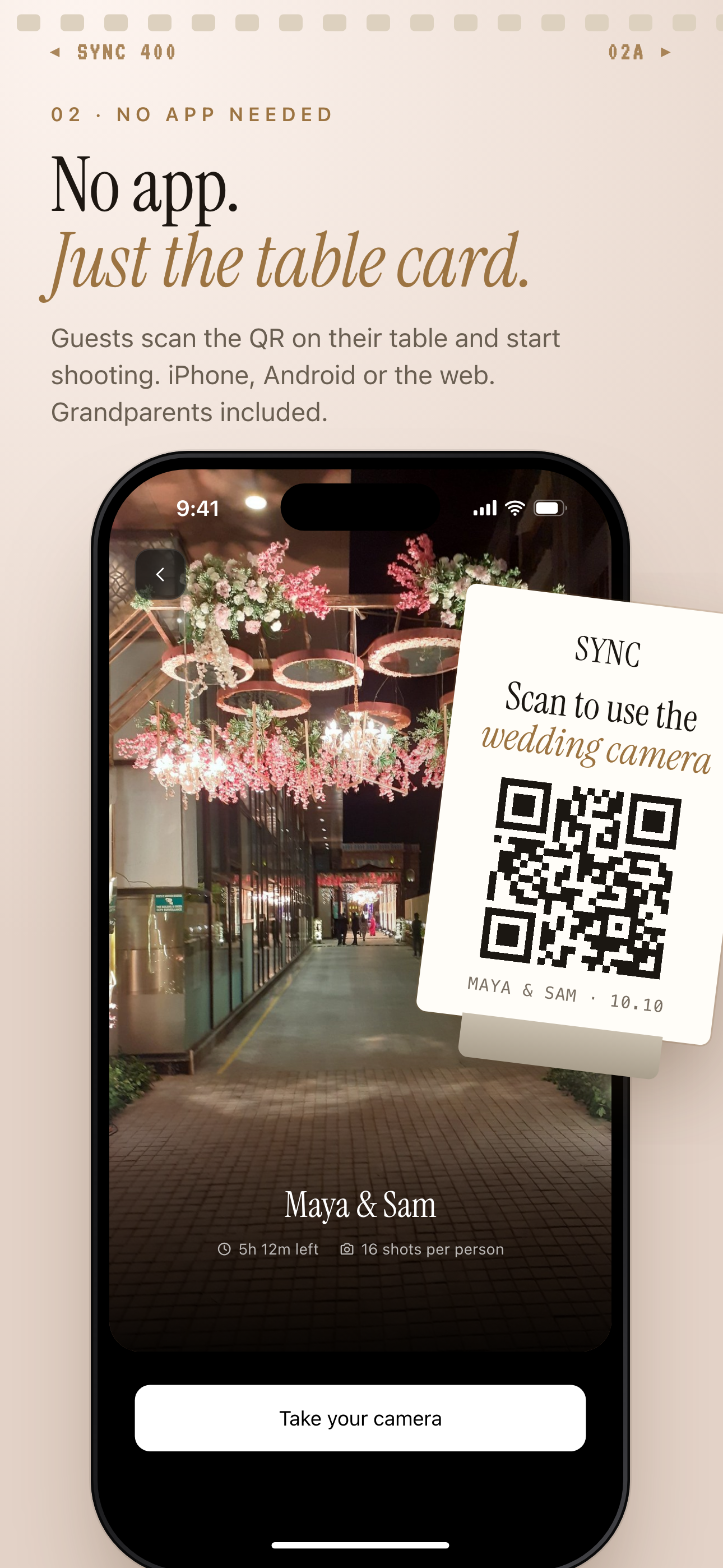 Put the QR code on table cards so guests can scan it the moment they want to share a photo.
Make the QR code impossible to miss on the day
Placement matters. Put the QR code on table centerpiece cards, printed menus, and a sign near the photo area or bar. Include a short prompt next to it — something like "Snap a photo? Share it here."
Physical placement puts the QR code in front of guests at the exact moment they want to share something, rather than asking them to remember a link from an email. Pre-send the join link before the wedding too — via your wedding website, the invitation, or a group chat. Guests who scan ahead of time are already connected when the event starts and more likely to upload when the moment comes.
Time your ask for maximum participation
A passive sign helps. A direct ask helps more.
Brief the MC or a close family member to make a short announcement early in the reception. Something simple works: "There's a private photo album for tonight — look for the QR card at your table. One scan and you're in." A spoken prompt at the right moment gets guests' attention in a way that table signage alone doesn't.
Consider designating a "photo captain" at each table — one confident guest who can quietly help less tech-comfortable relatives scan the code and upload without feeling put on the spot. The grandparents who took great photos at the ceremony are exactly the people who might hesitate at a QR code without a little support.
After the Wedding: Downloading and Organizing Everything
Downloading your full gallery in full resolution
SYNC lets the host download all uploaded photos in full resolution. That matters if you plan to print large-format photos, canvas prints, or a wedding book. Compressed preview files don't hold up at print size.
Download everything as soon as you're ready to look through it. Then back it up in at least two separate places before doing anything else with the files. A gallery that took an entire wedding day to fill is worth protecting with redundancy.
Filtering shots by guest so nothing gets lost
The filter-by-photographer feature lets you view every photo uploaded by a specific guest. This is useful when a friend or family member clearly had a great eye — you can pull up their entire contribution, credit them, or send a personal thank-you.
It also helps when you're hunting for a specific moment rather than scrolling through hundreds of mixed photos in a single undifferentiated feed.
Sharing the final album with family without another app
After the wedding, extended family will ask for photos. SYNC lets hosts share a read-only album link so everyone can browse the full collection without the couple re-uploading anything elsewhere. Find out how to share your wedding album with family for details on what guests and family members can and can't do with the link.
One last organizational note: keep your professional photographer's deliverables in a separate folder from guest uploads. Mixing them makes culling and editing harder later. Professional photos and guest contributions serve different purposes — organize them separately from the start.