You've planned the event. You've taken the photos. Now you want everyone — the Android users, the iPhone holdouts, the guest whose phone storage is perpetually at 1% — to share their shots in one place. So you suggest an app. Half the group installs it. The other half never gets around to it. The photo collection stays incomplete.
This is the most common failure mode in group photo sharing. And it's entirely avoidable.
This guide walks through why app installs kill participation, what a genuine no-download experience looks like, and how to set one up for your next event.
Why 'just download the app' kills group photo sharing
The drop-off problem: who actually installs a new app mid-event
Ask someone to install a new app at a wedding reception or birthday dinner and you're competing with food, conversation, and a full glass. Most people won't do it. They mean to. They just don't.
This isn't a theory. Anyone who has tried to coordinate group photo sharing at a live event has watched it happen: the host shares a link, a few enthusiastic guests install the app immediately, and the rest never follow through. The result is a shared album with photos from three people instead of thirty.
App install friction is the single biggest reason group photo collections end up incomplete. The event creates the moment; the install requirement kills the follow-through.
Mixed iOS and Android groups make it worse
Some tools only work on one platform. iCloud Shared Albums require an Apple device on both ends. Some third-party apps are better on one OS than the other. The moment you have a mixed group — which is almost every group — platform-specific tools start excluding people before a single photo is shared.
Beyond platform compatibility, there are three other friction points that cause people to abandon before they contribute:
- Low storage warnings. Many guests, especially at events where they've been taking lots of photos, hit storage limits mid-install.
- Login prompts. Creating an account to share photos at someone's birthday party is a hard sell.
- Permission pop-ups. Camera, storage, contacts — each new app asks for a stack of permissions. Each one is another decision point, another chance to tap "not now" and never come back.
The fix isn't a better app. It's removing the app entirely.
What 'no app download' actually means for guests
Browser-based vs. native app: what the guest experience looks like
When something is described as "no download required," it can mean different things. Some tools use that phrase but still direct guests to a Progressive Web App or a lightweight install. That's still a download, just rebranded.
A genuine no-download flow works entirely in the phone's browser. The guest opens a link or scans a QR code with their camera app. A webpage opens. They select photos and tap upload. Done. No app store. No account. No permissions dialog beyond what the browser already has.
Here's the exact sequence for a guest joining a sync.camera event:
- Guest scans the event QR code with their phone camera (or opens a share link).
- A browser page opens — no redirect to the App Store or Google Play.
- Guest selects photos from their camera roll and taps upload.
- Photos appear in the shared event gallery immediately.
No account creation. No login. No download.
QR codes and share links as the real zero-friction entry point
The QR code is the mechanic that makes this work at in-person events. Guests scan it with the phone camera they're already holding. The browser opens. That's the entire onboarding.
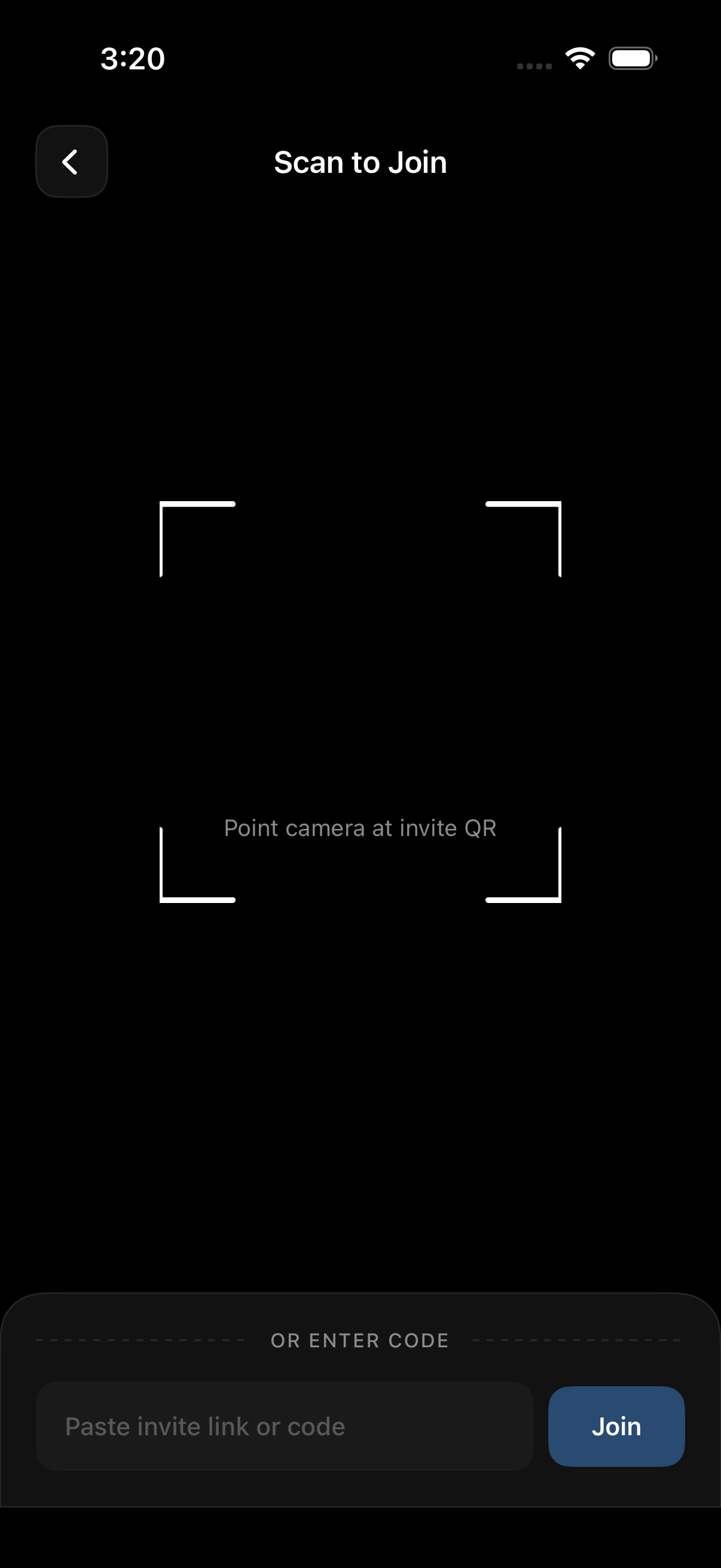 The guest scans once; the browser opens directly — no App Store visit, no account creation, just upload.
Share links serve the same function for remote or async groups. Drop the link in a group chat before or during the event. Guests click it from wherever they are, on whatever device they're using, and contribute directly.
The distinction between QR codes (in-person) and share links (remote or async) is worth knowing as you plan. Both eliminate the install requirement. Choose based on where your guests are when you want them to contribute.
How to set up a group photo share with sync.camera
Creating an event and inviting guests via QR or link
Setting up a shared event on sync.camera takes a few minutes. Here's how it works:
- Create an event. Go to sync.camera, sign in as the host (hosts need an account; guests don't), and create a new event. Give it a name and set the event dates.
- Get your QR code and share link. After creating the event, you'll see a QR code and a shareable URL. These are your two invite methods.
- Share with guests. At an in-person event, display the QR code on a table card, screen, or printed sign. For virtual or distributed groups, paste the share link into your group chat.
- Guests join and upload. Guests scan the QR or open the link. No download. No account. They select photos from their camera roll and upload directly in the browser.
Photos taken within the event's scheduled date range are eligible for upload — the date window matters, so set it to cover your event start and end dates.
Guest limits, free tiers, and when to upgrade for larger groups
Sync.camera's free tier supports up to 7 guests per event. For a small birthday dinner or a team trip with a tight group, that's often enough.
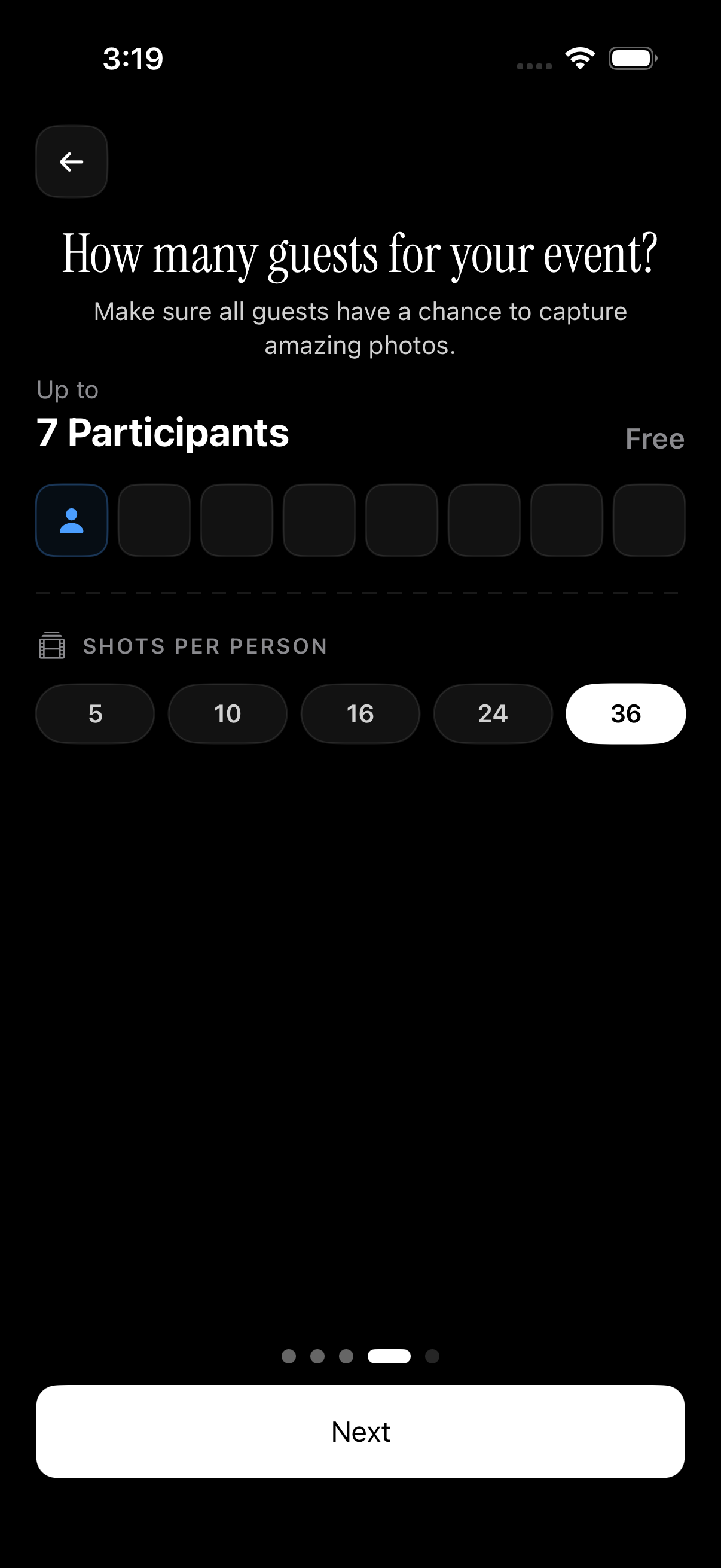 Free events cap at 7 guests — enough for small gatherings; paid plans unlock larger groups.
For a wedding, a company retreat, or any event where you want more than 7 people contributing, a paid plan removes that cap. There's no upload limit per guest on either tier — the guest count is the only restriction on the free plan.
If you're unsure whether your event needs a paid plan, count the number of people you actually want uploading photos, not just attending. For most small gatherings, the free tier covers it.
Viewing and organizing photos after everyone contributes
Browsing by photographer to find your own shots fast
Once guests upload, all photos collect in one event gallery. No manual merging. No texting people to AirDrop you their shots. No hunting through three different chat threads.
The gallery is organized automatically. But if you took fifty photos at a wedding and want to find yours without scrolling through everyone else's, sync.camera includes a filter-by-photographer option.
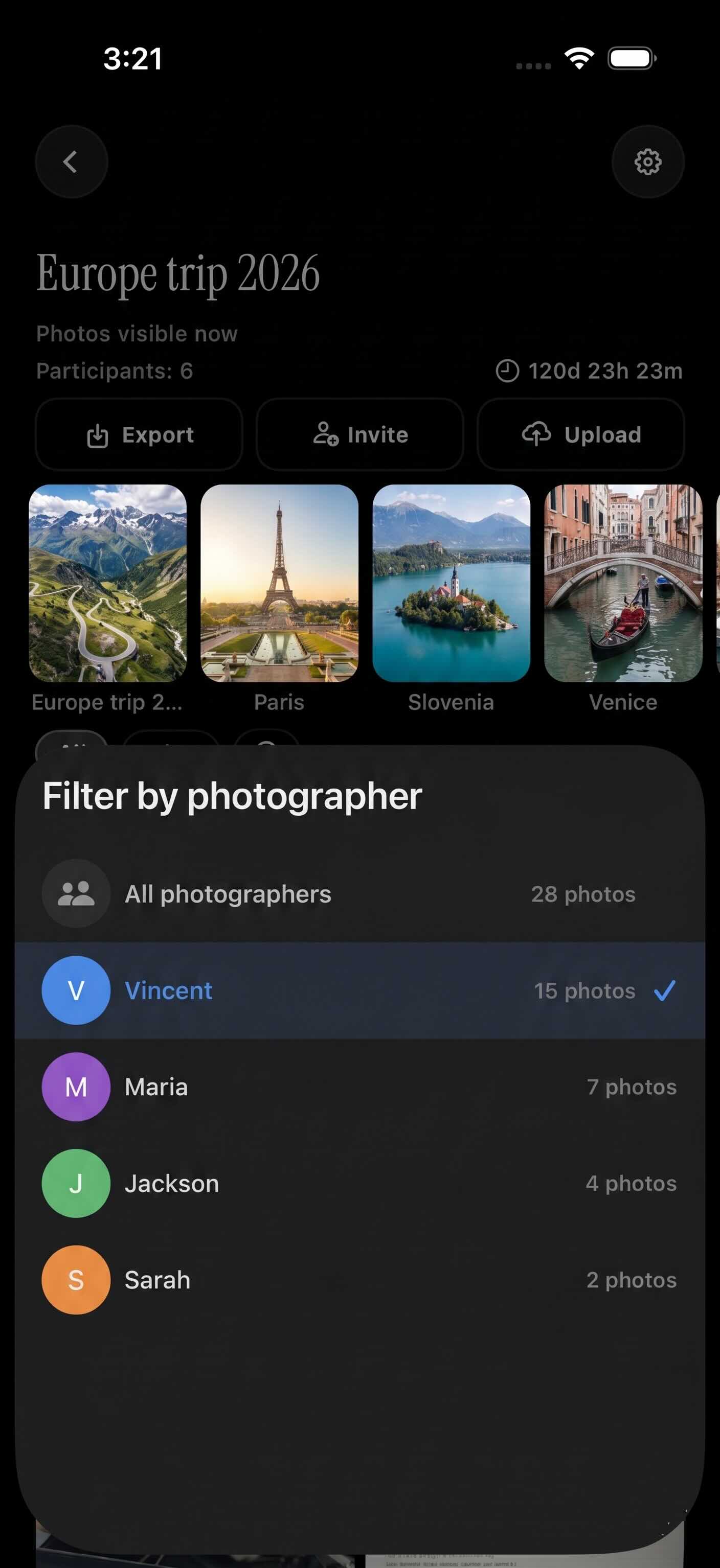 Filter by photographer to pull up only your own shots — useful when the gallery has contributions from a large group.
Each contributor's uploads are tagged to them. Select a name from the filter and see only their photos. It works the way a folder-per-person structure would, except guests didn't have to do anything special to make it happen.
Gallery reveal: hide photos until the event is over
For some events — surprise parties, weddings where you don't want guests seeing ceremony photos before the couple does — you want to control when the gallery becomes visible.
Sync.camera's gallery reveal feature lets you choose:
- Show photos during the event — guests can see contributions in real time as they upload.
- Reveal after the event ends — photos are hidden until the event's end date passes.
- Custom reveal delay — set a specific date and time for the gallery to unlock.
The host controls this setting. Guests upload regardless of the reveal setting; they just can't browse until the reveal window opens. This is useful for weddings where the couple wants to see photos first, or surprise parties where the guest of honor is in the group.
Alternatives for no-download group photo sharing (and their trade-offs)
Google Photos shared albums — great if everyone has a Google account
Google Photos shared albums are a solid option when everyone in the group already has a Google account. The host creates an album, shares a link, and contributors add photos directly.
The catch: contributors need a Google account to add photos. Viewing the album is frictionless; contributing is not. For a group with even one or two people without Google accounts — or people who'd rather not log into their account on the spot — this breaks the no-friction promise.
If your entire group is already in the Google ecosystem and you know they're comfortable using Google Photos, it works well. If you're not certain, you'll lose contributors.
iCloud Shared Albums — Apple-only limitation
iCloud Shared Albums work smoothly between Apple devices. The iCloud Shared Albums feature lets iOS and macOS users contribute and view without any extra setup — if they're already signed into iCloud.
The hard limitation: Android users can view shared albums via a web link, but contributing requires an Apple device. For mixed iOS/Android groups, this immediately excludes part of the group. It's the right tool for an all-Apple household; it's the wrong tool for any event with Android users.
WhatsApp and group chats — quality loss, no real gallery
Sending photos through WhatsApp, iMessage, or any group chat is fast and familiar. But there are two problems:
- Compression. WhatsApp compresses photos significantly when sent through the app. You lose resolution you can't recover. If anyone wants to print photos later, this matters.
- No gallery. A chat thread is not a gallery. Finding a specific photo, browsing by person, or downloading everything in one go is painful. The photos exist, but they're buried.
Group chats are fine for quick sharing in the moment. They're a poor archive.
When sync.camera is the better fit
Sync.camera's advantage is the combination of three things that none of the alternatives fully deliver together:
- No account required for guests — anyone with the QR code or link can contribute.
- Cross-platform — works on iOS, Android, or any phone with a browser.
- Organized gallery with host controls — filter by photographer, set reveal timing, manage what guests see.
The honest trade-off: sync.camera's free tier caps at 7 guests. For a large wedding photo sharing situation or a company event with dozens of contributors, you'll need a paid plan. That's worth knowing before you commit.
For small to mid-size events where guest participation is the priority, it's the most practical option in this category.
Tips for getting every guest to actually contribute
When to share the QR code for maximum participation
Timing matters more than tool choice. People contribute in the moment, not retroactively. If you share the QR code at the start of the event — not at the end, not in a follow-up email — you'll get dramatically more participation.
Practical ways to put the QR in front of guests at in-person events:
- Print it on a table card. Place one at each table at a dinner or reception. Guests see it while they're seated and have a natural pause to scan.
- Display it on a screen. A projector or TV near the entrance or bar area works well. Guests see it on the way in or during a lull.
- Hand it out at check-in. If your event has a registration or welcome table, include the QR on the welcome card.
For virtual or async groups, drop the share link in the group chat before the event ends — not after. "After" means people have moved on.
A quick verbal nudge that works
Even with a visible QR code, some guests assume sharing involves effort. A short, honest line from the host removes that assumption:
"Scan this and drop your photos — takes 30 seconds, no download, works on any phone."
That's it. No tech explanation. No pitch. Just a direct statement that it's easy and it works on their phone. The phrase "no download" does real work here — it addresses the objection before anyone raises it.
If your event gallery is set to reveal after the event ends, send one reminder before the upload window closes. Something like: "Gallery opens tomorrow — if you haven't added your photos yet, you've got until tonight." Guests who uploaded already feel included; guests who haven't get a clear deadline.
The goal is a complete collection, not a nudge campaign. One reminder at the right moment is usually enough.