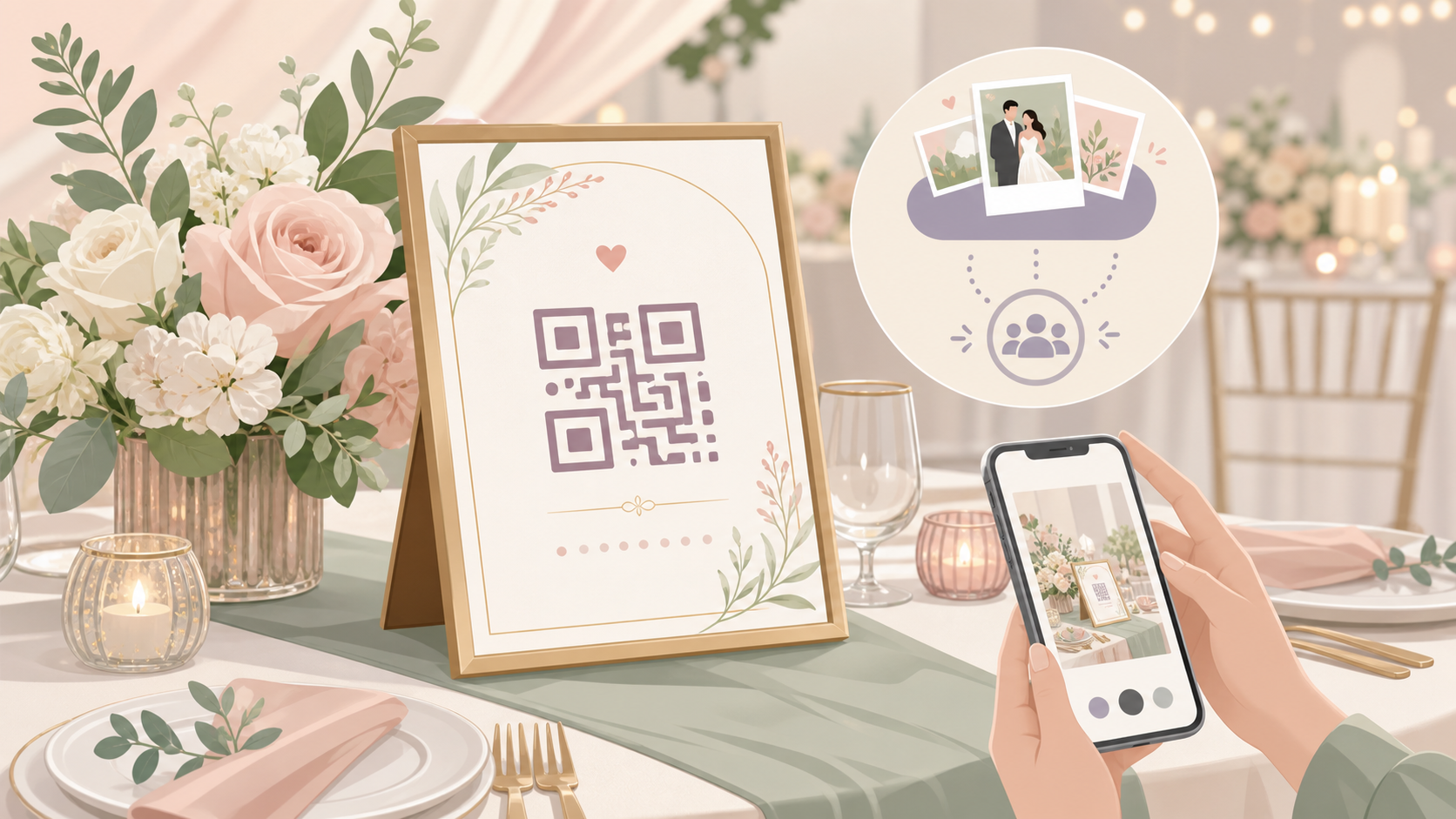
Most wedding photo guides stop at the template download. They hand you a pretty card and leave you to figure out the rest. Where does the QR code come from? What do guests actually see when they scan it? That's what this guide covers — a template you can edit today, plus a complete walkthrough of building the photo album behind the sign.
What Is a Wedding Photo Table Sign (and Why Guests Actually Use Them)
A wedding photo table sign is a small printed card — typically 4×6 or 5×7 inches — placed on each reception table. Its job is simple: tell guests how to share their photos with you during the event.
The difference between a table sign and a hashtag card
A hashtag card tells guests to post to Instagram or TikTok with a specific tag. Your photos end up scattered across social platforms, locked behind private accounts, subject to each platform's content moderation, and mixed in with unrelated posts that happen to use the same hashtag. Many guests also set their accounts to private, which means your hashtag gallery is incomplete from day one.
A photo-sharing sign routes everyone to one private album that you control. No social network required. No account the couple doesn't own. Guests of every age can participate without needing to be on any particular platform.
Why a physical sign beats a verbal announcement
A verbal announcement at the reception lasts about 90 seconds before it's forgotten. The DJ says it once; half the room is mid-conversation. A physical sign is always visible. A guest who missed the announcement sees it when they sit down, again when they reach for their drink, and again after dessert. A QR code on the sign removes all friction — no URL to type, no app name to remember.
What to Put on Your Wedding Photo Table Sign
The five elements every sign needs
Keep the design simple. Every effective wedding photo table sign includes five components:
- A short headline. Something like "Share your photos!" or "Capture the moment." Four words or fewer works best.
- The QR code. The most important element. Size it at least 1.5 inches square so guests can scan reliably from a seated distance.
- A one-line instruction. Tell guests exactly what happens when they scan. One sentence, nothing more.
- The couple's names or event name. Personalizes the sign and reassures guests they're in the right place.
- A URL or app name beneath the QR code. Some guests — particularly older relatives — prefer typing a link to scanning. A short URL ensures nobody is left out.
Wording examples you can copy-paste
Here's a direct option:
"Scan to share your photos with us — they go straight into our private wedding album."
No hashtag. No social network. No ambiguity about where the photos end up.
A few variations:
- "Add your photos to our wedding album — just scan the code."
- "Caught a great moment? Scan to add it to our album."
- "Your photos, our album — scan to share."
Avoid the word "upload." Guests of all ages will see this sign, and "upload" sounds technical. "Share" or "add" feels natural to everyone.
Font size matters: your headline should be at least 24pt. The QR code must be at least 1.5 inches square for reliable scanning from a seated position.
Free Wedding Photo Table Sign Templates You Can Edit
You don't need a designer or a paid subscription to make a professional-looking sign.
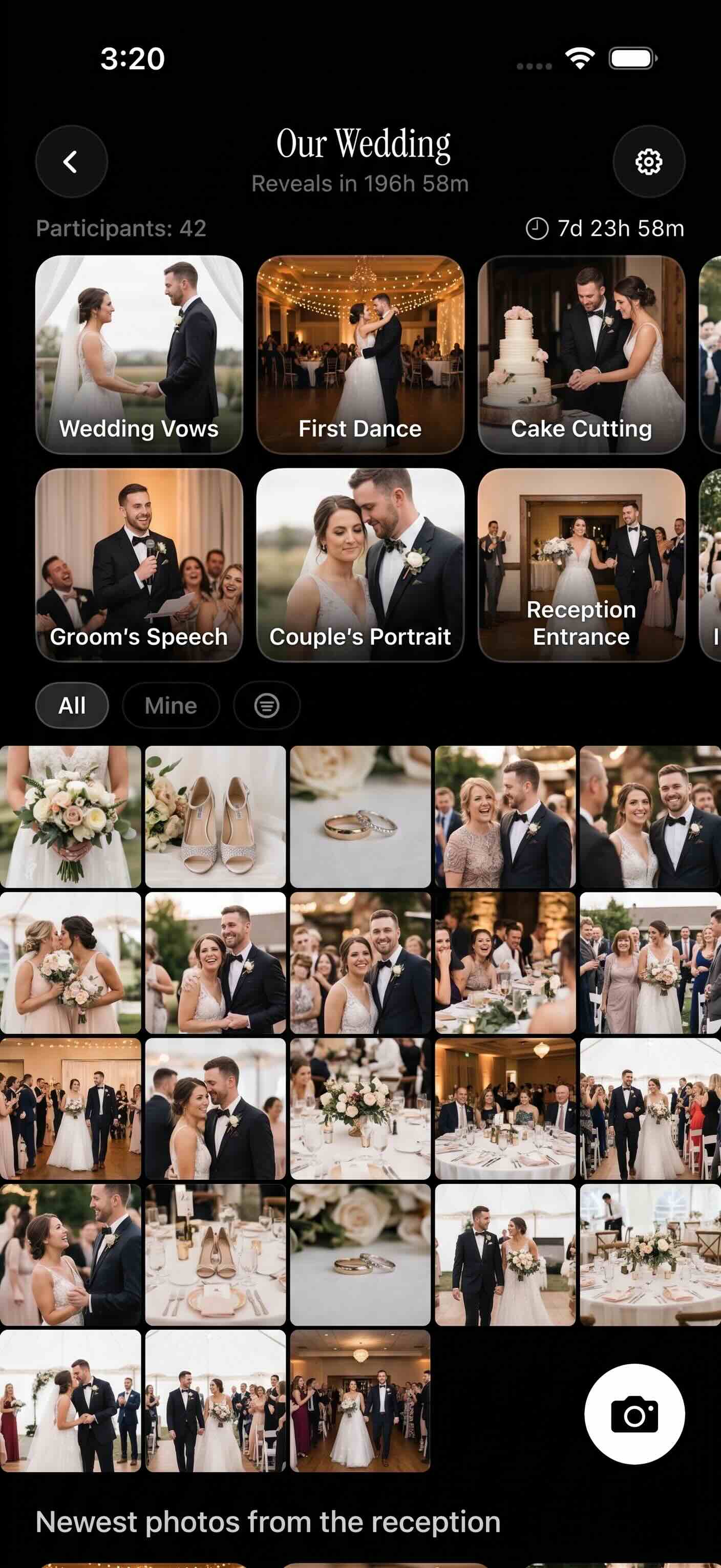 After guests scan, this is what they find — a live album filling with photos from the day as the event unfolds.
Canva: fastest option for most couples
Search "wedding photo sign" in Canva's template library. Canva's free tier is sufficient for a basic table card. No paid subscription needed.
Canva's free Brand Kit feature lets you save your wedding's hex color codes and fonts once. Every element you place stays consistent with your palette automatically — no manual color matching each time you edit.
Standard sizes and print specs
Three standard sizes for wedding 4×6 table cards and signs:
| Size | Best for |
|---|---|
| 4×6 in | Most common. Fits standard card holders and frames. |
| 5×7 in | More readable text at a distance. Good for larger tables. |
| A5 (148×210 mm) | Standard outside North America. |
Always export at 300 DPI. In Canva, choose PDF Print as the download format — not PNG or standard PDF — to preserve full print resolution. A PNG exported at screen resolution will look blurry when printed at card size.
How to swap in your own QR code
Once you have your real QR code (covered in the next section):
- Delete the placeholder QR image in the Canva template.
- Upload your actual QR code PNG.
- Resize it to at least 1.5 inches square.
- Confirm there's at least 4px of white margin around the QR border. Most QR code generators build this quiet zone in automatically — verify before sending to print.
How to Generate Your Wedding Photo-Sharing QR Code with SYNC
The most common mistake couples make is designing a beautiful table sign with a placeholder QR code — and forgetting to swap in a real one before printing. Generate your code first, then build the design around it.
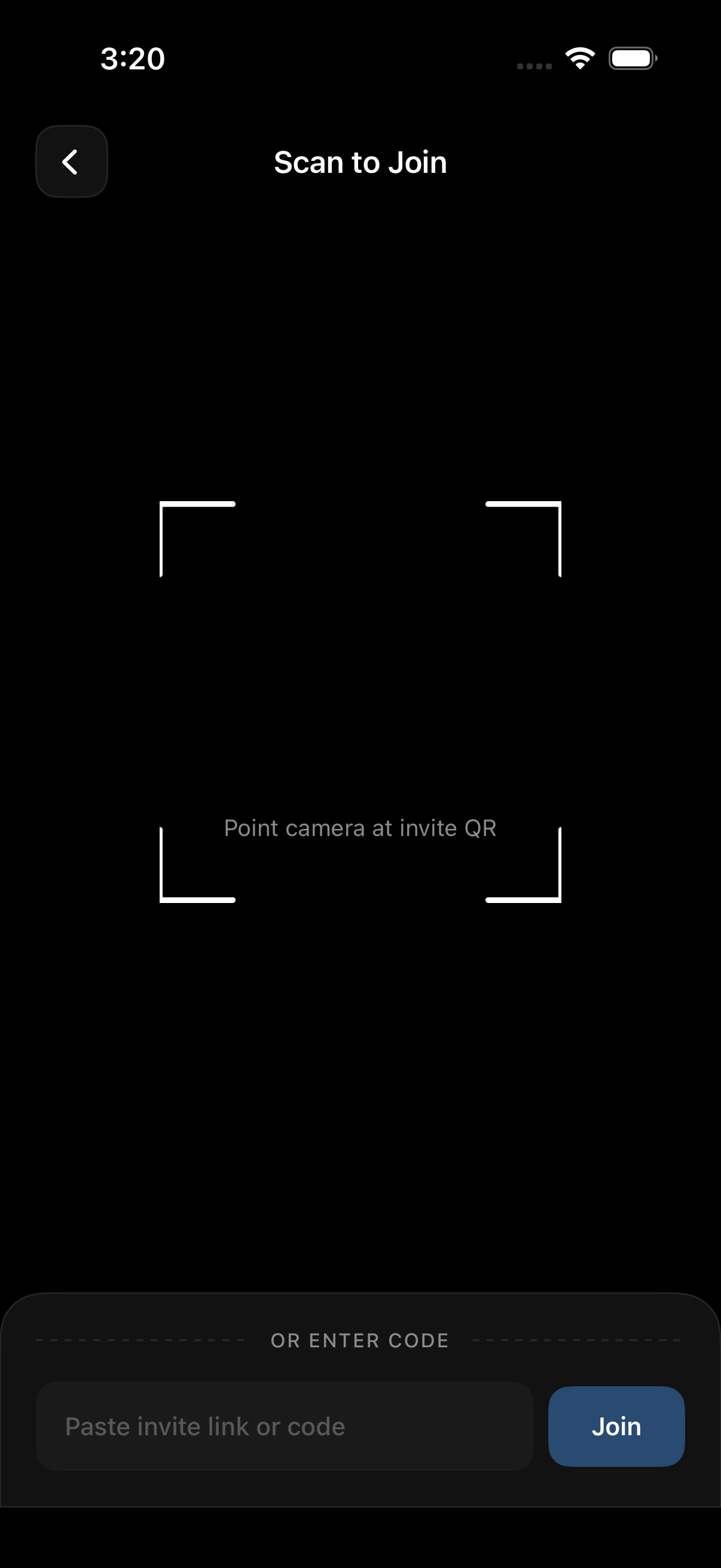 Guests point their phone camera at the code — no separate app download required on iOS, thanks to App Clip technology.
SYNC is a shared wedding album app built for this workflow. Here's the full setup.
Creating a SYNC event in minutes
Step 1. Download SYNC on iOS or Android and create a free account.
Step 2. Create a new event and give it a name. Something like "Emily & James — June 2026" works well. Guests see this name when they join.
Step 3. Set your event dates. SYNC only accepts photos taken within that window. Candid shots from the rehearsal dinner or the morning after won't accidentally appear in your wedding album.
Step 4. Tap "Invite guests" to get your shareable QR code. Save it as a PNG and paste it into your Canva template.
A note on pricing: up to 7 guests can join free. Unlimited uploads are available on the paid plan. For a standard wedding, you'll likely need the paid tier — but the free plan lets you test the full guest experience before your event.
What guests see when they scan
On iPhone, iOS uses an App Clip — a lightweight, browser-based experience. Guests can join your album and contribute photos without downloading the full SYNC app from the App Store. No account creation required on their end.
On Android, guests are taken to a web experience or the app download page.
Photos appear in your album the moment guests submit them. You can check the album on your own phone while mingling and keep the experience entirely private — nothing shows up on any public feed.
SYNC also includes a gallery reveal feature. You can hide the album from guests until after the reception ends. This prevents guests at one table from seeing real-time photos from other parts of the venue during the event. Toggle it off when you're ready to share the full collection.
Where to Place Signs at Your Wedding (and How Many to Print)
With your template ready and your QR code generated, the final question is placement.
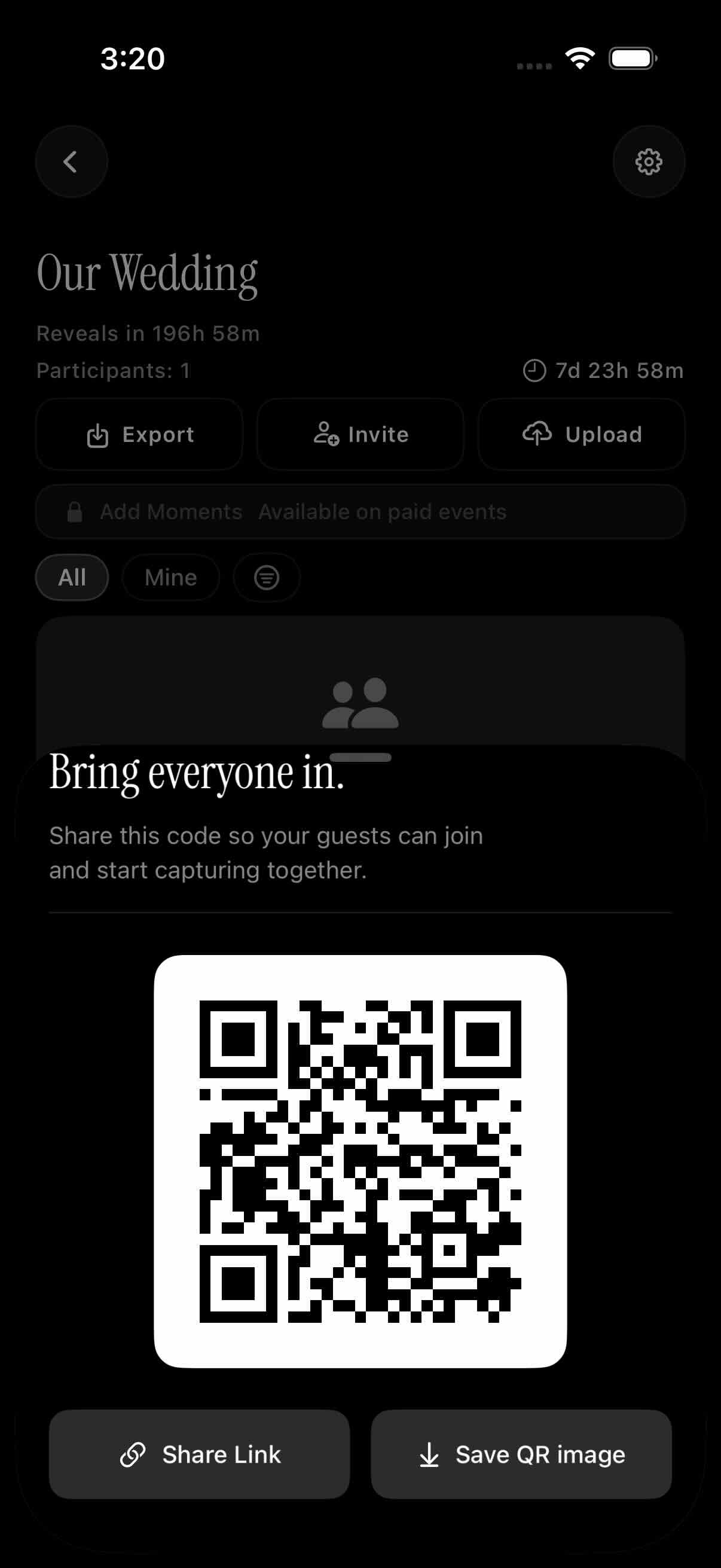 One QR code, printed on as many signs as you need — every table, every location, the same link.
Reception table placement rules
Print at least one sign per guest table. Guests won't walk to another table to scan a code. For 20 reception tables, that's a minimum of 20 signs.
For outdoor venues or low-light receptions, use 5×7 or A5 size. The larger format is easier to scan in imperfect conditions. Laminate signs or use rigid card holders — a sign that curls at the edges, tips over, or blows away outdoors won't get scanned.
Other high-traffic spots worth adding a sign
Four placements that consistently generate additional scans:
- The bar. Guests linger here with their phones already out. One of the highest-value placements in any venue.
- The photo booth. Guests are already in camera mode. A sign here catches them at exactly the right moment.
- The welcome table at the entrance. Sets the expectation from the moment guests arrive.
- The escort card table. High foot traffic, and guests are already stopped and engaged.
Order 15–20% more signs than your reception table count. This covers bar, booth, and entrance placements, plus spares for anything damaged or misplaced during setup. For 20 tables, order 24–25 signs total.
The template, the QR code, and the placement strategy work together as a system. Design your sign in Canva, generate your code in SYNC, and explore more QR code wedding ideas to extend photo sharing to other parts of your venue.