Why people reach for Google Drive when sharing event photos
The default choice: everyone already has it
Google Drive is the path of least resistance. No one needs to download a new app. No one needs to create an account they didn't already have. You share a folder link, guests click it, photos land in one place. It's the digital equivalent of a shared USB drive — and for a lot of people, that's exactly what they need.
That familiarity is real value. When you're coordinating a birthday party or a company retreat, reducing friction for guests matters. Drive removes the "which app do I need?" question before it gets asked.
What Drive does well for small, simple sharing
For post-event photo distribution — meaning you have the photos and you just want guests to download them — Drive is genuinely solid. Upload your files, share the link with view permissions, done. Guests can browse on any device, download what they want, and move on. No cost for the host up to 15 GB across your Google account. Familiar interface that works on mobile and desktop.
If your use case is "I took the photos, I want to share a read-only link" — Drive handles that cleanly. Most guides online stop here. But most events aren't that simple.
Where Google Drive breaks down for real event photo sharing
No upload window — guests can add photos forever
When you turn on upload permissions for a shared Drive folder, there is no concept of an event window. Guests can add photos the day of the event. They can also add photos six months later. There's no way to set a start date or an end date for contributions. Photos uploaded weeks after the fact land in the same folder, with no flag that they arrived late.
For a casual barbecue, that's probably fine. For a wedding or a corporate event where you want a clean, time-bounded album, it becomes a real problem.
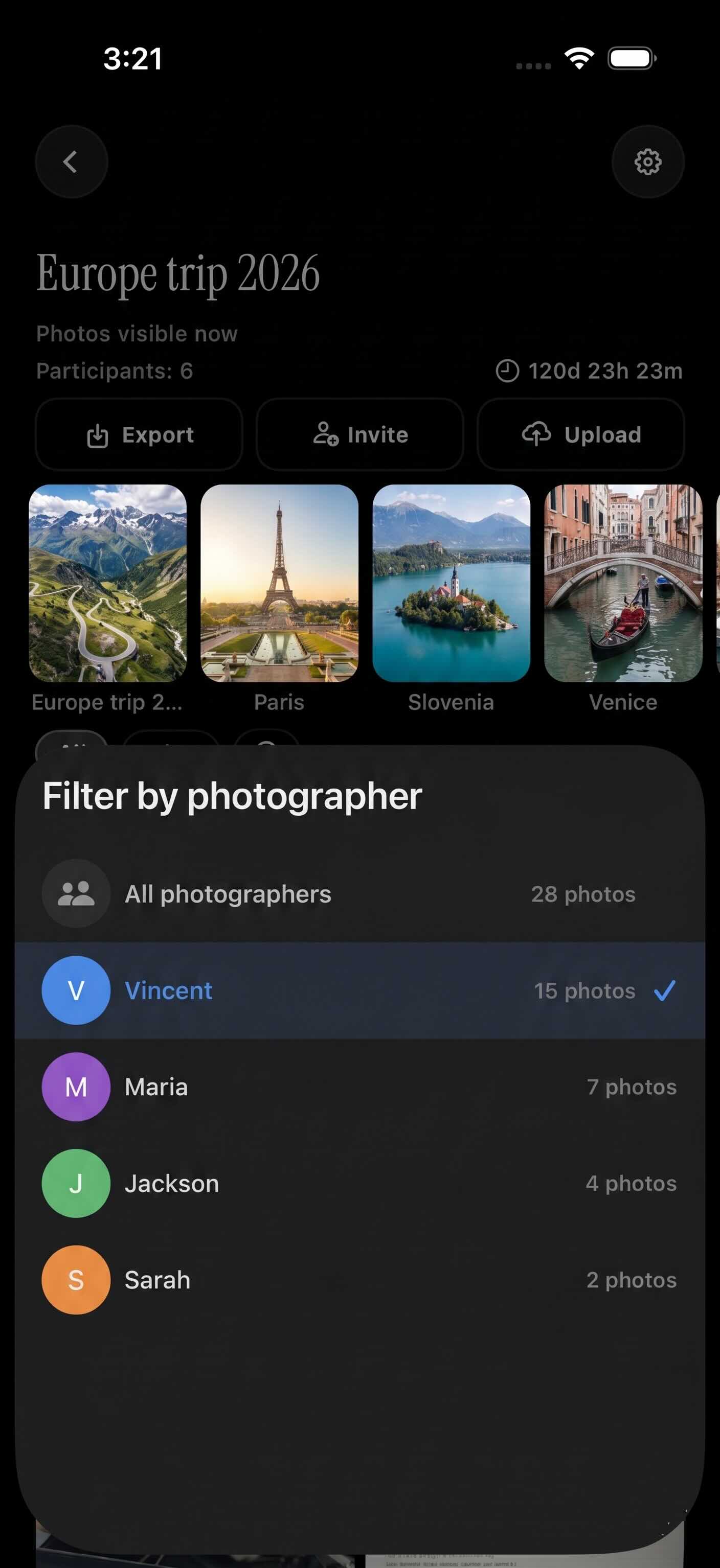 Filtering photos by individual guest is something Drive can't do — in a purpose-built gallery, each contributor's uploads are trackable and separable.
No guest identity or per-photographer filtering
Drive's shared folder is flat. When 30 guests upload photos, all those files land in a single view. There's no way to filter by who uploaded what. You can't say "show me only photos from the professional photographer" or "show me only what Aunt Maria uploaded." Every file looks the same, with a name and a timestamp.
If something problematic gets uploaded, tracing it back to a specific guest is manual and tedious — you're digging through file metadata rather than clicking a filter.
Folder chaos when 30 guests all upload at once
Multiple simultaneous uploads create naming collisions. Many phones generate filenames like IMG_4521.jpg. When five guests each upload a photo with that name, Drive handles it by creating duplicates — no automatic deduplication, no conflict resolution that keeps the originals clean. You end up with five files called IMG_4521.jpg, IMG_4521 (1).jpg, and so on.
High-resolution files also hit storage limits faster than most people expect. A single RAW photo from a modern smartphone can be 20–40 MB. Fifty guests uploading ten photos each is potentially 10–20 GB — larger than Drive's entire free tier. That 15 GB is shared across your Gmail, Google Docs, and everything else in your Google account.
Privacy and access control limits
Shared-link upload permissions in Drive are coarse. When you enable "anyone with the link can upload," you get broad access with limited controls underneath. There is no gallery reveal option — photos become visible to everyone with the link the moment they're uploaded. That means blurry shots, unflattering angles, and test uploads land in the album before you've reviewed anything.
If you want to review photos before guests see them, or if you want to reveal the gallery at a specific moment — say, at the end of a surprise party — Drive has no mechanism for that.
What to look for in an event photo-sharing tool
Upload window tied to the event date
A purpose-built event photo tool should let you define when guests can upload. Set the event start and end dates, and the window closes automatically. Photos uploaded outside that window are either rejected or held for review. The album reflects what actually happened at the event — not what people remembered to upload three weeks later.
This is the single biggest structural gap between Drive and tools built specifically for events.
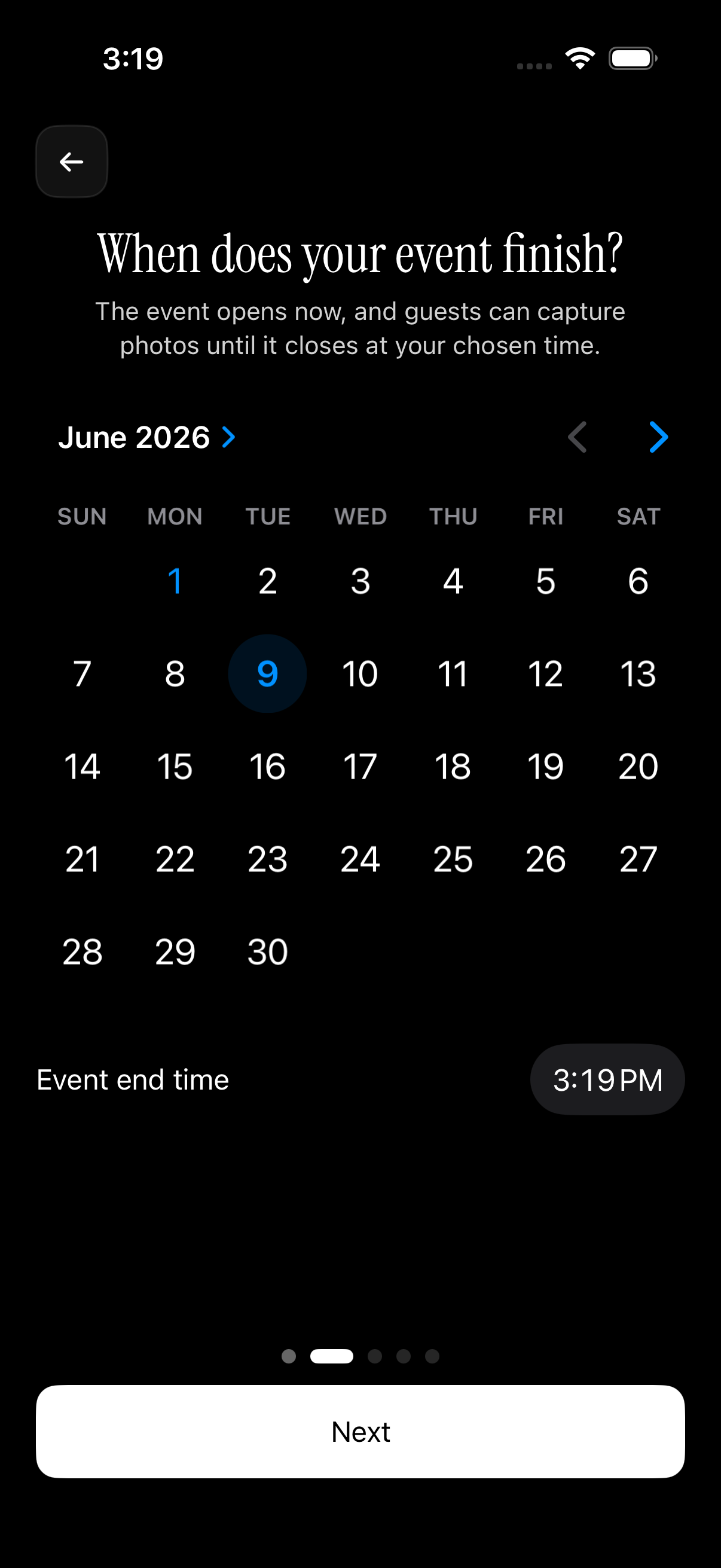 Setting a date-bounded upload window ensures the album stays clean — only photos from within the event period are accepted.
QR-code guest onboarding — no app required
The best guest experience is frictionless but not anonymous. A QR code at the venue lets guests join the event album with a single scan. No account creation required. No app install required for basic participation. Guests scan, upload, done.
This is better than a Drive link in two ways: it's faster to distribute at a venue (put the QR code on a table card), and it gives the host a per-guest identity without requiring guests to log into anything.
Gallery reveal control
Revealing the photo gallery at the right moment is a feature most hosts don't know they want until they wish they had it. A live event gallery — photos appearing as they're uploaded — creates energy during the event. Holding photos until after the event ends gives the host a review window. A custom delay lets you set a reveal time that matches your event's flow.
Drive offers none of these modes. Everything is visible immediately.
Guest count and storage tiers
For small gatherings, a free tier should cover the basics without requiring a credit card. For larger events, the pricing model matters: are you paying per guest, per photo, or per GB? A flat unlimited tier for paid events is more predictable than a per-photo or per-storage model when you don't know in advance how many photos guests will take.
How sync.camera works as a Google Drive alternative for events
Creating an event and setting the schedule
sync.camera is built specifically for collaborative event photo albums. It's not a general cloud storage tool. The entire product is designed around the lifecycle of an event: before, during, and after.
When you create an event, you set start and end dates. Those dates define the upload window. Only photos taken within that window are accepted into the album. Late uploads don't pollute the timeline. The album stays coherent.
The free tier supports up to 7 guests with no credit card required. Paid events unlock unlimited guests and unlimited photo uploads.
Inviting guests via QR code
Guests join by scanning a QR code — no download required to upload photos on mobile. The host generates the QR code inside the app, and it's ready to print, display on a screen, or share digitally.
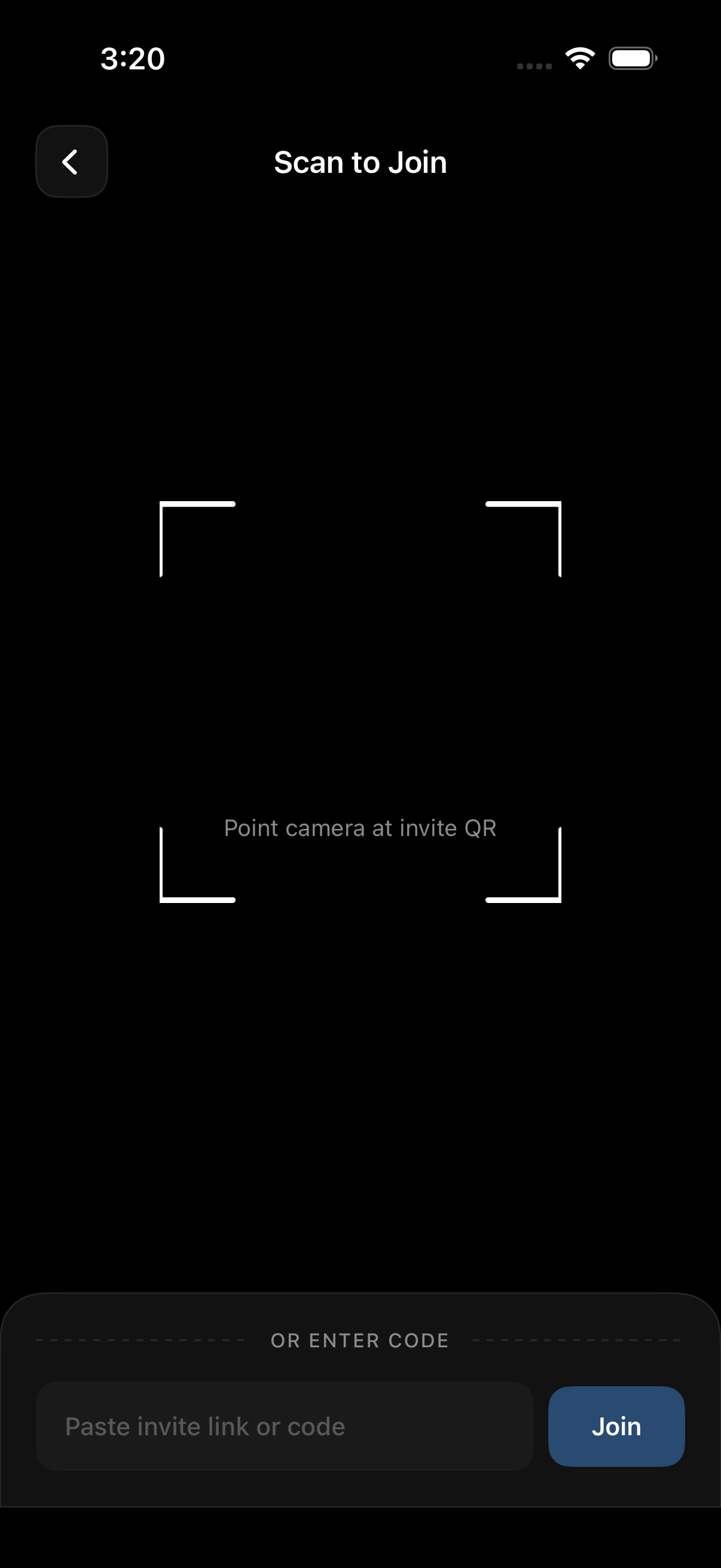 The QR scan flow replaces the clunky "share a Drive link" step — guests join the album in seconds, and the host knows exactly who contributed what.
Because each guest joins through the QR flow, the host gets per-guest identity automatically. You can filter the gallery by contributor. You can see who uploaded what. If something needs to come down, you know who uploaded it.
This is a direct contrast to QR code photo sharing for events, where guest identity is built into the join flow rather than an afterthought.
Controlling when the gallery goes live
sync.camera offers three gallery reveal modes: show photos live during the event as they're uploaded, hold all photos until the event ends, or release the gallery after a custom delay the host sets. The host picks the mode when creating the event and can adjust it before the window opens.
For a surprise party, hold the gallery until after the reveal. For a wedding reception, show photos live on a display screen as guests upload them. For a corporate event where you want to review before sharing, use the post-event release mode. The choice is yours — not the platform's default.
Google Drive vs. sync.camera: a quick comparison
Feature-by-feature table
| Feature | Google Drive | sync.camera |
|---|---|---|
| Upload window lock | No — folder stays open indefinitely | Yes — defined by event start/end dates |
| Guest identity & filtering | No — all uploads are flat | Yes — filter gallery by contributor |
| Gallery reveal control | No — photos visible immediately on upload | Yes — live, post-event, or custom delay |
| QR code invite | No — share a link manually | Yes — scan to join, no account needed |
| Free guest limit | No guest concept — anyone with link | Up to 7 guests free, no credit card |
| Storage model | 15 GB shared across your Google account | Unlimited on paid tier; event-scoped free tier |
When Drive is still the right call
Be honest about this: Drive wins in one clear scenario. If you already have the photos, you just want guests to download them, and you don't need upload collaboration — Drive is fine. Share a read-only folder link, point guests to it, done. There's no reason to add another tool for a use case Drive handles cleanly.
Drive also works if your guests are all in your Google ecosystem and you're comfortable with the flat folder structure. For a small family trip where three people are sharing photos informally, Drive is a perfectly reasonable choice.
sync.camera wins when you need collaborative uploads from multiple guests, controlled gallery reveals, time-bounded albums, or a clean per-guest view. Those are event-specific needs that general cloud storage wasn't designed for. See also: sync.camera vs. Google Photos for a deeper comparison on the photography-specific feature set.
Getting started: share event photos with sync.camera in minutes
Step-by-step: create your first event
- Download the sync.camera app from the App Store or Google Play
- Create an account and tap New Event
- Set your event name, start date, and end date — this defines your upload window
- Set your guest limit (up to 7 guests on the free tier)
- Choose your gallery reveal mode: live, post-event, or custom delay
- Tap Create — your QR code is ready
No credit card required for events up to 7 guests. The free tier covers most casual gatherings: birthday dinners, family reunions, small weddings.
Share the QR code with guests
Display the QR code at your venue — print it on a table card, show it on a screen, or send it digitally before the event. Guests scan once on mobile and can start uploading immediately. No account creation required for guests. No app install required for basic participation.
For wedding photo sharing with guests, the QR code flow removes the coordination overhead of managing a guest list manually. Everyone gets in, the album stays organized, and the host controls the reveal.
Create a free event before your next gathering — it takes under five minutes to set up, and your guests will thank you for the organized album on the other side.
Sources: Google Drive storage and sharing limits — support.google.com/drive; Google Drive sharing permissions overview — support.google.com/drive.