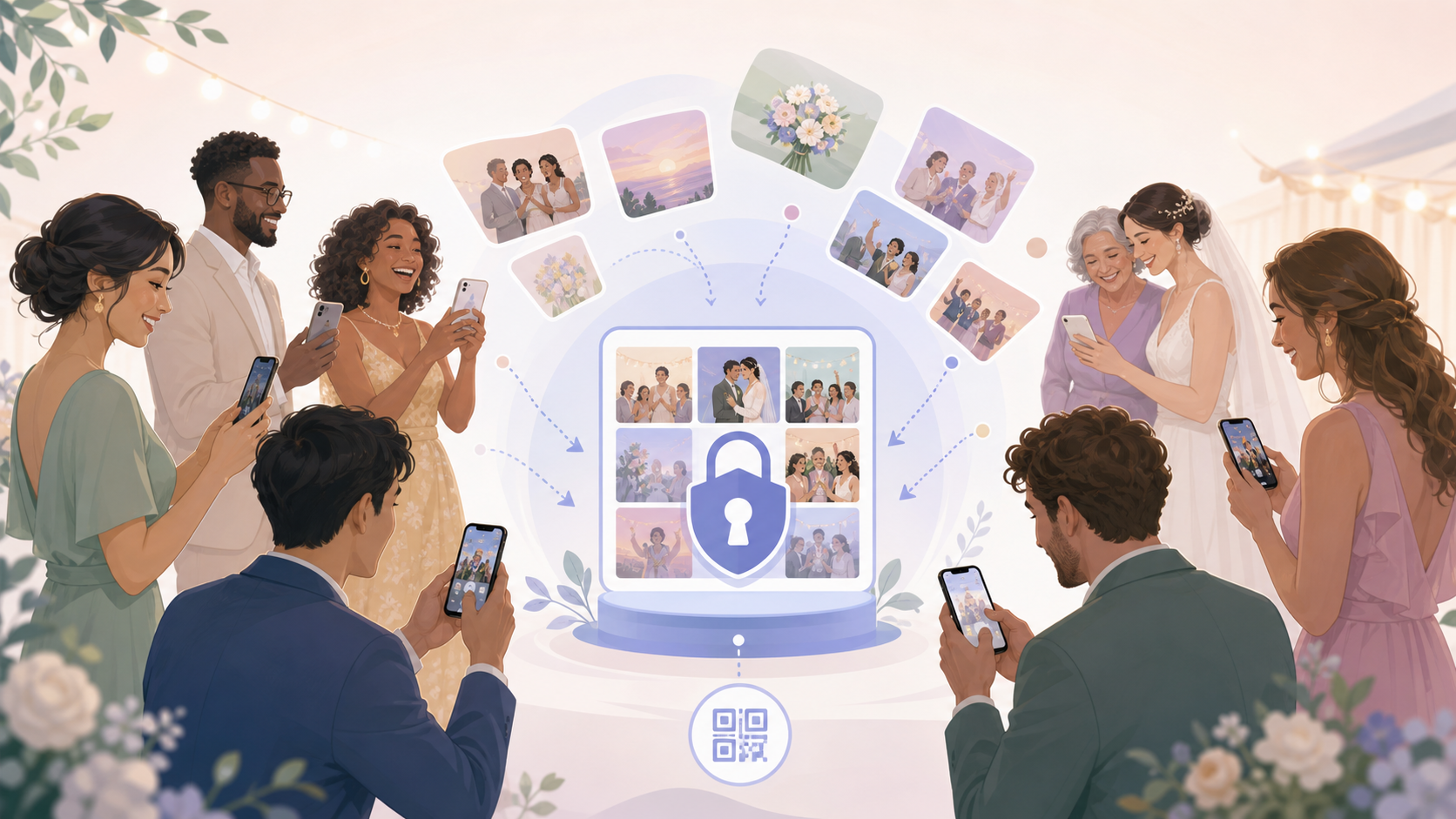
After a wedding, birthday, or reunion, photos scatter. Some guests text a few shots. Others mean to share but never do. You end up with 80 photos when 400 were taken.
The fix exists. Purpose-built event photo sharing apps collect every guest's shots automatically, in one place, without asking anyone to create an account. But not all apps work the same way — and privacy differences matter more than most guides admit.
This guide covers only apps built for events. General cloud storage tools appear in the comparison for context, but this is not a list of workarounds.
What Makes an App an 'Event Photo Sharing App'
Guest upload without an account
The single most important feature: guests should be able to upload photos without signing up for anything. If a guest needs to create a Google account, verify an email, or install a specific app before uploading, many of them will not bother.
Purpose-built event apps solve this with a shareable link or QR code. A guest scans the code, picks their photos, and uploads. Done. No password, no profile, no friction.
This is the clearest line between event-specific apps and general cloud storage. Google Photos shared albums, for example, require the uploader to have a Google account. iCloud Shared Albums are even more restricted — guests need an Apple ID and must be invited individually.
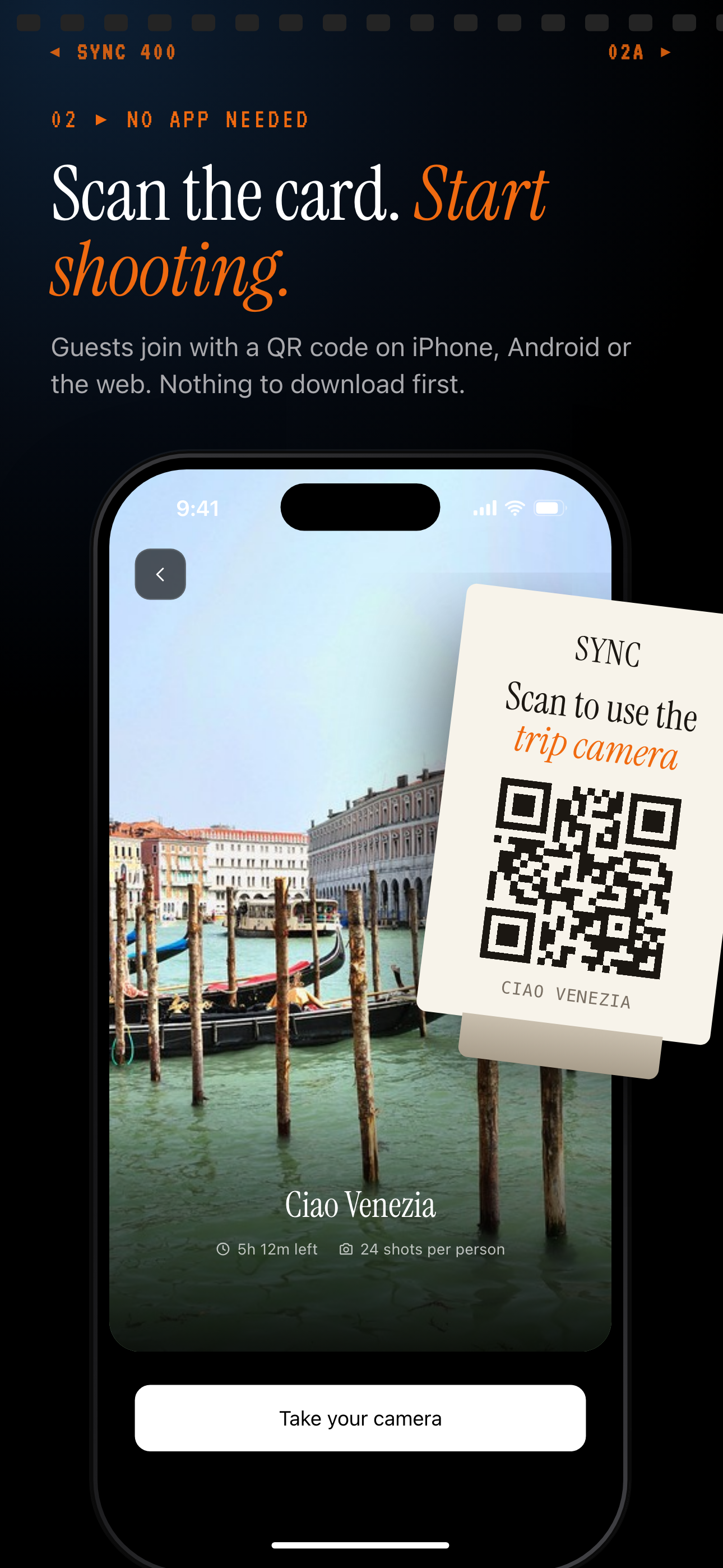
Guests join a SYNC event by scanning its QR code, with no account to create first.
Auto-collection vs. manual sharing
Manual sharing means guests pick photos and send them. Coverage is always incomplete. People forget, feel self-conscious about certain shots, or simply run out of time.
Auto-collection works differently. Once a guest joins the event album — by scanning a QR code or tapping a link — their phone uploads photos from that event automatically in the background. The host gets everything, including candid shots the guest might not have thought to share.
For events where completeness matters (weddings, milestone birthdays, corporate retreats), auto-collection is the better model. For casual gatherings where guests prefer to curate, manual share is fine.
Privacy controls: who sees what
Two main models exist.
Open link access: anyone who has the URL can view and upload. Convenient for large events where chasing down every guest would be impractical. The risk is obvious: if the link leaks — forwarded accidentally, posted in a group chat — strangers can access the album.
Approved-guest-only access: guests must be invited by email, phone number, or a passcode before they can view or upload. Better for private events. Slightly more setup work for the host.
QR codes have become the standard delivery mechanism at venues. Hosts print the QR on table cards, signage, or programmes. Guests scan on arrival. The code routes to the album link and handles the invite step automatically. Most purpose-built event apps support QR code generation as part of event setup — this is now a standard feature in this category.
How to Choose the Right App for Your Event
Event size and guest tech-comfort
Event size shapes your requirements more than anything else.
Under 50 guests: almost any app will handle the volume. Focus on ease of use — pick the option with the simplest guest-side flow.
50–500 guests: upload volume and simultaneous connections matter. Check whether the free tier caps the number of uploads or guests. At this scale, auto-collection is worth the setup time.
500+ guests: you need an app that explicitly supports high-volume events. Moderation tools become important — you will receive duplicates and low-quality shots. Budget for a paid tier; free plans rarely scale here.
Guest tech-comfort is a real variable. At a corporate event the audience may be comfortable with any flow. At a family reunion with guests aged 7 to 85, the fewer steps, the better.
Storage limits and pricing
Free tiers come with limits. Common restrictions include a cap on total photo count, a cap on total storage (often 1–5 GB), or a time limit after which the album expires.
Some apps apply watermarks to photos downloaded on free tiers. Check the pricing page of any app you are considering before committing — download restrictions are the most common source of frustration in app store reviews.
Links to official pricing pages are included in the comparison table below.
Download and ownership rights
This is the question most guides skip. Who owns the photos after the event?
Read the terms of service before you upload. Specifically, look for the licence grant clause. Some platforms take a broad licence to use uploaded content for marketing or model training unless you opt out. Others explicitly state guests and hosts retain all rights and the platform takes no licence beyond what is needed to provide the service.
For a wedding or private family event, this matters. For a corporate event, it matters even more — brand assets and employee photos should not appear in a third-party's promotional material.
The privacy-forward default: choose a platform that grants only a minimal operational licence, and confirm deletion rights so you can remove photos after the event closes.
Platform compatibility: iOS, Android, web
A mixed-device event — which is every real-world event — requires an app that works on iOS, Android, and ideally a browser upload path for guests without smartphones or with older devices.
Apps that restrict uploads to a proprietary iOS-only or Android-only app will frustrate a subset of your guests. Browser-based upload is the safest fallback. Confirm cross-platform support before committing.
Top Event Photo Sharing Apps Compared
Apps built specifically for events
Momento (momentoapp.com) is a purpose-built event photo app. It supports guest upload via shareable link with no account required, and hosts can create branded event pages. It is used for weddings, corporate events, and parties. Check momentoapp.com/pricing for current storage limits and tier details — these change and secondhand summaries go stale quickly.
WedPics relaunched under Zola (zola.com) and is positioned for weddings specifically. It integrates with Zola's broader wedding planning tools. Guest upload is supported. Check zola.com for current feature and pricing details.
Sync.camera (sync.camera) takes an auto-collection approach. Guests join via QR code or link — no account required. Photos upload automatically in the background from guests' phones during the event. The album is event-scoped: nothing outside the event leaks in, and the host controls access end-to-end. More on sync.camera below.
General apps people repurpose for events
Google Photos shared albums require every contributor to have a Google account. The host cannot moderate contributions before they appear. There is no event-scoped access — contributors can potentially browse the host's other albums if permissions are not set carefully. For a private event, the privacy exposure is real.
iCloud Shared Albums are Apple-only on the upload side. Android guests cannot contribute. Invitations must be sent manually to each person. There is no QR code flow. For a mixed-device event, this is a hard blocker.
Dropbox shared folders have no concept of events, no guest upload link, and require a Dropbox account to contribute. Useful for sharing photos after the fact; not designed for live guest collection.
The pattern across all three general tools is the same: they were built for personal storage and retrofitted for sharing. Event-specific needs — frictionless guest upload, moderation, event-scoped expiry — are bolted on at best and absent at worst.
Sync.camera: auto-collection with privacy first
Sync.camera was built specifically around the auto-collection model. The host creates an event, sets the privacy level (open link or approved guests), and generates a QR code. Guests scan, grant camera permission once, and their photos from the event upload automatically. The host sees every shot in a single album.
In practice, the difference in coverage is significant. A 200-person wedding using sync.camera collected over 1,400 photos — compared to roughly 80 photos the couple had manually received via WhatsApp before setting up the album. The gap reflects the difference between auto-collection and waiting for guests to remember to share.
No guest account is required at any point. Photos are event-scoped — guests cannot see anything outside the album they joined. The host can review, remove, and download originals before sharing the final collection.
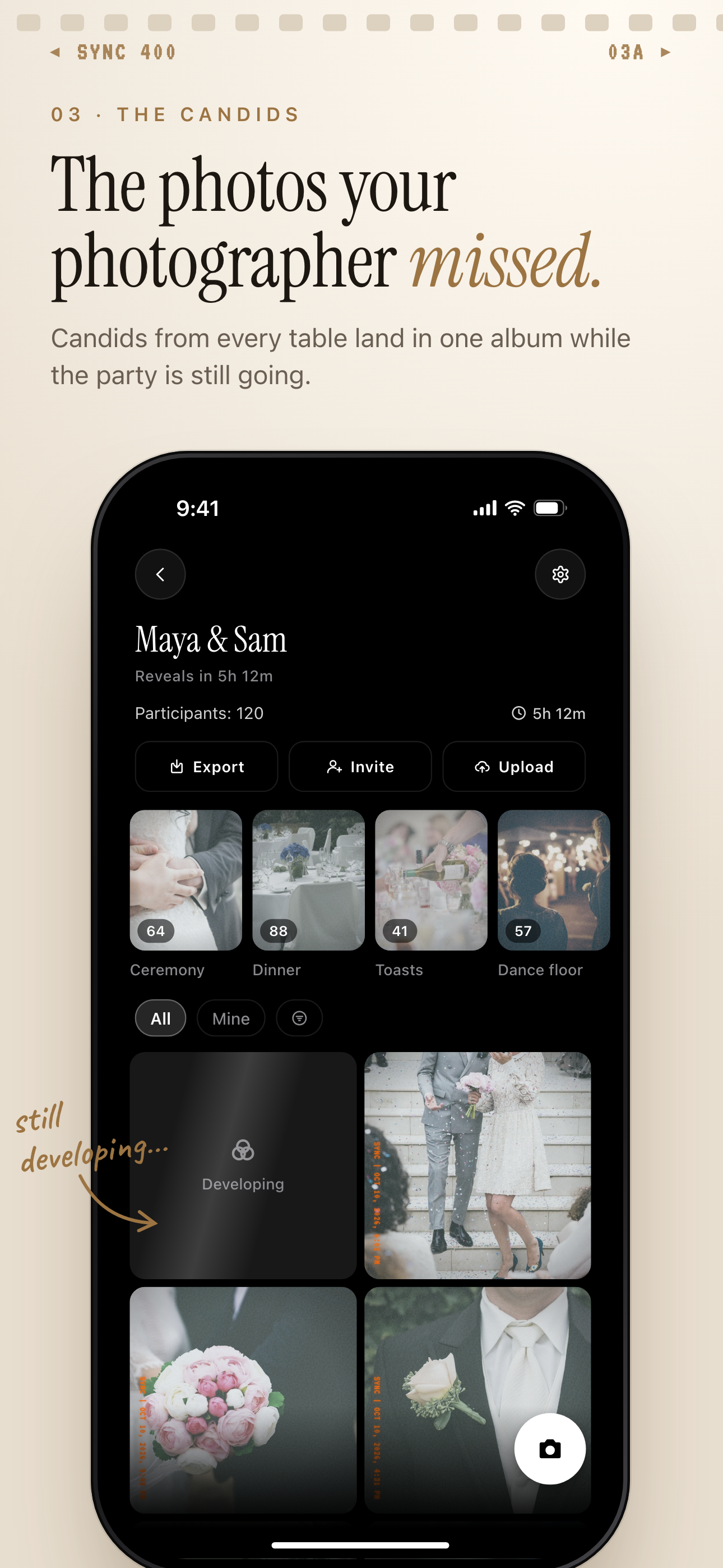
Every guest's shots land in one shared event album that the host can browse.
Comparison table
| App | Guest account needed | Auto-upload | Storage limit (free) | Photo ownership | Platform support |
|---|---|---|---|---|---|
| Sync.camera | No | Yes | See sync.camera pricing | Host and guests retain rights; minimal operational licence | iOS, Android, web |
| Momento | No | No (manual share) | See momentoapp.com | See terms of service | iOS, Android, web |
| WedPics / Zola | No (verify: confirm current guest flow) | No | See zola.com | See terms of service | iOS, Android, web |
| Google Photos | Yes (Google account) | Optional (Backup on) | 15 GB shared with Drive | Google licence applies; see Google ToS | iOS, Android, web |
| iCloud Shared Albums | Yes (Apple ID) | No | 5 GB iCloud limit applies | User retains rights | iOS only for uploads |
| Dropbox | Yes | No | 2 GB free plan | User retains rights | iOS, Android, web |
Storage limits and pricing change. Always verify on the vendor's official pricing page before committing.
Setting Up Your Event Album: A Step-by-Step Walkthrough
Creating the event and generating the share link
The host-side flow for a purpose-built event app follows roughly the same steps regardless of which app you choose:
- Create the event. Name it, set the date, and add any branding (cover photo, event description).
- Set the privacy level. Open link or approved guests only. For private events, approved guests is the safer default.
- Generate the QR code or shareable link. This is the single artefact you will distribute to guests.
- Optionally set an expiry date. Some apps allow you to close uploads after the event ends. Enable this.
- Share with guests (see below).
- Review uploads during and after the event.
- Download originals before deleting or letting the album expire.
For an end-to-end walkthrough of the sync.camera host dashboard, see how sync.camera works.
Distributing the link to guests (QR code, text, email)
At the venue, QR codes are the most reliable distribution method. Practical placements:
- Table cards: print the QR at the bottom of table place cards or menus.
- Welcome signage: a single large-format sign at the entrance captures early arrivals.
- Event programme: include it in printed programmes for conferences or ceremonies.
- WhatsApp group or group SMS: send the link before the event so guests can join from home. This also means late-arriving photos from people who left early still upload.
- Invitation footer: for planned events, include the album link in the digital invite.
For a full guide to event QR code setup, see event QR code guide.
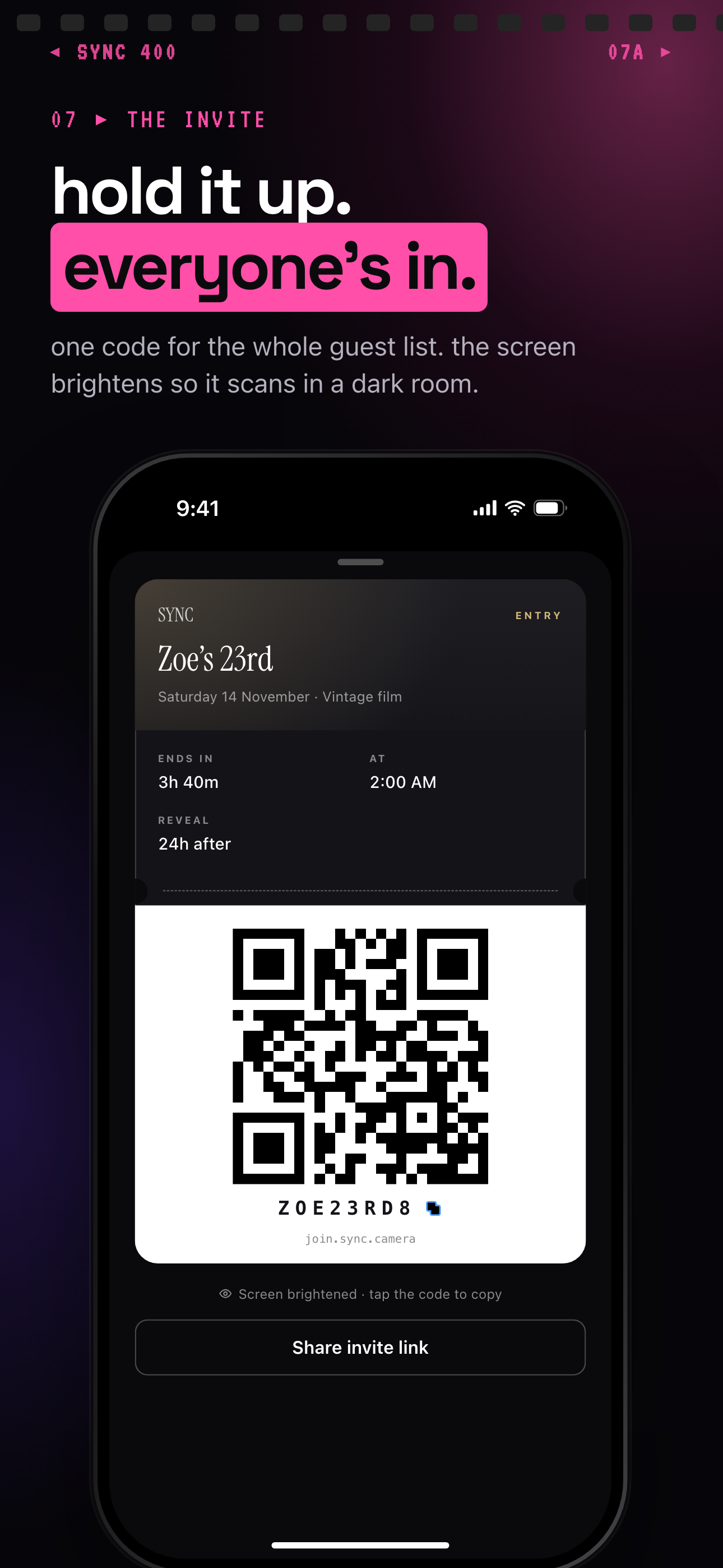
One invite pass carries the event's QR code, its invite code and a shareable link.
Moderating and downloading after the event
Before you download and distribute the album, review it. This step protects guests and improves the final collection.
Look for:
- Duplicates: auto-collection captures everything, including burst shots and near-identical frames.
- Blurry or unintended photos: screenshots, accidental shots, and low-quality images.
- Photos guests may not want distributed: this is the privacy-forward obligation of the host. If someone appeared in a photo they would prefer not shared, remove it before downloading.
Once reviewed, download originals — not compressed previews. Most apps offer a full-resolution download option; use it. Store a local backup immediately. Do not rely on the app's servers as your only copy.
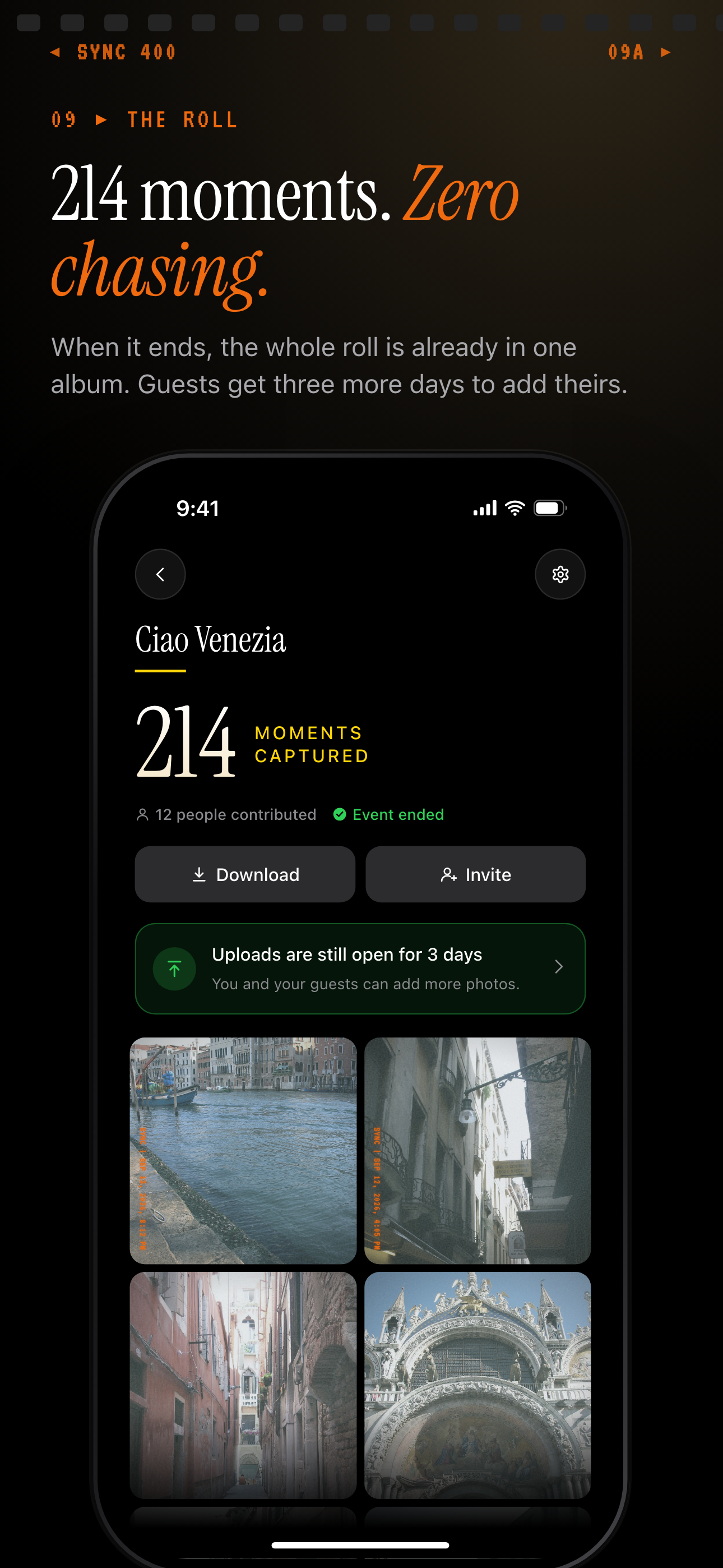
When the event ends, the host can download the album from the event screen.
Privacy and Data: What You Should Know Before Sharing
Where photos are stored and for how long
Every photo you upload to a third-party app is stored on that company's servers. This is true of every app in this guide. There is no exception.
Before using any platform, read the privacy policy for:
- Data retention: how long are photos stored, and does that change on a free vs. paid plan?
- Sub-processors: which third-party services (cloud hosts, CDN providers) handle your data?
- Deletion rights: can you delete the album and all underlying data, or does the platform retain copies?
Free-tier storage expiry is common. Many apps delete event albums after a period — commonly between 30 and 90 days on free tiers — unless the host upgrades or downloads first. Always check the specific platform's current policy; expiry windows vary and change with plan updates.
Sync.camera's data handling and deletion rights are documented at sync.camera's guest upload privacy policy.
Who can access the link
Open links are convenient but carry real risk. If a guest forwards the link to someone outside the event — intentionally or accidentally — that person can view every photo in the album. For a wedding or private family gathering, that is a meaningful privacy exposure.
Recommendation: for private events, use access-controlled albums (invite-only or passcode protected). Save open links for lower-stakes gatherings where exposure risk is minimal.
Enable link expiry after the event closes. An old link that still works six months later is a liability. Most purpose-built apps support link expiry or manual album closure. Use it.
GDPR and regional privacy considerations
Photographs are personal data. In the EU and UK, photographs that can identify an individual may qualify as biometric data under GDPR and the UK Data Protection Act 2018. The ICO and GDPR.eu provide authoritative guidance on when photographs trigger biometric data protections.
If you or your guests are in the EU or UK, the platform processing those photos must be able to provide a Data Processing Agreement (DPA) on request. A DPA confirms the processor handles data lawfully under GDPR Article 28.
Sync.camera publishes documentation on its GDPR compliance and DPA availability — check sync.camera for current details. Before using any event photo platform for an EU/UK event, confirm the platform can produce a DPA. If it cannot, that is a compliance gap.
For events outside the EU/UK, regional privacy laws still apply. California's CPRA, Canada's PIPEDA, and Australia's Privacy Act all have relevant provisions. The practical advice is the same: read the privacy policy, confirm deletion rights, and prefer platforms that take a minimal licence.
About This Guide
For wedding-specific recommendations, see wedding photo sharing. For corporate event setups, see corporate event photo sharing.