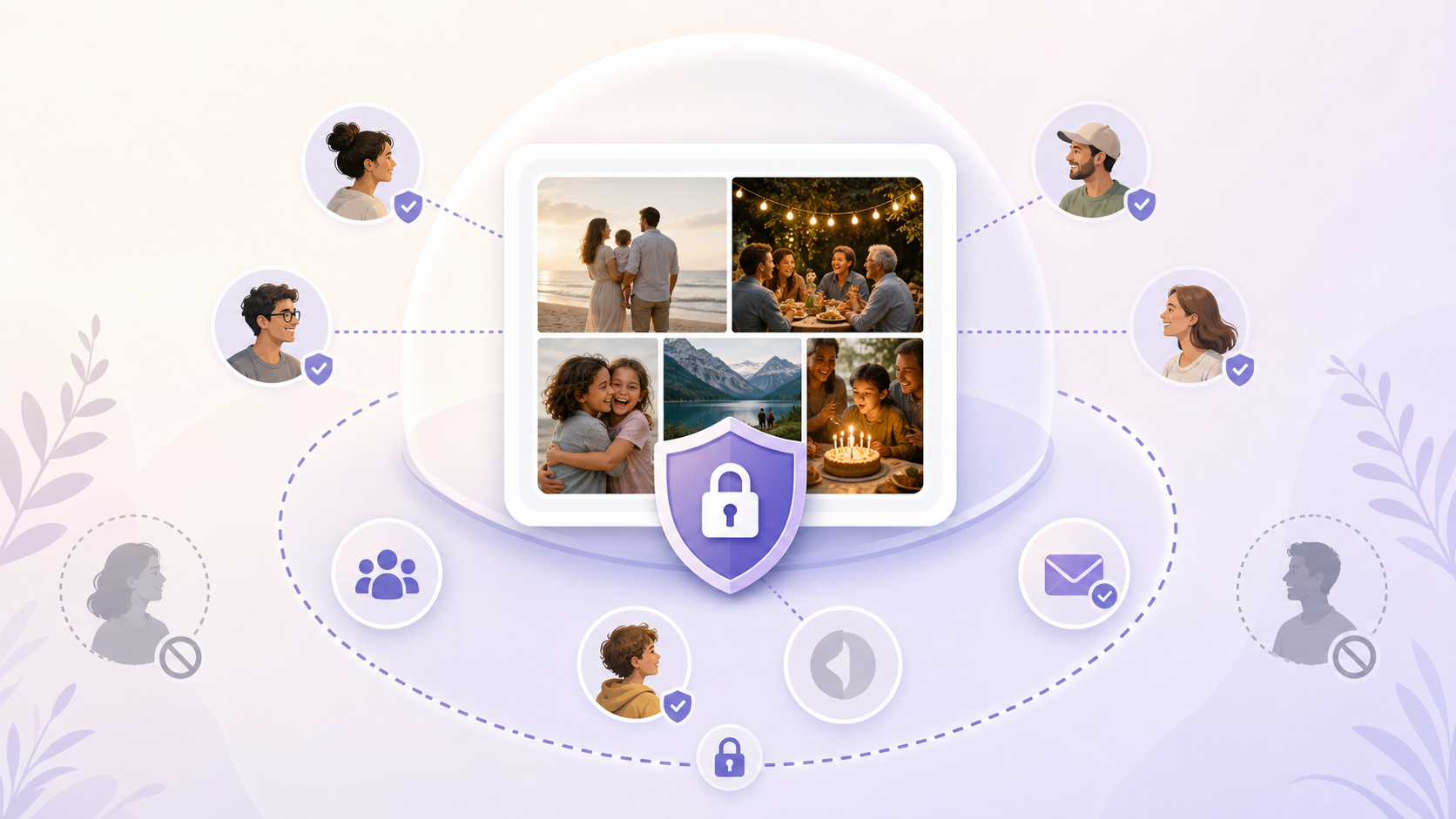
Group photos are messy after a big event.
Some are in iMessage. Some are in WhatsApp. Some are in Google Photos. A few are still on someone’s camera roll. Then someone posts a link, and nobody is quite sure who can see it.
Private group photo sharing should solve that. But “private” can mean very different things.
A private album is not just an album that is hard to find. It should mean only invited people can view it. It should not be indexed as a public URL. It should give the organizer control over who can join, who can upload, who can download, and who can be removed later.
This guide explains what to check before you choose an app. It also shows a practical setup flow using sync.camera as the worked example.
What 'Private' Actually Means for Group Photo Sharing
A private album has a clear trust boundary.
Only approved people can see the photos. The album is not designed for public discovery. Access can be changed after sharing. The platform’s own access model is also part of the privacy story.
That last point matters. A photo can be hidden from strangers and still be processed by the platform that hosts it.
Platform access vs. link access
Link access answers one question: who can open the album?
Platform access answers another: what can the service provider do with the files, metadata, and activity data needed to run the service?
For example, Google Photos lets people share photos and albums with contacts or through links. Google’s sharing help explains that link sharing can let anyone with the link view the shared item, depending on the sharing settings. It also explains that you can remove people or turn off link sharing in shared albums.
That is useful. But it is not the same as saying the album is technically invisible to the platform. Google’s privacy policy says Google collects content users create or upload, including photos and videos, and uses information to provide, maintain, protect, and improve services.
So Google Photos can be private from the public web while still being a Google-hosted service. That may be fine for many families. It may not be fine for a school, a sensitive family situation, or a group that wants a stricter privacy model.
When comparing tools, ask three plain questions:
- Can strangers find the album without an invite?
- Can a forwarded link open the album?
- Can the organizer remove a person after the album has been shared?
That third question is access revocation. It is one of the most important privacy controls. People leave trips. Vendors rotate off projects. Wedding guests forward links. A private album should let an admin remove access without rebuilding the album from scratch.
The difference between 'unlisted' and 'end-to-end encrypted'
“Unlisted” means the album is not publicly listed or easily discoverable. It does not always mean only invited people can open it. A long secret link can still be forwarded, pasted into a group chat, or stored in someone’s browser history.
End-to-end encryption means the service provider cannot read the content in normal operation because only the endpoints have the keys. That is a stronger privacy model. It can also limit features like web previews, search, moderation, and easy account recovery.
Many group photo tools sit between those two models. They may use private links, account-based invites, passcodes, permissions, and access logs. That can be practical and secure for event sharing, even if it is not full end-to-end encryption.
Also check EXIF metadata. Photos can contain location, date, camera, and device details. The Electronic Frontier Foundation explains that metadata can reveal information about a file beyond the visible content. For photos, location data is the big risk. A privacy-forward photo app should explain whether it strips, hides, or preserves EXIF metadata.
For more on the privacy model, see how sync.camera works and the photo sharing privacy policy.
Five Things to Check Before Choosing a Private Sharing App
The best app depends on the group.
A 40-person family reunion with iPhones, Android phones, and older relatives needs a different setup than a small travel group. A school sports team has different duties again.
Use this checklist before you commit.
Access controls and invite methods
Invite method shapes the privacy level.
Email-only invites are tighter. They bind access to named accounts. They are good for schools, teams, and smaller groups where you know every member.
A shareable link is easier. It is also easier to forward. If you use one, pair it with a passphrase or approval gate.
A QR code album invite is best for live events. Guests can scan it at a wedding, reunion, or party. But the QR code should not open an unrestricted album. Use a passphrase, organizer approval, or contributor-only permissions.
The right pattern is simple: make joining easy, but not anonymous.
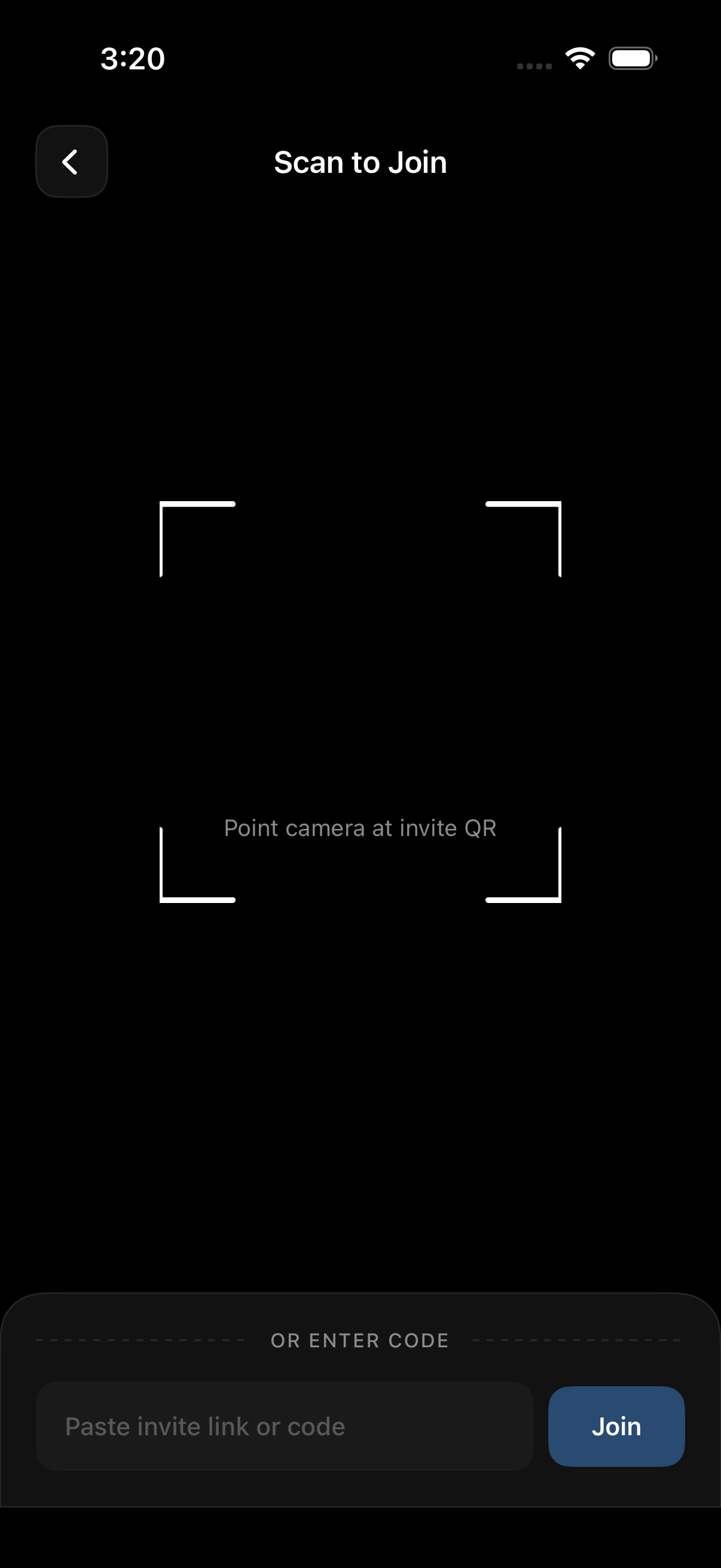
In SYNC, guests join an event by scanning its QR code or entering its eight-character invite code.
Upload limits and file quality
Check storage caps before the event starts.
Some platforms compress originals. Some preserve originals. Some count photos against personal cloud storage. Some limit video length or file size.
iCloud Shared Albums are convenient inside Apple’s ecosystem, but Apple’s support documentation says shared photos are reduced to a maximum long edge of 2048 pixels in most cases. That may be fine for casual viewing. It may not be enough for printing, editing, or photographer delivery.
Dropbox can preserve originals when files are uploaded as normal files. But a folder is not the same as an event album. You may need to manage permissions, duplicates, comments, and downloads yourself.
Before choosing an app, answer this:
- Do we need original quality?
- Will guests upload video?
- Can everyone download the full album later?
- What happens when storage fills up?
Collaboration features: comments, reactions, contributions
A group album is not only storage. It is a shared workspace.
People need to upload, view, sort, and sometimes react. For weddings and reunions, guest uploads matter. Non-members may need to contribute without seeing everything else. For school or sports teams, view-only access may be safer for parents, while coaches or admins manage uploads.
Look for permission tiers:
- View-only: can see approved photos.
- Contributor: can upload photos.
- Admin: can invite, remove, archive, and moderate.
This prevents the usual problem where one person becomes the only collector of photos.
Download and export options
Private should not mean trapped.
A good tool should let the organizer export the album. Members may also need selected downloads. For families, that means saving baby photos or reunion pictures. For weddings, that may mean downloading guest candids alongside the photographer’s gallery.
Check whether downloads include originals or compressed copies. Also check whether export keeps album order, captions, or uploader names.
Data residency and retention policy
Do not assume where photos are stored.
Read the service’s privacy policy for data residency, subprocessors, and retention. Laws vary by country and use case. GDPR can apply when personal data of people in the European Economic Area is processed. COPPA can apply in the United States when online services collect personal information from children under 13.
For most family events, this is simple due diligence. For schools, youth sports, and childcare groups, it is a real requirement. Use a tool that explains where data is stored, how long albums remain active, and how deletion works.
Also check mobile app availability. Group members rarely share one ecosystem. A private sharing app should work on iOS and Android, or at least provide a mobile-friendly web flow.
How to Set Up a Private Group Photo Album (Step-by-Step)
Here is a practical setup flow using sync.camera.
The same logic applies to most private group photo sharing tools. The names of the buttons may change. The privacy decisions do not.
Creating the album and setting permissions
Start with a clear album name.
Use something people recognize, such as “Maya and Dev Wedding Weekend” or “Lake Tahoe Family Reunion 2026.” Avoid names that include sensitive details if the album title may appear in notifications.
In sync.camera, create a new shared album, then set the access level before you invite anyone. Treat permissions as part of setup, not cleanup.
Choose one of three roles:
- View-only for people who should only see photos.
- Contributor for guests who can upload.
- Admin for one or two trusted organizers.
For most events, use one main admin and one backup admin. Too many admins create confusion. Too few can block the group if someone is offline.
If you want a deeper walkthrough, use the create shared album guide.
Inviting members without exposing the link publicly
Next, choose the invite method.
For a small family group, email or phone-based invites are usually best. For a wedding or reunion, a QR code is easier. Print it on a small sign near the guest book or welcome table.
But do not make the QR code the only gate.
Use a passcode or approval step. That way, a photo of the QR sign does not become permanent open access. In sync.camera, the safer pattern is:
- Create the album.
- Set the album to invite-only or passphrase-protected.
- Generate a QR code album invite.
- Share the passphrase only with the group.
- Review pending members if approval is enabled.
This keeps the flow easy for guests. It also reduces the risk of random link-finders joining.
For setup details, see QR code album invite.
Managing contributions from multiple people
Group albums need light moderation.
The common problem is “first upload wins.” Someone uploads 90 blurry dance-floor photos before the photographer or organizer adds the best set. Then the album feels messy.
Set expectations early.
Ask guests to upload their favorites, not every burst shot. Assign one admin to organize duplicates after the event. If the tool supports pending uploads, use it for larger groups.
For sync.camera, a practical event workflow is:
- Before the event: create the album and test one upload.
- During the event: let guests contribute through the QR code and passphrase.
- After the event: sort duplicates, remove accidental uploads, and feature the best photos.
- After the sharing window: archive the album or close new uploads.
Guest uploads are especially useful when people use different phones. A 40-person reunion may include iPhones, Android phones, and relatives who prefer a browser link. A purpose-built album keeps those photos in one place without asking everyone to join the same social network.
For contributor controls, see the guest upload feature.
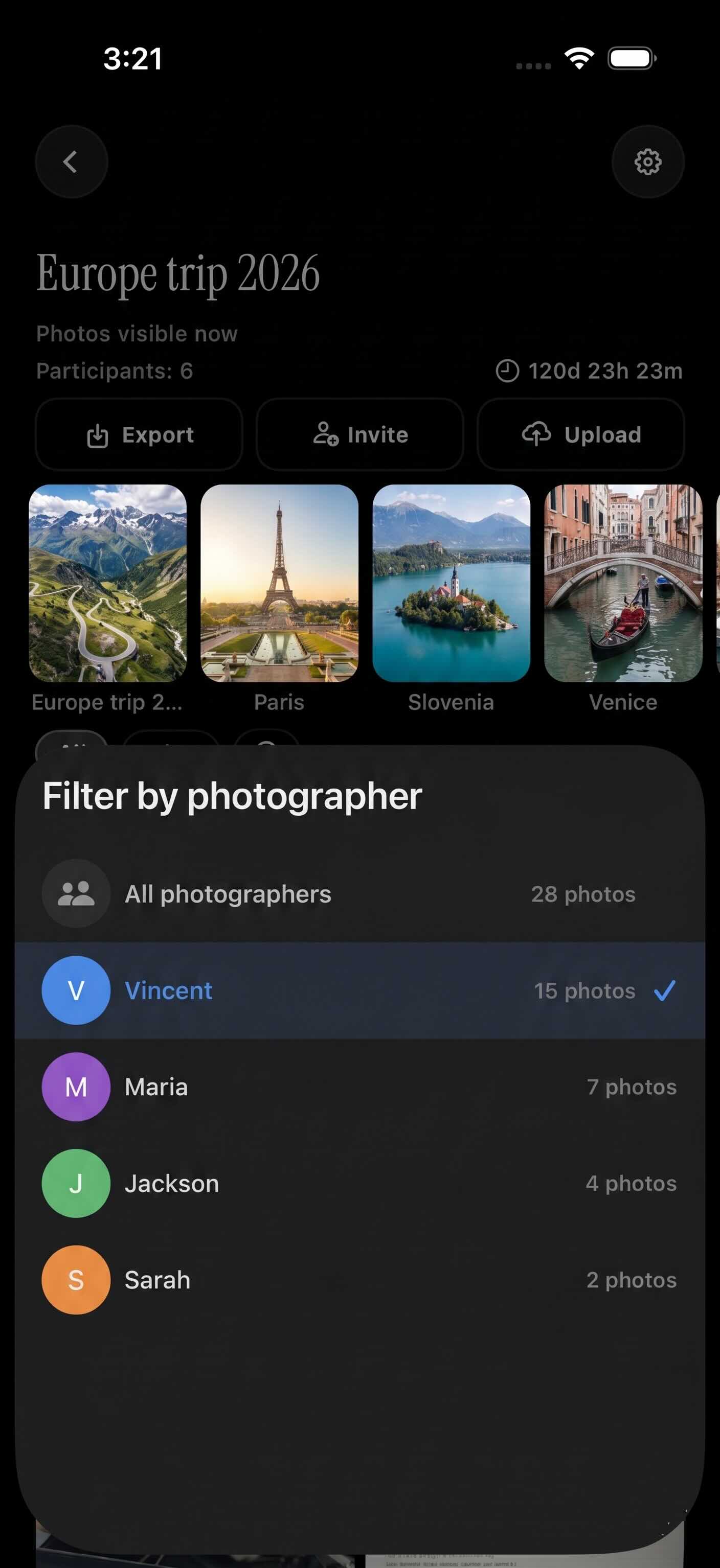
Filter by photographer shows who took which photos, which helps when sorting a multi-person album.
Common Mistakes That Leak Private Group Photos
Most leaks are not hacks. They are setup mistakes.
The fix is to reduce casual oversharing.
Sharing a direct file link instead of an album link
A direct file link points to one file. It often bypasses the context you meant to create.
An album link should enforce album-level access control. It can require membership, passphrases, approval, or role-based permissions. It can also make access revocation easier because the organizer manages people at the album level.
Avoid copying raw file URLs into chats. Avoid public cloud folders for sensitive albums. Use the app’s private album invite flow.
This matters even if the URL is long. “Hard to guess” is not the same as “properly permissioned.” Links can be forwarded, logged, previewed, and saved.
Leaving an album open after the event ends
Albums should have an end state.
After a wedding, trip, reunion, or season, close uploads. Then archive the album or set it to view-only. Remove vendors, temporary guests, or anyone who no longer needs access.
This is access revocation in practice.
A simple post-event checklist works well:
- Turn off public or link-based joining.
- Remove people who only needed temporary access.
- Close guest uploads.
- Export a backup if needed.
- Archive or delete the album based on your retention plan.
Be clear about screenshot risk too. Privacy tools cannot prevent someone from taking a screenshot or using another camera to capture a screen. If photos are sensitive, set expectations with the group before sharing.
Also review third-party integrations. Printing services, slideshow tools, and connected apps may create their own copies or permissions. Before connecting anything, check what access it gets and whether it stores photos outside the album.
Private Group Sharing for Specific Use Cases
Different events have different trust radiuses.
A family group may trust each other but use many devices. Wedding guests may be friendly but mixed in tech skill. Schools and youth teams involve minors and stricter consent expectations.
Family events and reunions
Family events are high-trust but high-chaos.
People use different phones. Some do not want another app. Some send everything to one relative.
Use a private album with a simple invite. Let trusted members contribute. Keep one person as admin. After the event, remove duplicates and archive the album.
A purpose-built tool beats a generic cloud drive here because the album is organized around people, uploads, and viewing. Dropbox can store the files. It does not solve group collection by itself.
Weddings and celebrations (guests sharing alongside the photographer)
Weddings need low friction.
Guests will not create accounts during the reception. A QR code album invite works well. Put it on table cards or a sign. Protect it with a short passphrase printed nearby or shared by the couple.
Set the album so guests can upload but not administer. Let the couple, planner, or trusted friend moderate later. Keep the photographer’s final gallery separate if needed, then add a curated selection into the shared album.
This gives guests one place for candid photos without turning the wedding into a public social feed.
Travel groups and trips
Travel albums need daily use.
People take photos across locations, time zones, and devices. EXIF metadata can reveal hotel locations or private stops. If location privacy matters, choose settings that strip or hide EXIF metadata before broad sharing.
Use contributor access for the group. Keep admin access narrow. At the end of the trip, close new uploads and export the album so everyone has a copy.
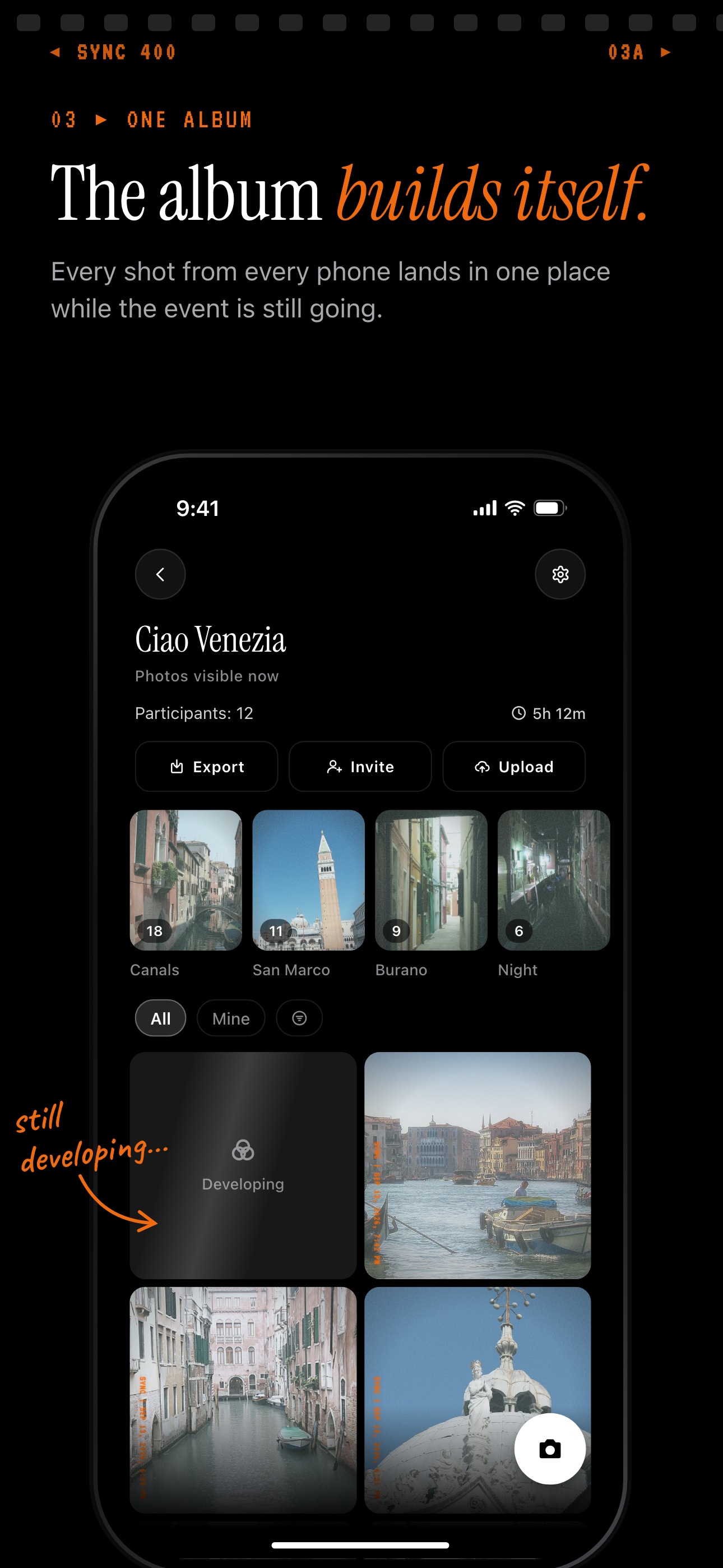
A trip album collects every traveller's photos in one shared event album.
Schools and sports teams
Schools and youth sports need the strictest setup.
Photos of children are personal data. Depending on the country, state, and service design, GDPR, COPPA, school policies, or parental consent rules may apply. Do not use an open link for minors.
Use named invites. Use view-only access for most parents. Limit contributors to coaches, teachers, or approved volunteers. Remove families when they leave the team or class. Set a retention period before the season starts.
A purpose-built private album is better than a social network or public folder because it supports the way these groups actually operate: controlled membership, limited roles, and post-season access cleanup.
The Bottom Line
Private group photo sharing is not only about hiding a link.
It is about clear membership, controlled invites, upload permissions, metadata choices, and access revocation after the event. The best tool is the one that makes those controls easy enough that the group will actually use them.
Before you share the next album, decide who can view, who can upload, who can invite, and when the album should close. That small setup step prevents most privacy problems later.