You want every guest to drop their photos into one place. You do not want to chase people in a group chat. A QR code is the simplest way to do that. This guide shows two ways to make one, then walks through the shorter path in SYNC, where the code comes with the event.
What a QR code for photo uploads actually does
A QR code is a shortcut. A guest points their phone camera at it. The phone opens a link. For photo collection, that link should lead to a place where the guest can add photos.
The idea in one sentence
The goal is one shared album that every guest can contribute to. Without it, photos end up scattered across phones and chats.
Guests join from a QR code or an eight-character invite. No account is required.
Why a QR code beats a group chat
Group chats compress photos and bury them under replies. People also leave chats, and not everyone is in the same one.
A QR code sits on a table card or a sign. Guests scan it when they are ready. Nobody has to hunt for a message from last week.
The code also works for people who never joined your chat. They scan, and they are in.
Two ways to make one
There are two routes. Both work. They differ in effort and in how much friction your guests feel.
A generic QR code pointing at a folder
A QR generator turns any link into a code. You can point it at a shared folder or an online form. This route works.
The code is only a link, though. Everything behind it is on you. You set up the folder. You set the permissions. You decide how guests sign in, if they must. You also check that the link still works on the day.
That is fine for a small gathering with people who are comfortable with the tool you picked. Each extra step is a place where a guest may give up.
A QR code built into a photo-sharing event
The event route skips the separate generator step. With SYNC, the QR code is created together with the event. You make one thing, and the code comes with it.
The trade-off is simple. The generic route gives you full control and more setup. The event route gives you less setup and a guest flow that is already built for photos.
Create the event and get your QR code in SYNC
The steps below follow the host flow in SYNC. They take a few minutes.
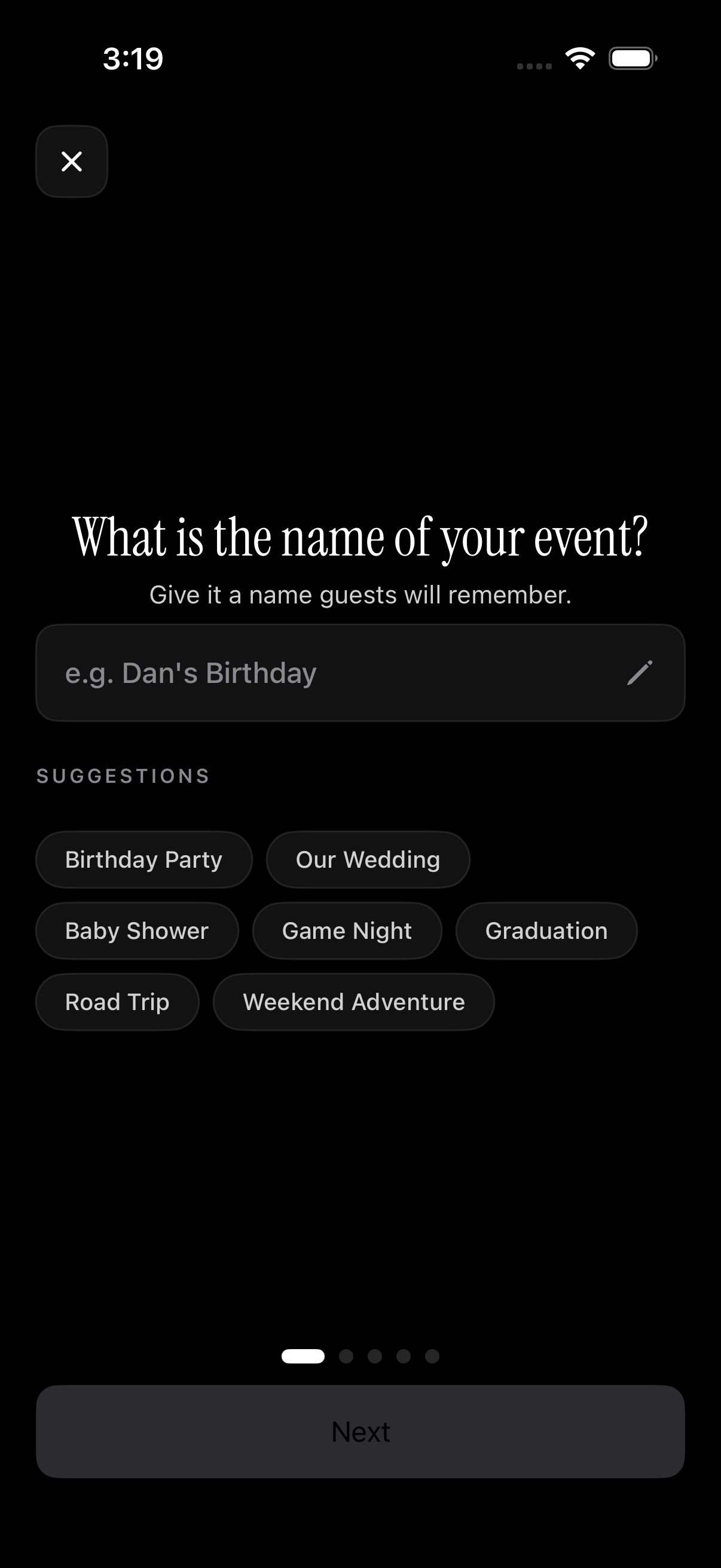 The event creation screen is the first step: name the event, and the QR code that guests will scan comes with it.
Create and name the event
Open SYNC and create an event. Give it a name guests will recognise. "Maya and Dev, 14 June" beats "Event 1".
Pick an end time
Hosts pick an end time when they create the event. This matters later, because one of the reveal modes is tied to it. You can read more about that below.
Find your QR code and invite
The invite includes a QR code and an eight-character invite. The host can share the invite link too. Pick whichever fits the moment. Show the code in the room. Send the link to everyone else.
What it costs
SYNC is free to start. The free tier covers up to 7 guest uploaders per event.
SYNC PRO is a one-time purchase, not a subscription. It expands the guest and photo limits for a single event. You upgrade again only when you create a larger event.
Share the QR code so guests actually scan it
A code nobody sees collects nothing. Plan where guests will meet it.
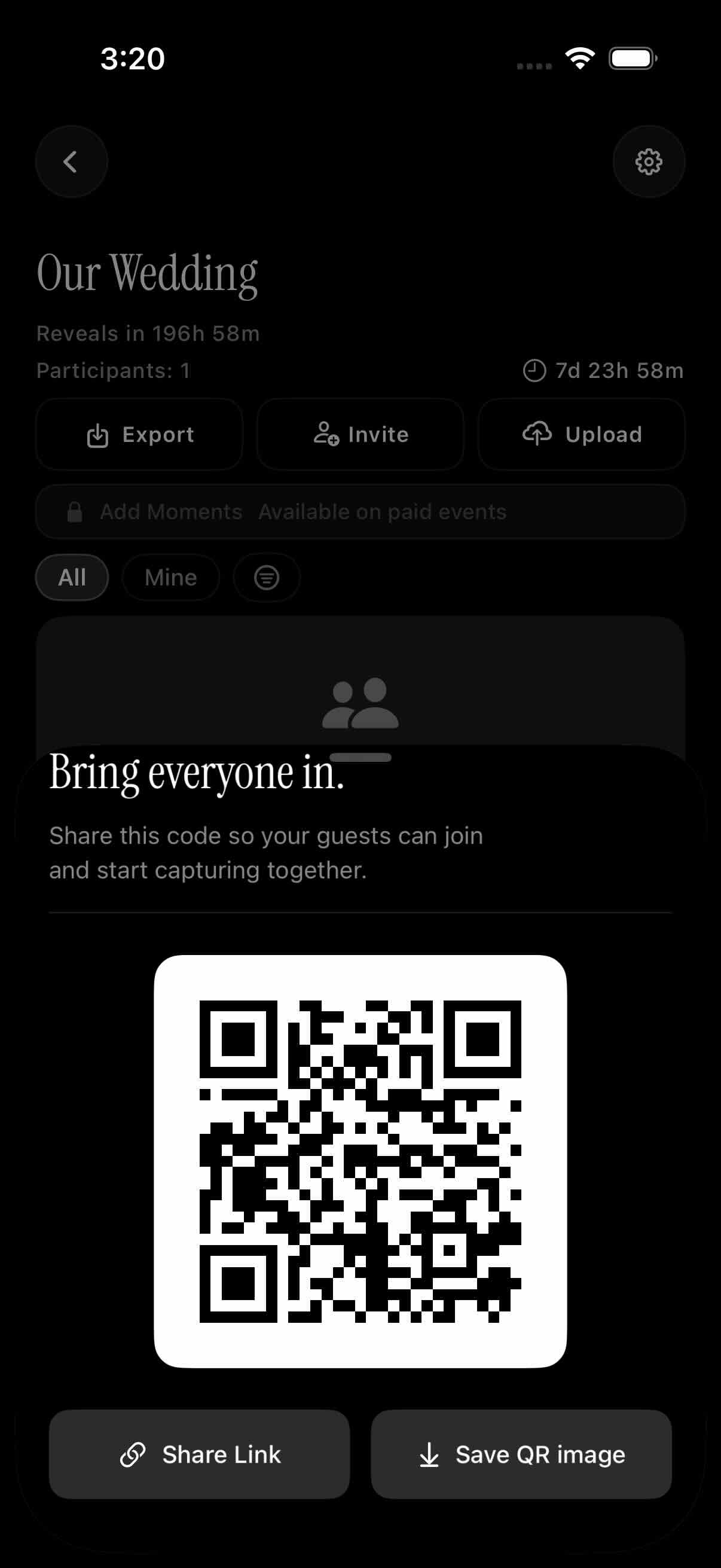 A host handing out the QR code is the moment guests join, so give it a clear, easy-to-reach spot.
Show it on a phone or print it
Hosts can invite guests by sharing the QR code. Here are a few placement ideas. They are advice, not product features.
- Put a small card with the code on each table.
- Place a sign with the code at the entrance.
- Post the code in the group chat before the day.
Keep the code large. Keep the contrast high, such as dark code on a light background. Then test it with a phone before the event. Try more than one phone if you can. A code that scans in your hand may not scan from across a table.
Send the invite link to people who are not there
Not everyone will be in the room. Send the invite link or the eight-character invite to anyone who is not. A relative abroad or a friend who left early can still add photos.
What guests see when they scan
The guest side should feel like no work at all. That is the point of the code.
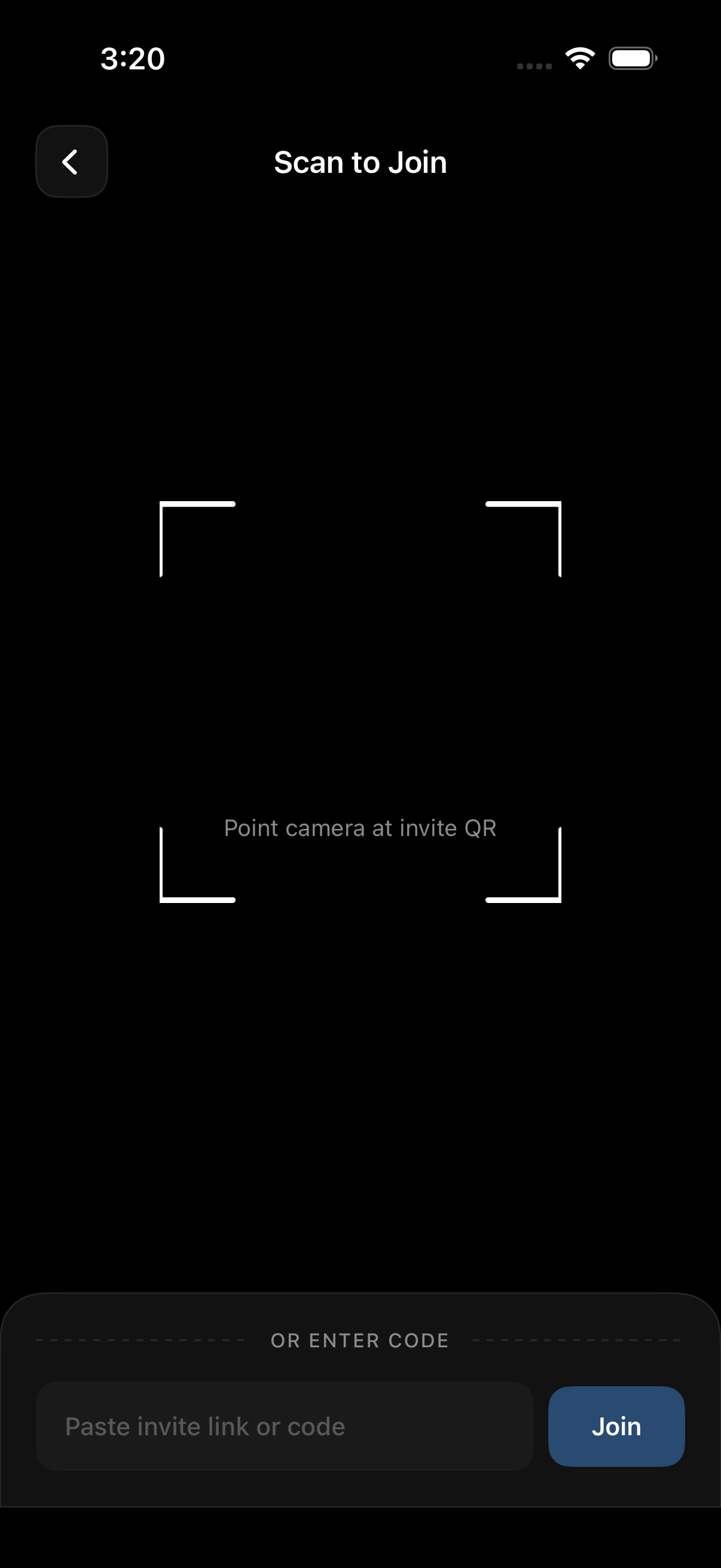 Scanning the QR code is all a guest does to join, which is why the host flow is built around it.
No account, any modern phone browser
Guests can join from any modern phone browser via the invite link. No account is required to join. That removes the biggest reason people skip a photo request.
A guest scans the code, joins the event and adds photos. They do not need to download anything first.
The optional app
Installing the iOS or Android app is optional. The app adds better camera controls. It also adds push notifications for new photos.
So you can tell guests two things. The browser is enough. The app is there if they want more.
Decide when everyone sees the photos
Should guests see photos as they come in? Or only after the event? SYNC lets you choose.
Three reveal modes
There are three reveal modes.
- During: guests see photos live as they are taken.
- After the event: the gallery unlocks when the event ends.
- Additional delay: the gallery unlocks a set number of hours after the event ends.
Live viewing suits a casual party. A later reveal keeps photos a surprise until the event is over. A delay gives you time to enjoy the day before the gallery opens.
Moments for multi-part events
Some events have stages. Moments split an event into parts, such as ceremony, reception and after-party. Each Moment has its own QR code and reveal timing. Guests move between them without switching apps.
Afterwards, the host can export favorites. The album can also be filtered by photographer.
Privacy: what guests are agreeing to
Guests are handing over photos. They should know how those photos are handled. These statements come from the sync.camera homepage and the join.sync.camera/privacy policy.
How photos are protected
SYNC states it plainly: "We don't sell your photos or your data. No ads. No cross-app tracking."
Photos are encrypted in transit. They are stored in event-scoped buckets. Access is enforced by per-event row-level security.
What is and is not collected
SYNC does not collect advertising identifiers (IDFA and AAID). It embeds no third-party advertising or marketing SDKs.
It does use product analytics, a third-party crash reporter, and Firebase Cloud Messaging for Android push notifications. The analytics are pseudonymous usage events.
If you delete an account, the profile, the events it owns and their photos are removed within 30 days.
Quick checklist before your event
Run this before guests arrive.
Five-minute setup check
- Event is named, the end time is set and the reveal mode is chosen.
- You have tested the QR code with your own phone.
- The invite link is ready as a backup.
- You have checked your expected guest count against the free tier of up to 7 guest uploaders. If your event is larger, plan a SYNC PRO upgrade.
That is the whole setup. One event, one QR code, one shared album.
Ready to try it? Get the SYNC app and create your first event.