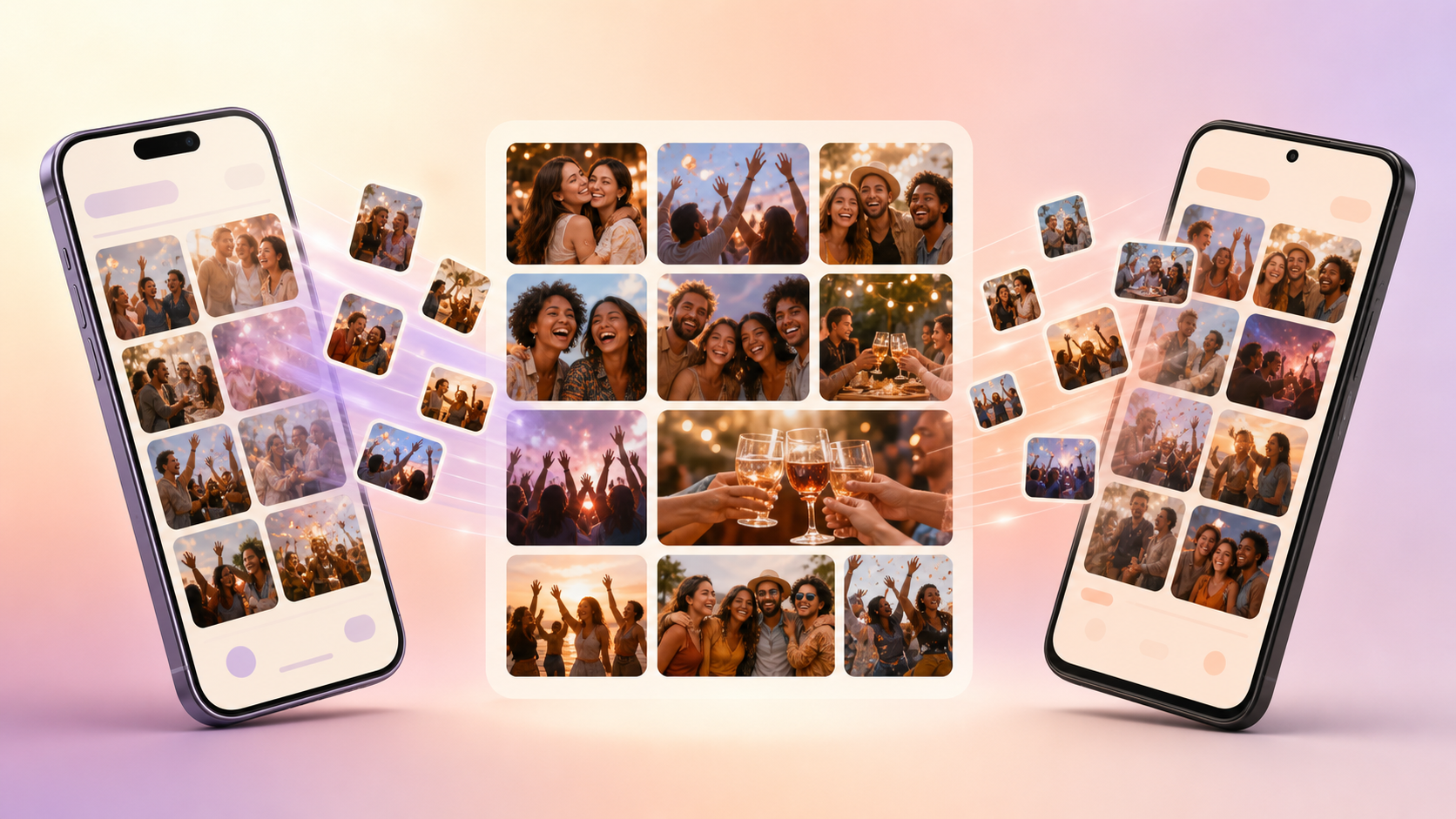
At most real events, guests don't all use the same phone. Half the group has an iPhone, half has Android, and by the end of the night there are three separate group texts, a shared photo link only some people can open, and a batch of AirDropped shots that never reached everyone else. The best moments from the night end up scattered across different threads instead of collected in one place.
Cross-Platform Sharing removes that split. iPhone and Android guests contribute directly into the same sync.camera event album — not a copy, not a parallel feed, the same album everyone else is looking at. Whether a guest is holding an iPhone or an Android phone, the photos they add land in the one gallery the host set up for the event, so no one is left out of the recap because of the phone they carry.
How Cross-Platform Sharing works
Cross-Platform Sharing starts before the event, when the host creates an event album in sync.camera. This is the single destination every guest's photos will land in, regardless of what phone they're using — there's no separate setup for iPhone guests versus Android guests.
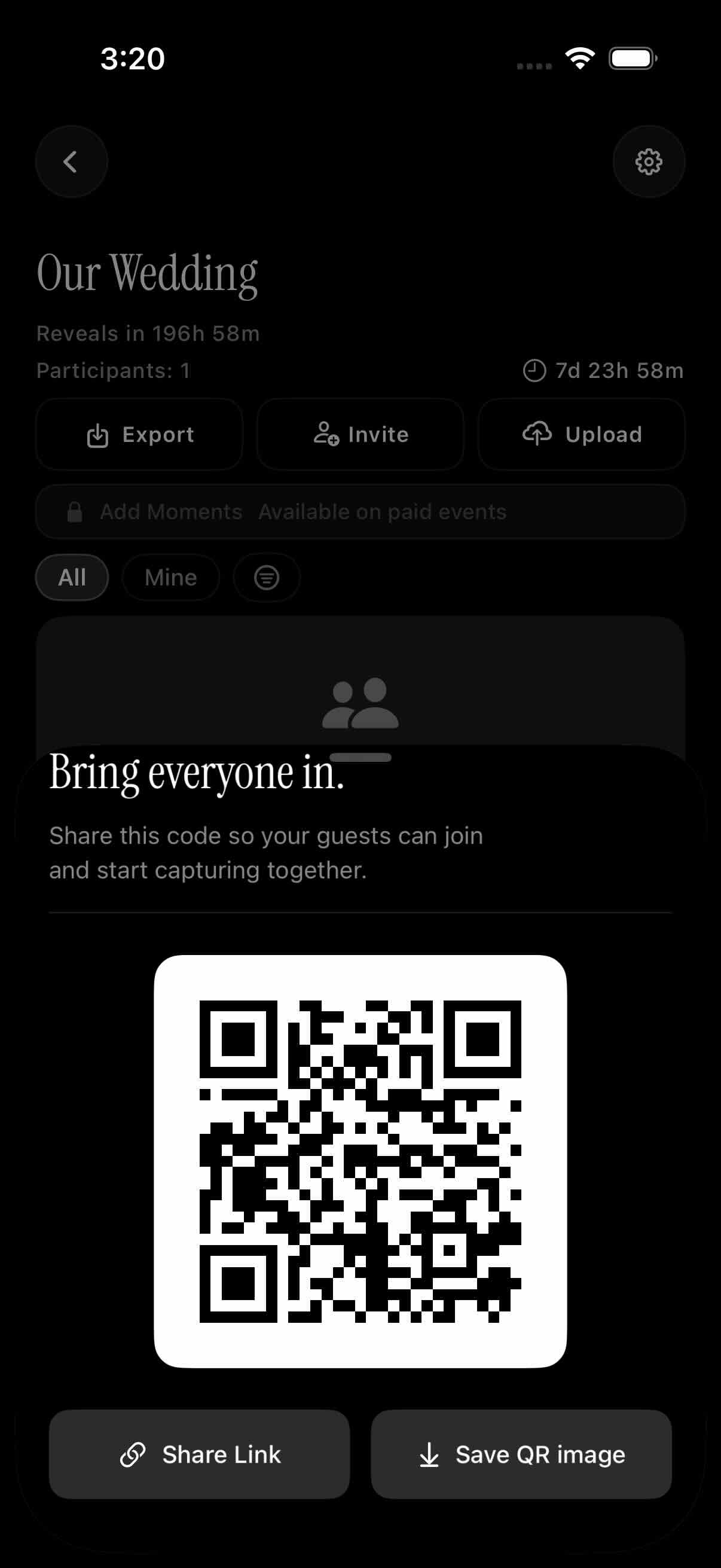
To bring guests in, the host shares the event's QR invite — for example, displayed at the venue or printed on a table card. Guests join the event album by scanning that QR code, which is the invite flow shown in the current sync.camera screenshots. Scanning connects the guest directly to that event's album so they can start contributing photos.
From there, iPhone and Android guests contribute photos the same way: they add pictures they've taken during the event straight into the shared album. Because the album isn't tied to one operating system's photo library or sharing tool, a guest's phone brand doesn't change what they can add or where it ends up.
Every contributed photo — from any guest, on any phone — appears together in the event gallery. That gives the host and every guest a single place to look back on the event, instead of piecing photos together from separate iPhone and Android threads afterward.
Who it is for
Wedding hosts
A couple sets up one event album before the ceremony. Through the reception, iPhone guests and Android guests both add their photos to that same album, so the couple isn't stuck merging shots from a dozen different phones and group chats afterward — every photo from every phone lands in one wedding gallery.
Families
At a birthday party or reunion, relatives show up with a mix of iPhones and Android phones. Instead of texting pictures around in fragments, everyone adds their photos straight into the same event album, so the family ends up with one shared gallery that any family member can look back on, no matter which phone they used.
Travel groups
A group of friends traveling together often splits between iPhone and Android. Instead of hunting down photos from three different phones and apps after the trip, everyone adds their shots into the same shared event album, so the whole trip ends up in one gallery anyone in the group can revisit.
Features
Same shared album
iPhone and Android guests contribute to the exact same event album — there's no separate version for each type of phone.
QR-based joining
Hosts invite guests by sharing the event's QR code; scanning it adds the guest to that event's album.
Event gallery
Every photo guests contribute, from any phone, shows up together in the event gallery.
Frequently asked questions
Does Cross-Platform Sharing work for iPhone and Android guests?
Yes. Cross-Platform Sharing is built so iPhone and Android guests can add photos to the exact same event album — there's no separate version of the album for each operating system, and no guest is limited to a phone-specific feed. Everyone who joins the event sees and contributes to one shared gallery, regardless of which phone they're using.
How do guests join a shared event album?
Guests join a shared event album by scanning the event's QR invite that the host sets up — for instance, a QR code displayed or printed at the event itself. Scanning it connects the guest to that specific event's album, where they can start contributing photos right away. That QR scan is the join flow shown in the current screenshots, so it's the only invite method we're describing here.
Can guests upload unlimited photos?
In the sync.camera screenshots we have on file, paid events let guests upload unlimited photos to the shared album, so no one has to worry about running out of room mid-event. Cross-Platform Sharing works the same way for those events — the upload experience doesn't change based on whether a guest is on iPhone or Android.