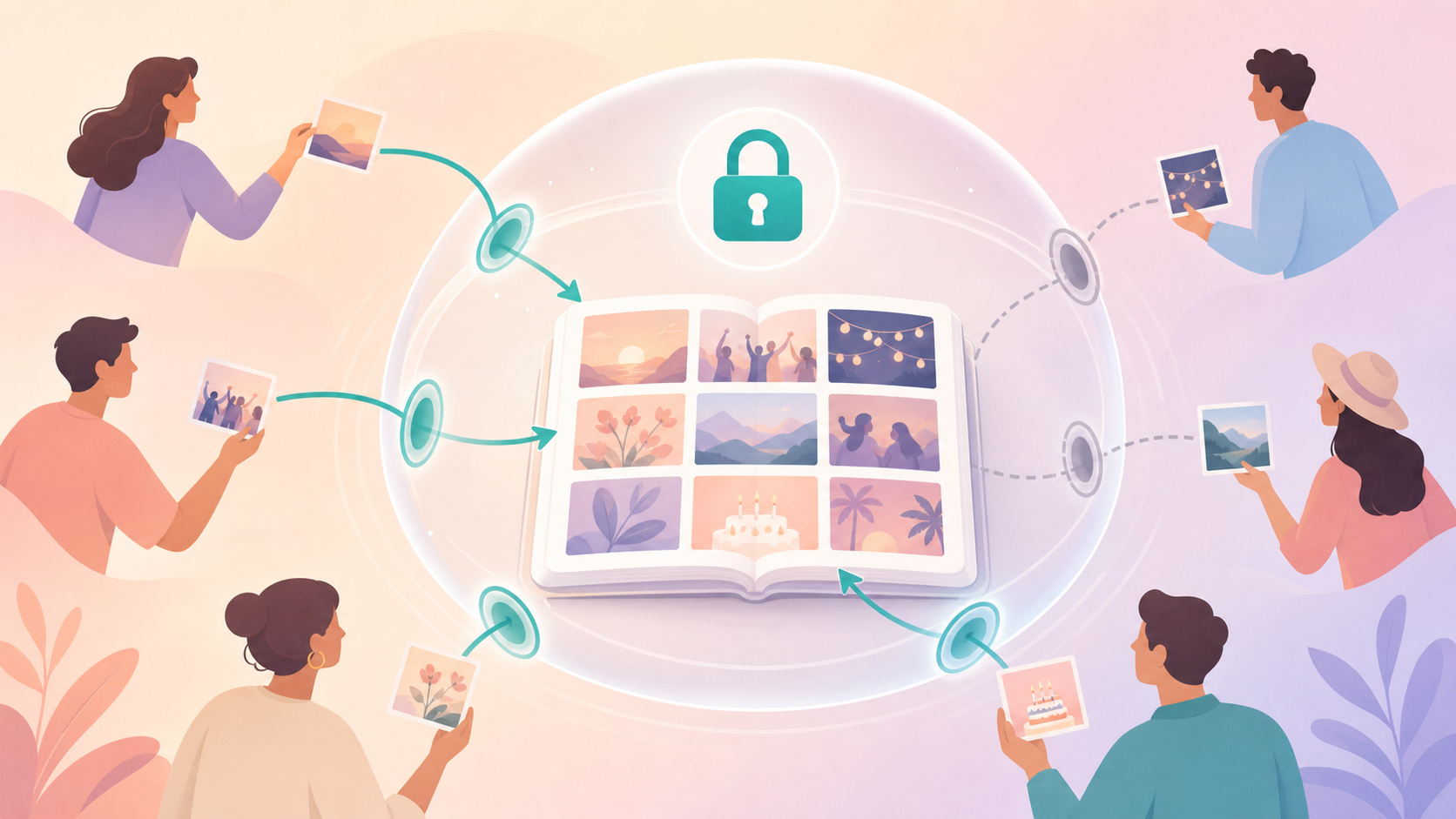
Event albums fall apart the moment more than a few people have access to them. Anyone can see photos before you're ready to share them, guests aren't sure if they're allowed to add their own shots, and by the time the event is over, the pictures are scattered across group chats, cloud folders, and screenshots nobody can find again.
Privacy Controls give event hosts a way to set boundaries up front instead of cleaning up after the fact. You decide how guests join the album, how many guests can join, when the gallery becomes visible, and which photos are eligible for upload in the first place — so the people you invite can contribute freely inside limits you set, not limits guests have to guess at.
How Privacy Controls works
Setting up Privacy Controls starts when you create the event album itself. Instead of sharing a single open link with no boundaries, you choose how the people you invite will actually get in — starting with guest QR access, which turns joining into a simple scan instead of a link that can spread further than you intended.
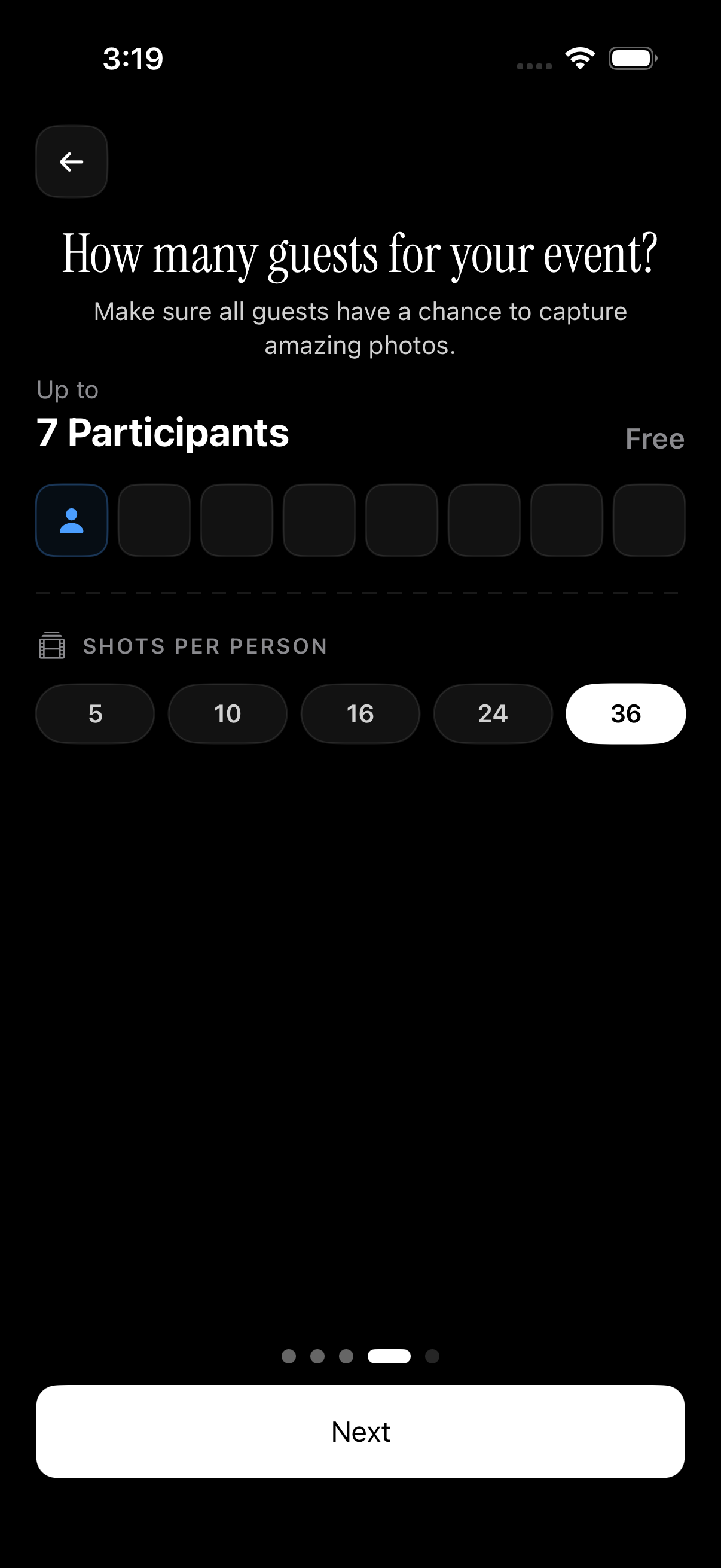
From there, guest count selection lets you set how many people can join the event, with up to 7 guests shown as free — useful for keeping a small wedding party or immediate family distinct from a larger guest list without renegotiating access after the fact.
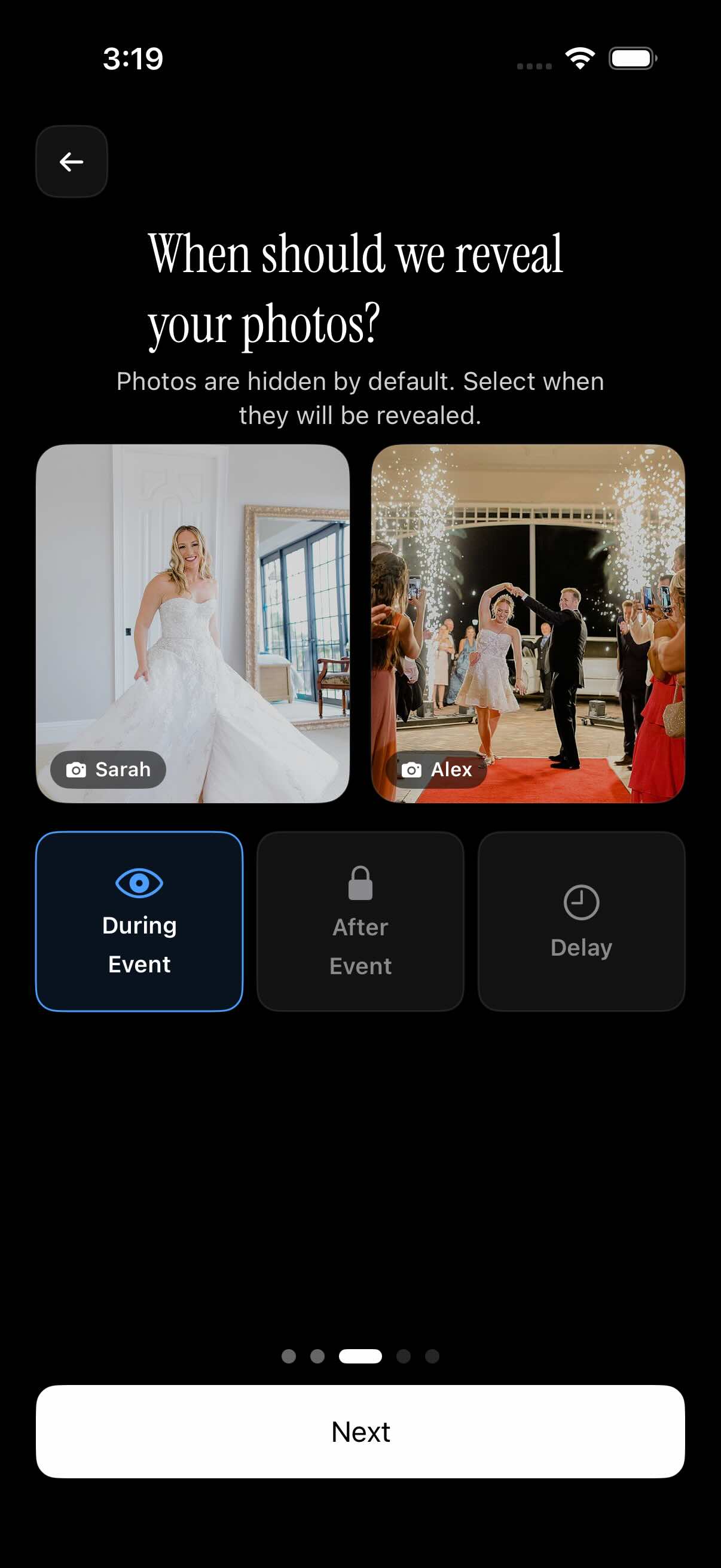
Reveal timing is where most of the actual privacy decision happens. You can choose to show photos as they come in during the event, hold the entire gallery until the event ends, or set a delay so photos surface only after a set amount of time has passed — a way to keep photos, say, out of sight until a host has seen them first.
Finally, the event upload window ties uploads to a schedule: photos taken between when you create the event and a selected end date are eligible, which keeps the album focused on the event itself rather than filling up with unrelated shots weeks later.
Control who can add photos
Access to add photos runs through the same event QR flow guests use to join. Once someone scans the code and joins the event, they're part of the album and can start contributing — Privacy Controls today center on who gets in and when photos become visible, not on reviewing what guests upload after they've joined.
Guest limits follow the guest count you set when creating the event, with up to 7 guests shown as free in the guest selection screen. That number determines how many people can be part of the album at all, which is the primary lever hosts have over who can contribute, rather than assigning different roles or permission levels to individual guests once they're in.
Worth being direct about what this isn't: there's no confirmed way to require guest accounts, expire an invite link after a period of time, approve each photo before it appears, or hand out different roles to different contributors. If your event needs that level of after-the-fact moderation, plan around the guest count and reveal timing controls that are available today rather than assuming a review step exists.
Who it is for
Wedding hosts
Guests can join the wedding album by scanning the event QR code from their phones, and start adding their own shots right alongside the professional photos. The couple keeps reveal timing set to after the event, so nobody sees the full gallery until the wedding is officially over. For hosts planning a wedding, that's one less thing to police on the day itself.
Families
A parent creates an event album for a kid's birthday party, sets the guest count for the handful of relatives coming, and shares the QR code at the door. Everyone who joins can drop in their own photos of the cake, the games, and the group shots, and the host decides whether the gallery unlocks the same day or after a short delay once all the photos are in.
Trip organizers
A group of friends on a shared trip creates one event album instead of passing photos around individually. Anyone who scans the QR code and joins can add photos, keeping the event upload window tied to the trip itself — while people outside the group never get a link to the album at all.
Features
Guest QR access
Hosts can invite guests to an event album by sharing a QR code.
Guest count selection
Hosts can choose how many guests can join an event, with up to 7 guests shown as free.
Gallery reveal timing
Photos can be shown during the event, after the event, or after a selected delay.
Event upload window
Uploads can be limited to photos taken between the event creation date and selected end date.
Frequently asked questions
What private photo sharing controls are available?
sync.camera's privacy controls cover four confirmed areas: guest QR access for joining an event album, guest count selection for how many people can join, gallery reveal timing for when photos become visible, and an event upload window that limits uploads to a set date range. There's currently no confirmed password protection, upload moderation, or download blocking, so plan around the controls listed here rather than assuming those exist.
Can guests add photos to the event album?
Yes — guests join through the event QR flow, and once they've joined they can add their own photos to the album. How many guests can join is set by the host through guest count selection, which shows up to 7 guests as free in the guest selection screen, so it's worth choosing a guest count that matches your event before sharing the code.
Can photos stay hidden until the event is over?
Yes. Gallery reveal timing lets hosts choose whether photos appear as they're uploaded during the event, only after the event ends, or after a selected delay past that. This is a visibility setting rather than an upload restriction — guests can still add photos during the event even if the gallery itself stays hidden until later.
Can hosts control which photos are eligible for upload?
Hosts set an event schedule when creating the album, and only photos taken between the event's creation date and the selected end date are eligible for upload. That keeps the album tied to the event itself instead of collecting unrelated photos guests might want to add weeks before or after.