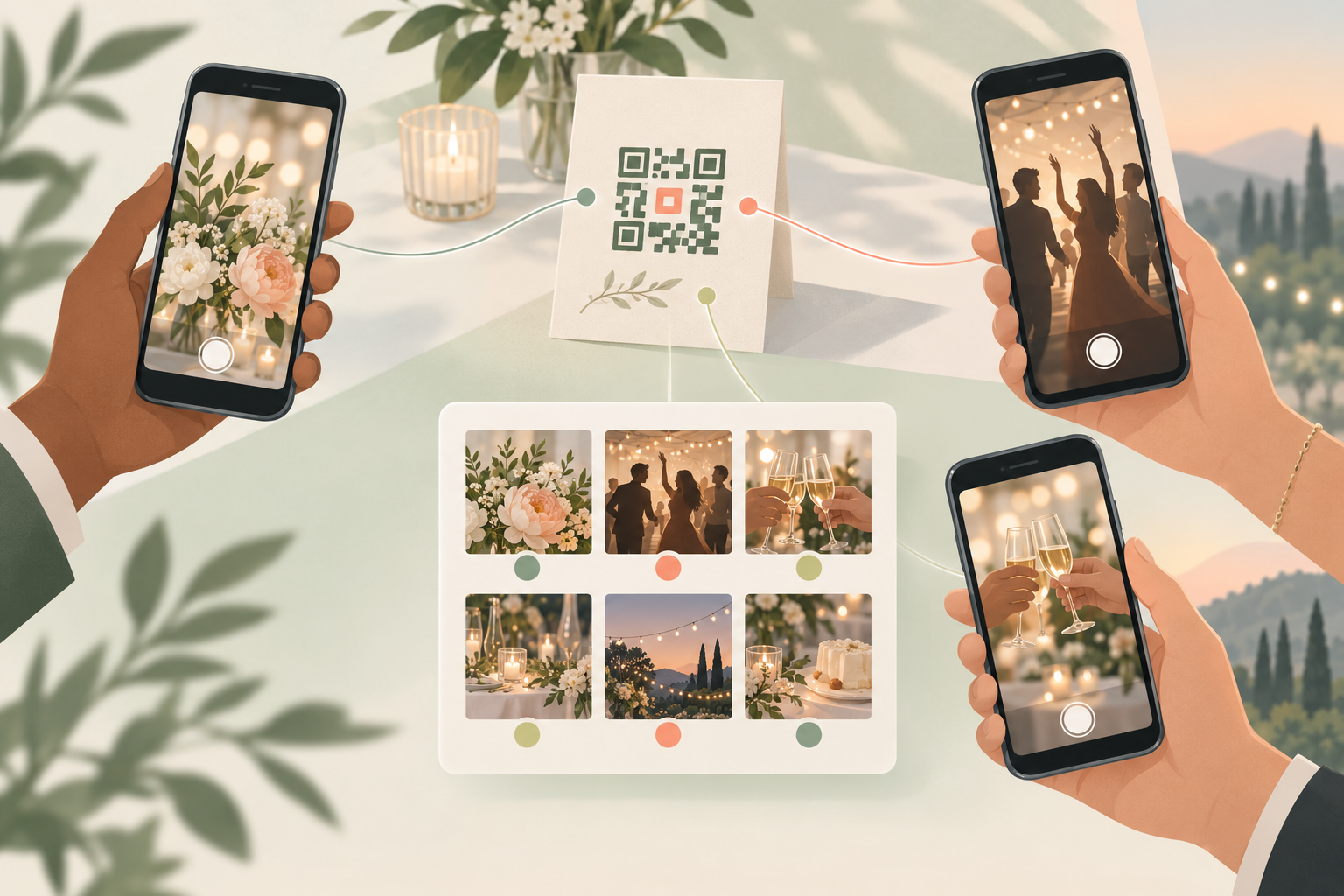
Hiring a photographer only gets you one set of eyes, and even a great one can't be in the ballroom, the parking lot, and the getaway car all at once. So couples and hosts fall back on asking guests to text over their photos afterward — which means chasing down camera rolls for days, digging through a dozen group chats, and still ending up with only a fraction of what people actually shot.
QR code photography skips that entirely. Post one QR code at your event, and any guest who scans it can start shooting straight into a shared gallery within seconds — no app to install, no account to create. Unlike a plain photo-sharing QR code that just collects whatever guests happen to upload, or a QR code invite that simply gets someone into the event gallery, this turns every guest into a tracked contributor, so you can always see exactly who took which shot.
How QR code photography works on sync.camera
Setting up qr code photography starts with creating an event in sync.camera, which generates a unique QR code for that event. Print it on a table card, put it on a welcome sign, or drop it on a slide at the front of the room — it's ready the moment your event starts.
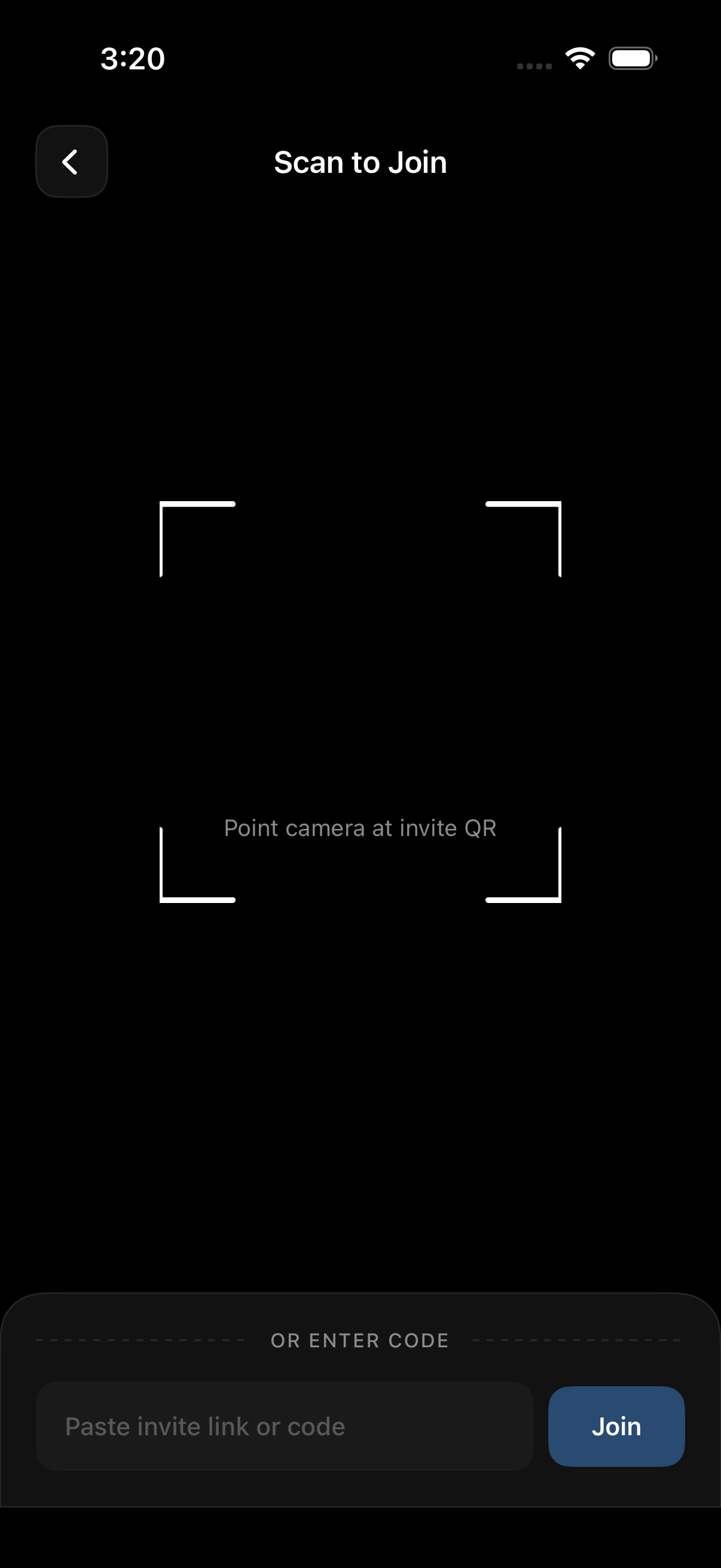
Guests don't need to install anything or make an account. Scanning the code opens a camera directly in their phone's browser, so they can start shooting within seconds of arriving. That removes the biggest source of friction in getting guests to actually participate: no app store detour, no signup form standing between someone and the photo they want to take.
Every photo a guest takes through that browser camera uploads straight into the same shared event gallery, in real time. Instead of one photographer working alone, or guests sitting on shots in their own camera rolls until someone remembers to ask, the whole event builds a single shared gallery as it happens.
Finding each photographer's shots afterward
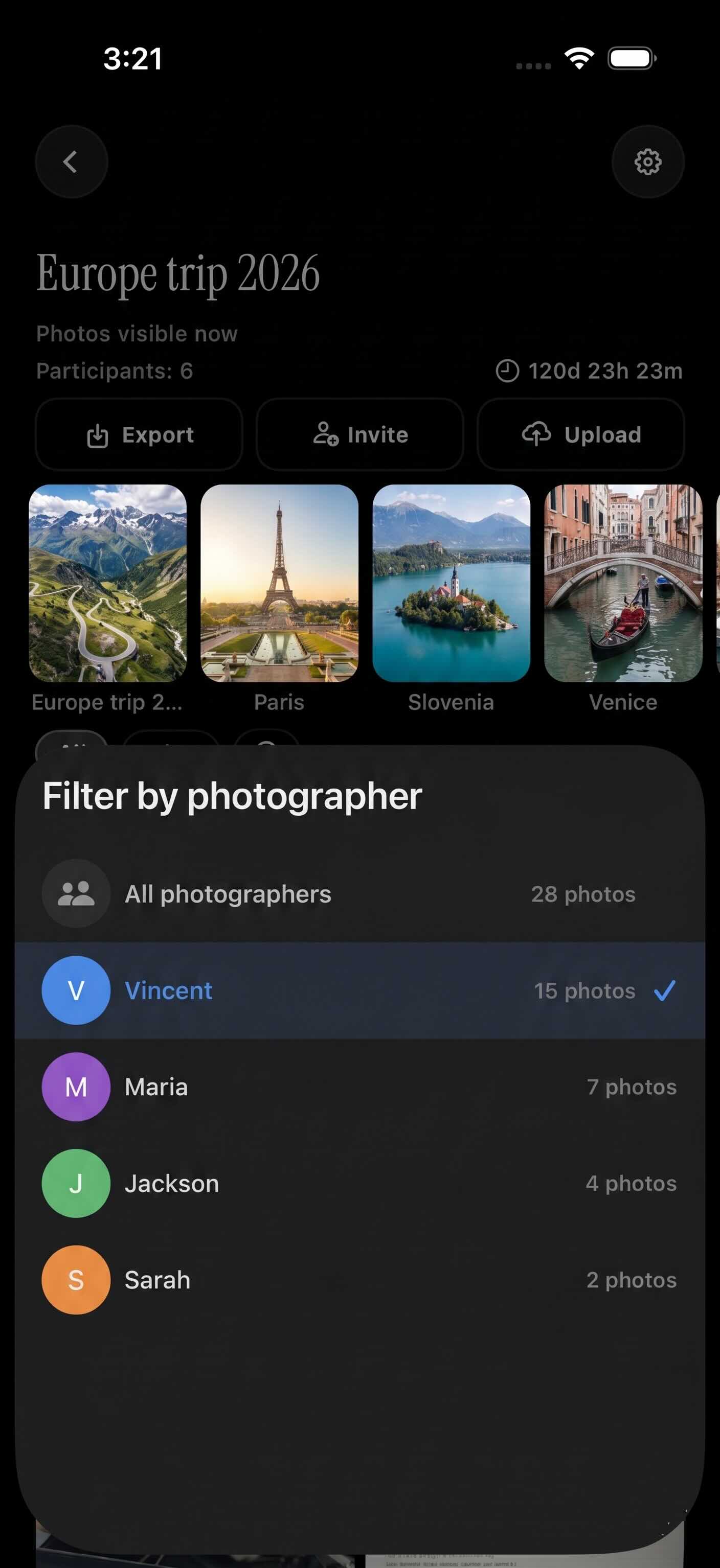
A shared gallery full of photos from a dozen or more guests can get overwhelming fast, which is why sync.camera lets you filter that gallery by photographer. Instead of scrolling the whole album looking for a particular moment, you can pull up every photo one specific guest took in a few taps.
That matters most for the shots you know exist but can't easily find — the friend who camped out near the dance floor all night, the guest who followed the birthday kid around with their phone out, the coworker who caught every candid moment at the after-party. Filtering by contributor turns those scattered shots into a findable set.
The result is a real, organized photo record of the event — attributed to the people who actually took each shot — rather than a single mixed dump of photos with no way to tell who captured what.
Who it is for
Wedding couples
Guests capture candid moments through the reception on their own phones, and the couple later filters the shared gallery by photographer to find every shot one friend took of the first dance. For more on collecting guest photos at weddings, see [this guide](https://sync.camera/blog/wedding-qr-code-photo-sharing-how-to-collect-every-guest-s-photos-in-one-place).
Birthday hosts
Party guests all shoot from their own phones after scanning the QR code, and the host reviews the gallery by contributor afterward to find who caught the cake-cutting moment.
Corporate event organizers
Attendees photograph sessions and networking moments throughout the event, and organizers pull the full set from one shared gallery afterward instead of collecting photos off individual attendees' phones.
Features
Filter by photographer
Browse the shared gallery by contributor to find every photo one specific guest took, instead of scrolling the whole album.
No app, no account
The camera opens straight in a guest's phone browser after they scan the QR code — no install or signup required to start shooting.
Time-windowed uploads
Only photos taken within the event's scheduled window land in the gallery, keeping the collection focused on the event itself.
Reveal timing control
Hosts choose whether photos appear live, right after the event ends, or after a set delay. See [reveal modes](https://sync.camera/features/reveal-modes) for the full set of options.
Frequently asked questions
Do guests need to download the sync.camera app to take photos this way?
No — scanning the QR code opens a camera directly in the guest's phone browser, and any photo they take uploads straight into the event's shared gallery. There's no app install or account signup standing between a guest and the shot they want to take.
Can I see which guest took which photo?
Yes. The shared gallery can be filtered by photographer, so you can pull up every photo one specific guest took instead of scrolling through the whole album. That turns a shared gallery into an organized record of who captured what, rather than just a mixed photo dump.
Is there a limit to how many guests can take photos through the QR code?
Free events support up to 7 guest photographers scanning in and contributing to the shared gallery. If your guest list is bigger than that, a paid event unlocks unlimited contributors and uploads, so every guest can still scan in and shoot without hitting a cap.
What happens to photos taken outside the event's timeframe?
Only photos taken within the event's scheduled start and end window are added to the shared gallery. That keeps the collection focused on the event itself, rather than picking up random shots from before guests arrive or after they've left.