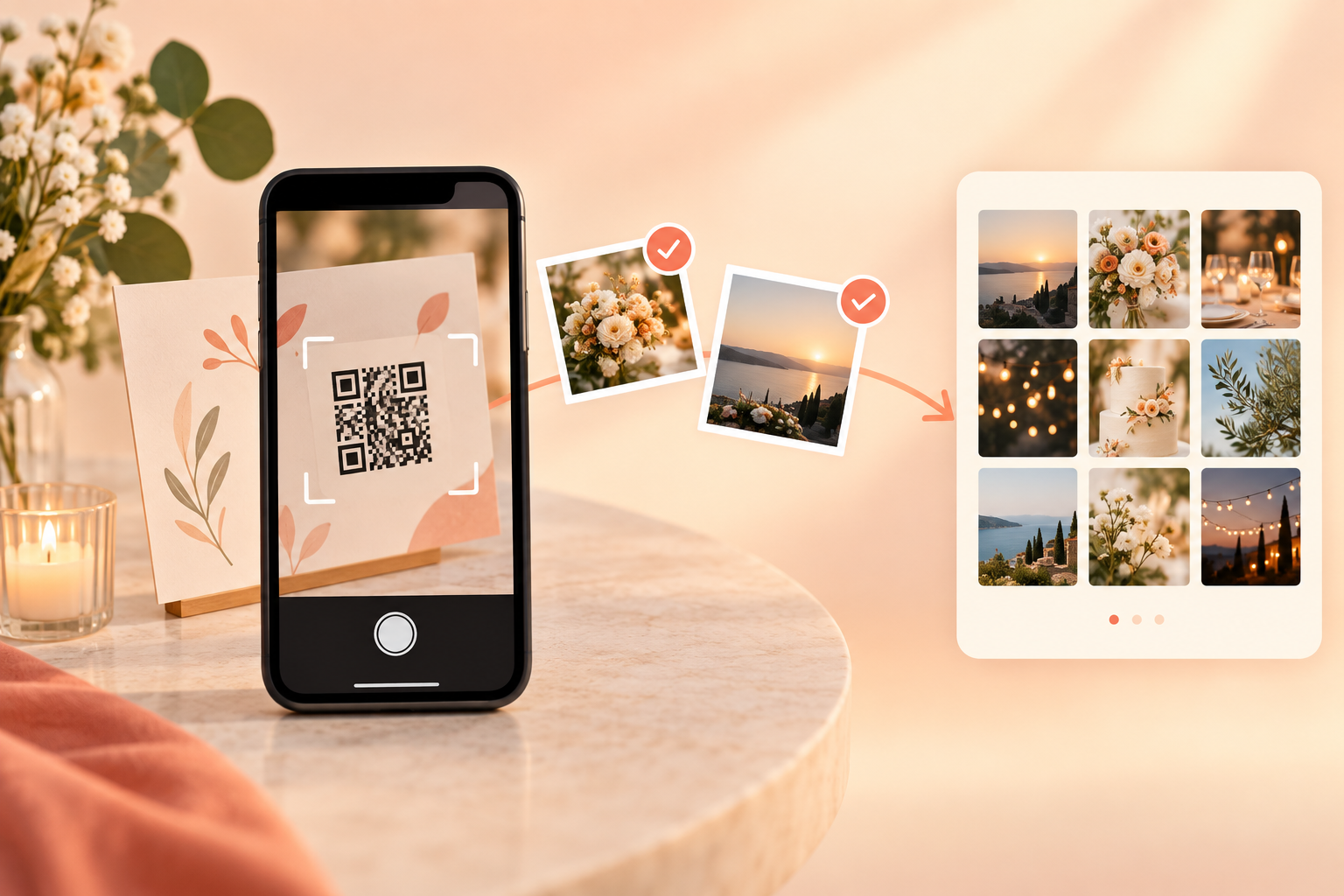
After the last toast, the best photos from a wedding, reunion, or conference usually aren't on the host's camera — they're scattered across a dozen guests' phones, half of them buried in group texts nobody circles back to open. QR code image upload removes every excuse a guest has for not sharing: no app to install, no account to create, no separate upload link to dig for later.
One QR code — printed on a table card, shown on a screen, or dropped into a text — is all it takes. A guest scans it with their phone's own camera and a browser upload page opens immediately, no app store detour and no signing up first. From there they can send in photos already sitting in their camera roll or snap something new on the spot, and it lands straight in the same shared gallery everyone else is contributing to. This page focuses on that upload action itself; for how the gallery is hosted and revealed over time, see QR code photo sharing, and for how hosts manage who can contribute, see guest upload management.
How QR code image upload works
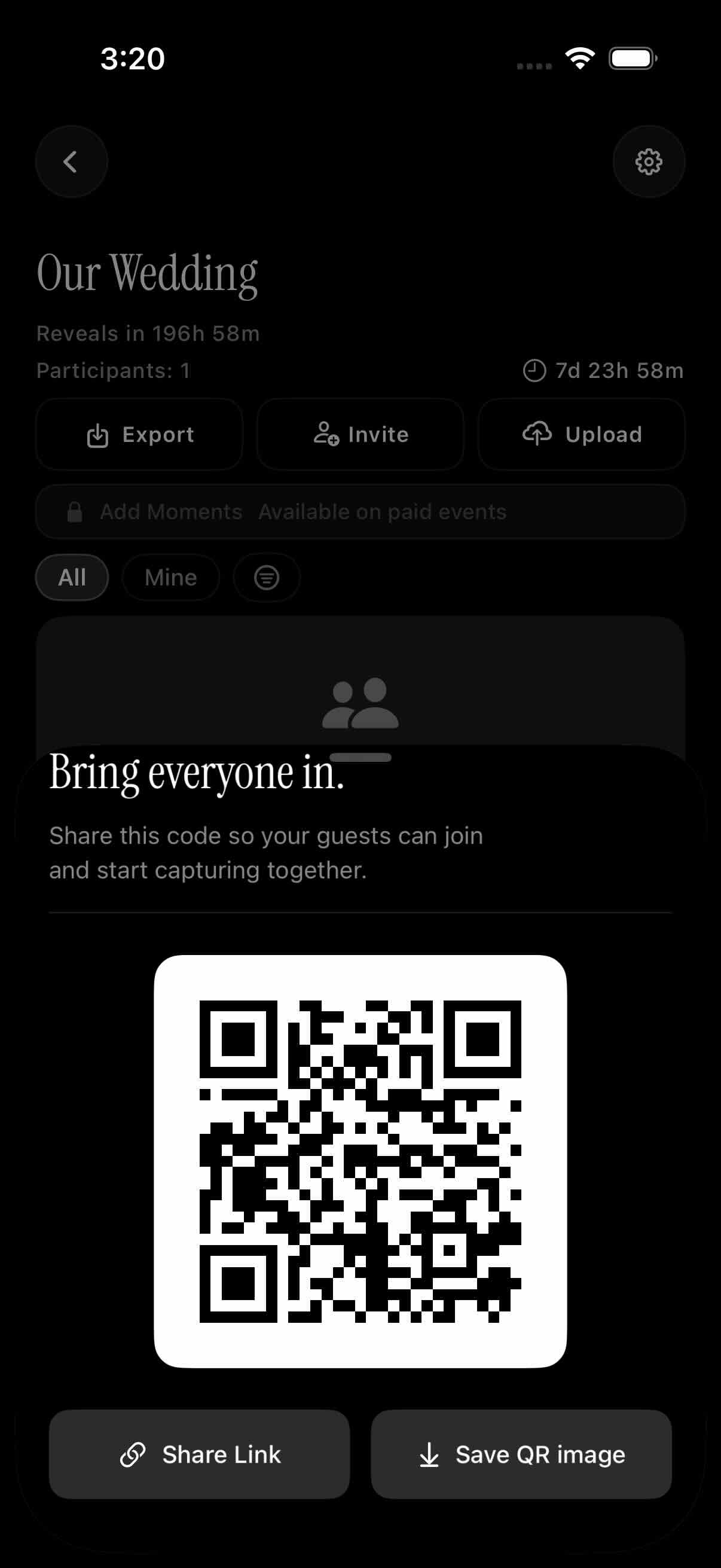
The host generates one QR code for the event and shares it however makes sense — printed on a table card, displayed on a screen during a conference, or sent in a text or email ahead of time. That single code is tied to that one event's gallery, so only guests who have it can contribute.
When a guest scans the code with their phone's built-in camera, no separate app is required — it opens a browser-based upload page right away. There's no account to create and no login to remember; the guest is uploading within seconds of scanning.
From that upload page, guests can pick existing photos out of their camera roll or take new ones on the spot. Either way, tapping upload sends the images straight into the shared event gallery, where the host and other guests can see them alongside everyone else's contributions.
Which photos are allowed in
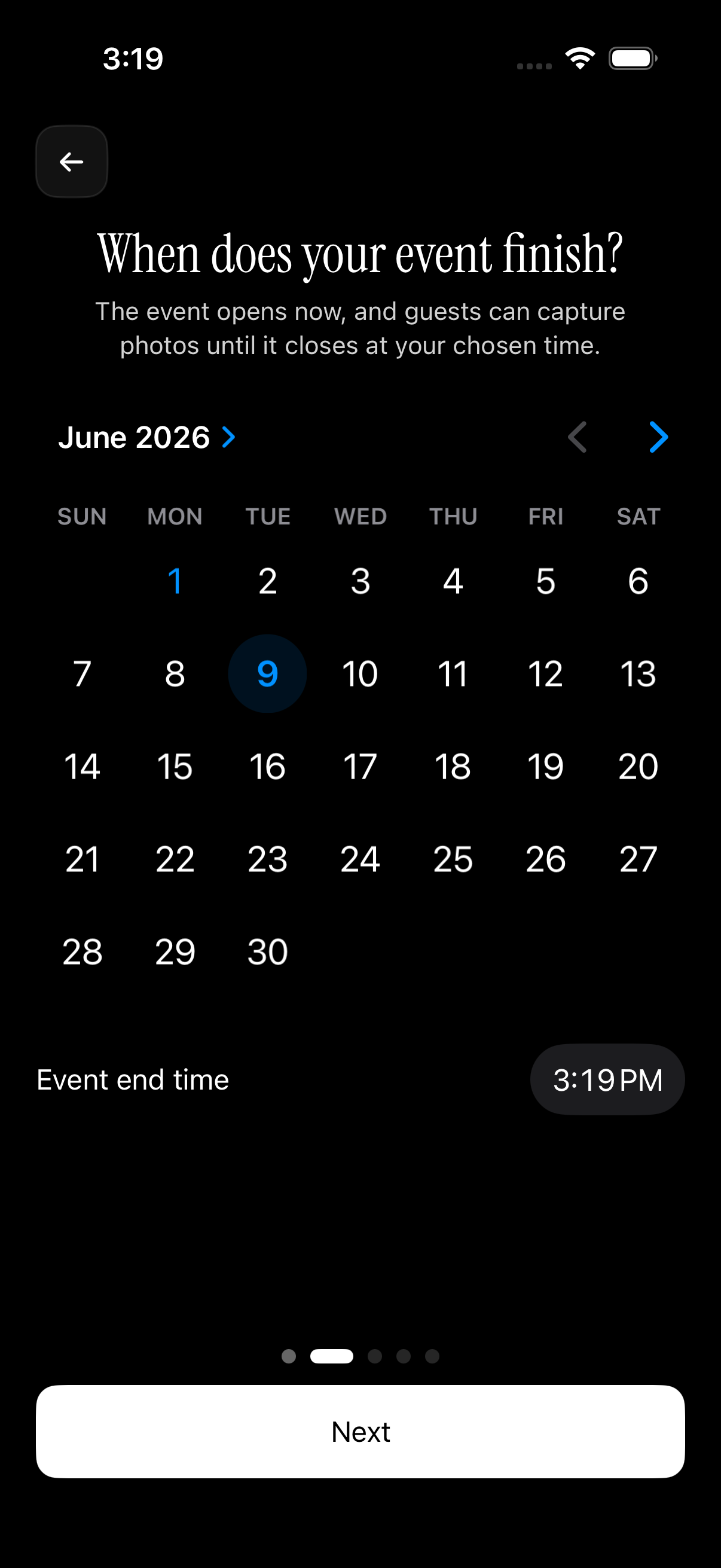
Every event has a scheduled date range the host sets when creating it, and that window controls which uploads make it into the gallery. A photo's own timestamp — not when it happens to be uploaded — is what gets checked.
That means a guest can upload photos days after the event ends and they'll still show up, as long as the photo itself was taken within the event's dates. It also means an old, unrelated photo pulled from deep in a camera roll won't slip through just because a guest tapped the wrong thumbnail — if the timestamp falls outside the event window, it's rejected.
This keeps the gallery focused on photos actually taken at the event, without asking guests to manually sort through their camera roll first or forcing hosts to police uploads after the fact. For more on setting up an event so uploads and reveals work the way you want, see how QR code photo sharing works end to end.
Who it is for
Wedding guests without the app
A guest at the reception has ten ceremony photos already sitting in their camera roll. They scan the table's QR code, pick all ten, and they're in the couple's shared gallery before they sit back down — no app store, no sign-up. It's the same flow many [wedding hosts](https://sync.camera/for/wedding-guest-photo-upload) rely on to collect every guest's photos in one place.
Conference attendees
As the closing slide goes up with a QR code, attendees scan it on their way out and upload the day's photos straight from their phones — no work account to create, no email link to wait for.
Family reunion latecomers
A relative who arrives after the reunion is already underway scans the same posted code hours later and uploads photos from earlier that day. Because the upload window covers the whole event date range, arriving late doesn't lock them out of contributing.
Features
No app, no account
Guests scan the QR code with their phone's camera and upload from the browser that opens — nothing to install, nothing to sign up for.
Camera roll or live camera
Guests can upload photos already on their phone, not just ones taken in the moment, as long as they fall inside the event's date window.
Date-window filtering
Uploads are checked against the event's scheduled dates, so the gallery stays limited to photos actually taken at the event.
One code per event
Each event gets its own unique QR code; only guests with that code can upload into that gallery.
Frequently asked questions
Do guests need to install an app to upload photos?
No. Scanning the QR code opens a browser-based upload page on the guest's phone — there's no app to download and no account to create. Guests just pick photos from their camera roll or take new ones and upload directly into the event's shared gallery.
Can guests upload photos already on their phone, or only new ones taken on the spot?
Both. Guests can upload existing camera-roll photos as well as ones they take in the moment. Every upload is checked against the event's scheduled date range, so only photos timestamped within that window are accepted — a guest's whole camera roll won't flood the gallery with unrelated shots from months earlier.
Is there a limit on how many guests can upload photos?
Free events support up to seven guest uploaders. For bigger groups — a wedding, a conference, a reunion — upgrading to a paid event removes that cap, so every attendee can contribute with no limit on the number of guest uploaders.
Does sync.camera track guests or sell their uploaded photos?
No. sync.camera runs no ads and no cross-app tracking, and it doesn't sell photos or guest data. A guest scanning an unfamiliar QR code isn't opting into surveillance — they're just getting their photos into the shared gallery.