A QR code generator turns a link or a piece of text into a square code that a phone camera can read. This free QR code generator makes the code in your browser: paste your link, press Make QR code, then download it as a PNG or SVG or print it, with no sign-up. The codes are static, so the link lives in the code itself and keeps working as long as the link does.
Make a QR code from any link or text
How to use this free QR code generator
Copy the full link
Copy the link from your browser's address bar, so it starts with https://, or type the text you want people to see.
Paste it and press Make QR code
Paste it into the box, replacing the sample text, and press Make QR code. The box takes up to 1,000 characters.
Test-scan the code on screen
Point your phone camera at the code on screen and check that it opens the right page before you share or print it.
Download or print it
Download a PNG (about 1024 px) for documents, slides and the web, or an SVG for print shops and design apps. Or press Print for one 8 cm code on a page.
Keep it black on white
Print or place the code black on white, at least 2 cm wide, and keep the white border around it.
Where to use a QR code, and a printing checklist
Where a QR code helps
- A menu or price list
- Flyers and posters
- A business card that links to your site
- A feedback or sign-up form
- A table card or welcome sign at an event (for the sign or card itself, try the printable wedding signs and wedding table numbers tools)
- A product manual or warranty page
Before you print many copies
- Test-scan the code first, at the size you will print it.
- Keep the white border (the quiet zone) around the code.
- Avoid glossy or curved spots, where glare breaks scans.
- Go bigger for codes read from a distance, and test from where people will stand.
- Keep the destination link alive: a static code cannot be redirected later.
A QR code that collects your event's photos
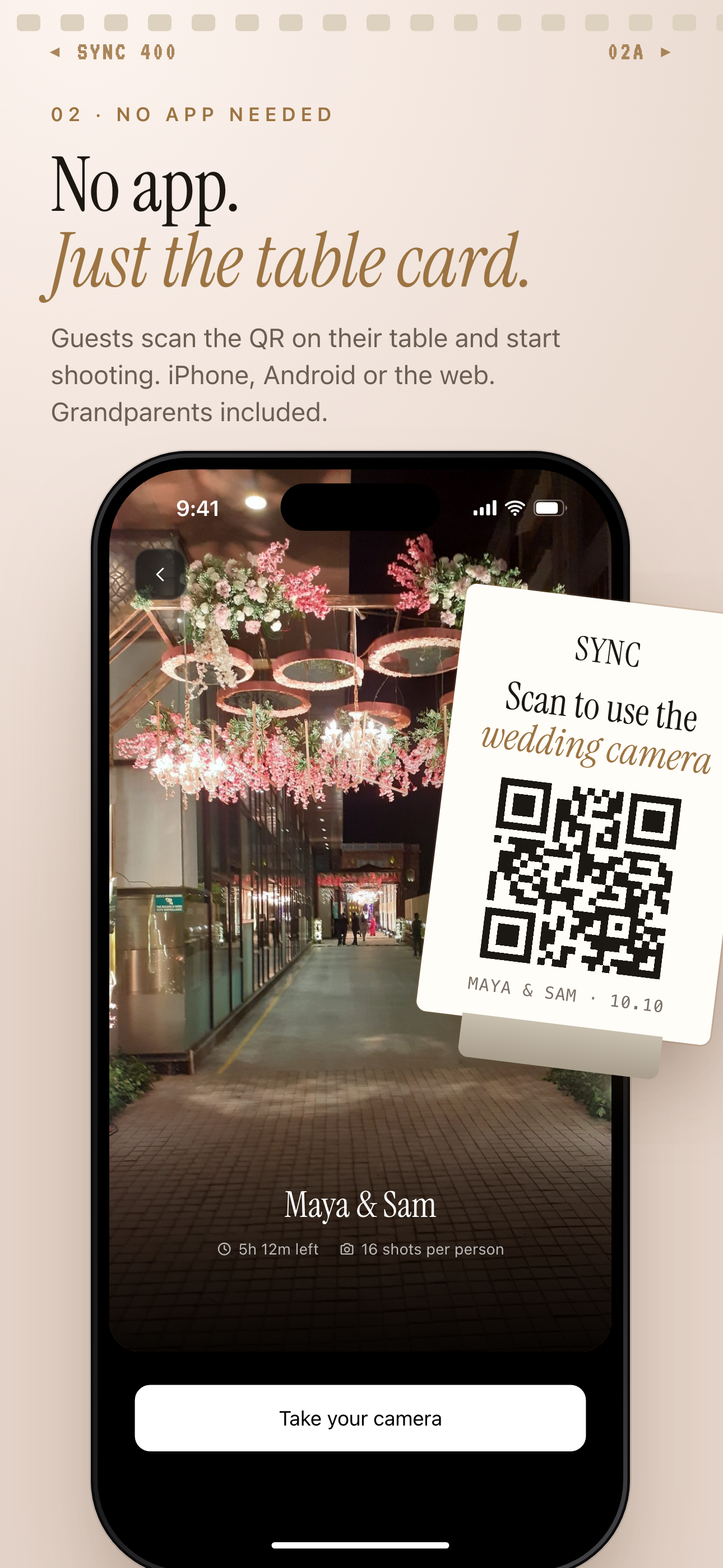
Many people make a QR code for a table card or a welcome sign. SYNC uses a QR code for a different job: guests join your event from its QR code (or an eight-character invite) and add their photos to one shared album. No account required, and guests can join from any modern phone browser; installing the iOS or Android app is optional.
- Moments split an event into stages, such as the ceremony, reception and after-party, each with its own QR code and reveal timing.
- Reveal modes choose when photos appear: live during the event, when the event ends, or a set number of hours after it ends.
SYNC is free to start, with up to 7 guest uploaders per event and no credit card needed. SYNC PRO is a one-time upgrade for a single event, not a subscription. SYNC's event codes are made in the SYNC app, not by this tool. The picture shows SYNC's own event QR table card beside its wedding join screen. See how SYNC works for QR codes at events, or read the guide to wedding QR code photo sharing.
Frequently asked questions
Is this QR code generator really free?
Yes. This free QR code generator has no sign-up, no watermark and no limit on how many codes you make, and there is nothing to pay. It runs in your browser.
Do these QR codes expire?
No. They are static: the link or text is stored in the code itself, with no redirect service in between, so the code works as long as the link does. The trade-off is that you cannot change where a printed code points. To point somewhere else, make a new code.
What is the difference between a static and a dynamic QR code?
A dynamic QR code points to a short redirect link run by the provider. The destination can be edited and scans can be counted, but the code stops working if that service or plan ends. A static code holds the destination directly. This tool makes static codes only.
Should I download a PNG or an SVG?
Download the PNG (about 1024 px) for documents, slides, emails and websites. The SVG is a vector file for print shops and design apps: it stays sharp at any size.
How big should I print a QR code?
At least 2 cm (about 0.8 in) wide for scanning up close, and bigger for posters and signs read from further away. Keep it black on white with the white border, and test-scan it at the size and distance it will be used. The Print button prints one code 8 cm wide.
Why does my phone show text instead of opening the link?
The code holds exactly what you typed. A bare address like yoursite.com may be read as plain text, so paste the whole link from your browser's address bar, starting with https://. The tool shows a tip when your text looks like a link without that start.
Can I change the colour or add a logo?
Not here, on purpose. This tool keeps codes black on white with nothing covering them, because high contrast and an uncovered pattern scan most reliably on every phone.
Is what I type private?
The code is made in your browser. The tool does not upload or save what you type, and it is gone when you reload the page.
How do I scan a QR code?
Open your phone's camera app and point it at the code, then tap the link that appears. If you want a dedicated scanner app on Android, see our comparison of the best QR code scanners for Android.