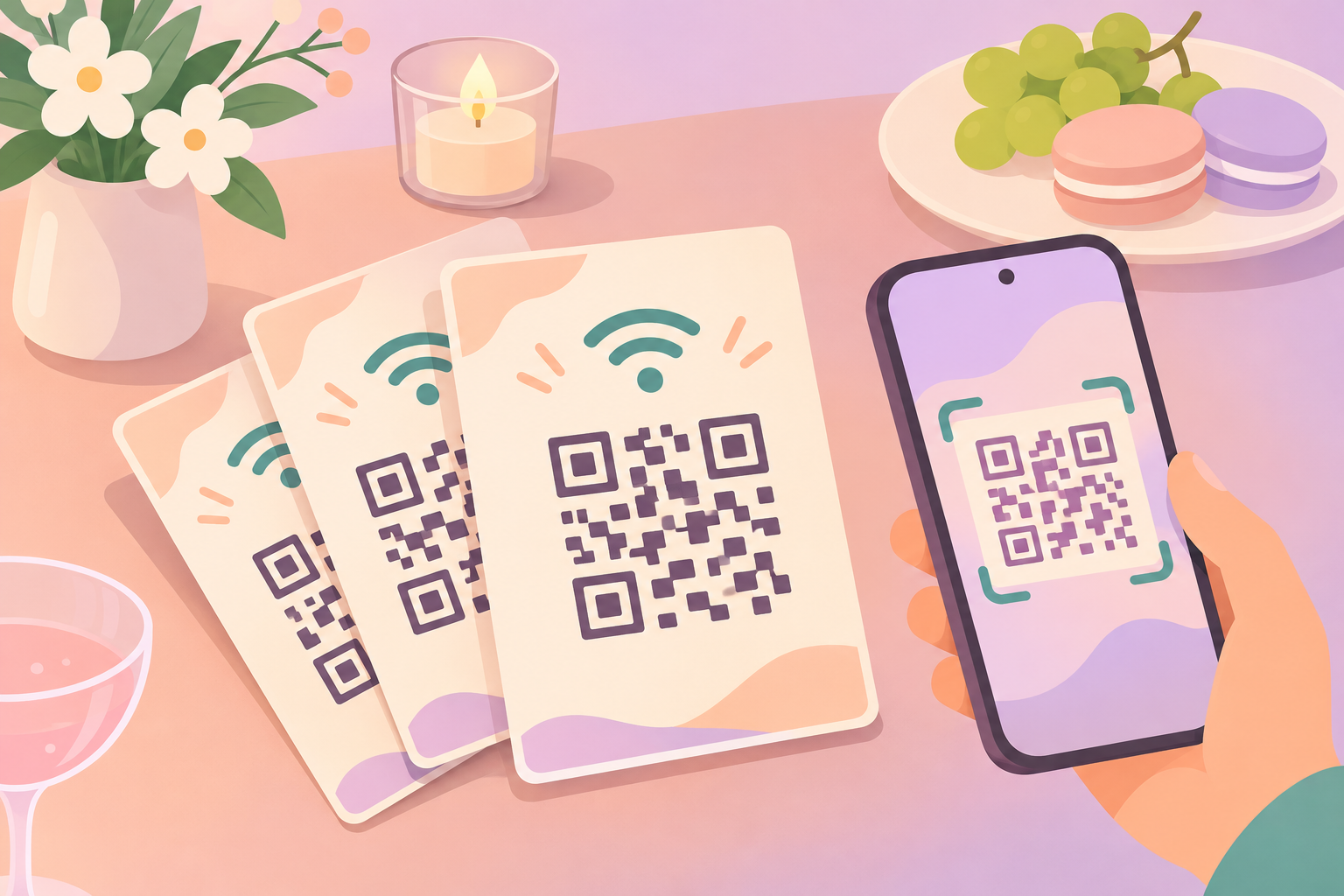
A WiFi QR code stores your network name, password and security type in a standard format that phone cameras read, so guests join your Wi-Fi by scanning instead of typing. This free WiFi QR code generator makes the code and a printable card in your browser, and your password never leaves your device. Download the code as PNG or SVG, print 1, 4 or 8 cards per page, or save a PDF.
Make your WiFi QR code and printable card
How to make a WiFi QR code
Type your network name exactly
Type your network name exactly as your phone shows it, including capitals and spaces.
Add the password and security type
Type the password and pick the security type: WPA for almost every home, guest or shop network, None for an open network. Tick Hidden network only if your router does not broadcast its name.
Create the code and test it
Click Create Wi-Fi QR code, then scan the code with your own phone to check it joins.
Download, print or save a PDF
Download the code as PNG or SVG, or print the card (1, 4 or 8 per page) or save it as a PDF. Tick Show password on the card if you also want the password written out for people who cannot scan.
Where to put your Wi-Fi card
A Wi-Fi card helps anywhere people ask for the password:
- Guest room or fridge door at home.
- Holiday-rental welcome book, so guests are online the moment they arrive.
- Café counter or tables: print 8 per page and put one on every table.
- Office reception desk for visitors.
- The entrance table at a party or event.
Tips for a card that works
- Point the code at a guest network rather than your main one, if your router has one.
- Laminate or frame the card so it lasts.
- Print it big enough: at least 2 cm across, larger if people scan from a distance. The large sign prints the code 10 cm wide, 4 per page 6 cm and 8 per page 4 cm.
- Test it on an iPhone and an Android phone before you print a batch.
- Reprint the card whenever you change the password.
Planning a wedding? The same printer can make your printable wedding signs and wedding table numbers.
The same scan-to-join idea, for party photos
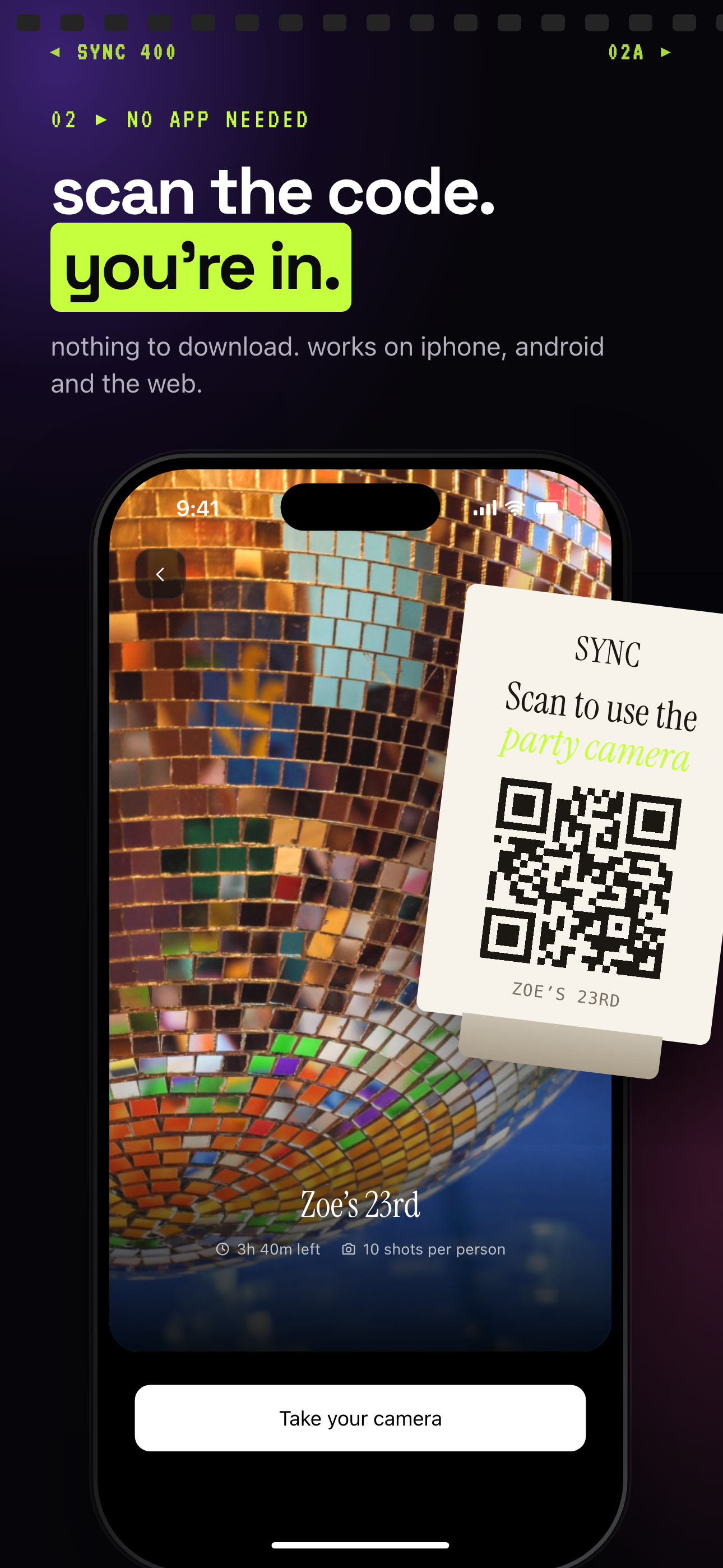
The card you just printed saves guests typing a password. SYNC does the same for the photos at a party or event. A host creates an event, names it and picks an end time. Guests join from a QR code or an eight-character invite in any modern phone browser: no account required, and the app is optional. Every guest's photos land in one shared album.
Reveal modes decide when guests see the photos: during the event, after it ends, or a set number of hours after it ends. On privacy, in SYNC's own words: "We don't sell your photos or your data. No ads. No cross-app tracking."
Free to start. Upgrade per event. The free tier covers up to 7 guest uploaders per event, with no credit card needed. See how QR code photo sharing works, or set up a QR code for party pictures.
Frequently asked questions
What is a WiFi QR code?
A WiFi QR code is a QR code that holds your network name, password and security type in the standard WIFI: format. Most phone cameras recognise it and offer to join the network, so nobody has to type a long password.
Is it safe to put my Wi-Fi password into this generator?
Yes. The code is made on your device, and the password is never sent, saved or recorded; reloading the page clears it. Keep in mind that a Wi-Fi QR code is not encrypted: anyone who scans it can join, and some apps can show the password. Put the card only where you would tell people the password, and use a guest network if your router has one.
How do I scan a WiFi QR code on iPhone or Android?
Open the camera, point it at the code and tap the Wi-Fi prompt that appears. On some Android phones, use the QR icon on the Wi-Fi settings screen, or a lens or scanner app, instead.
Does a WiFi QR code expire?
No. It is static: the details are inside the code, not behind a link, so it keeps working until you change the network name, password or security type. When you do, make and print a new one.
Why won't my WiFi QR code connect?
Check that the network name and password match exactly (both are case-sensitive), the security type is right, Hidden network is ticked only for a hidden network, and the phone is in range. Networks that ask for a username as well as a password, typical at work, cannot be joined from a QR code.
Can I hide the password on the printed card?
Yes, it is hidden by default: the card shows the network name and the code, and the password stays inside the code. Tick Show password on the card to write it out as well.
Which security type should I choose?
WPA covers WPA2 and most WPA3 networks, which is nearly every router today. WEP is only for very old routers. Choose None for a network with no password. The router's label or settings page shows which one you have.