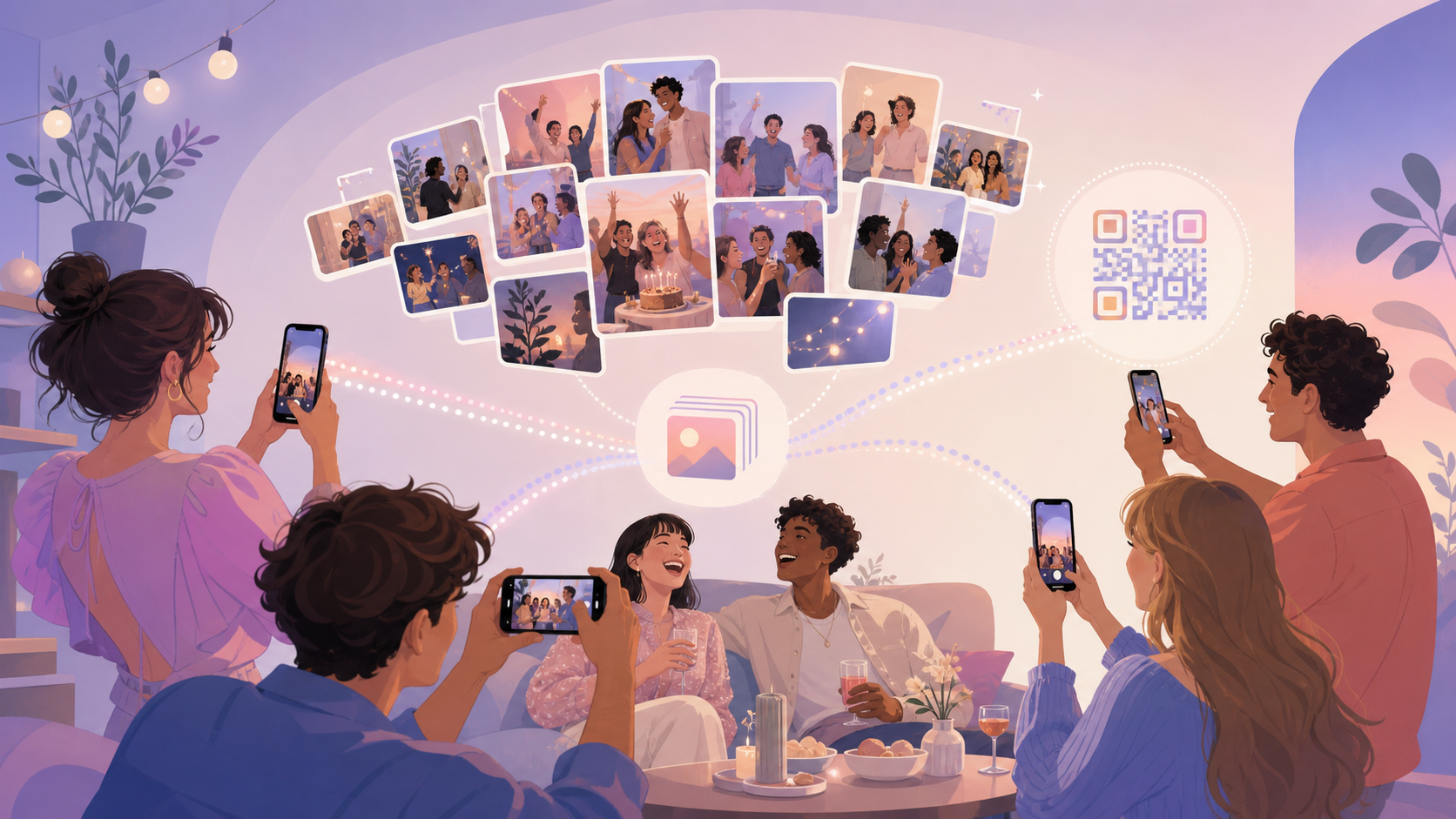
Most "best disposable camera app" roundups list five apps and a few bullet points about filters, then stop. None of them show what actually happens when a guest opens the app at a real party. This guide walks through the real screens instead: creating an event, joining by QR code, setting the upload window, and choosing when the gallery unlocks.
What Is a Disposable Camera App, and Why Do Parties Use One?
A disposable camera app turns every guest's phone into the disposable camera that used to sit on the reception table — except every photo lands in one shared event gallery instead of a drawer of undeveloped film.
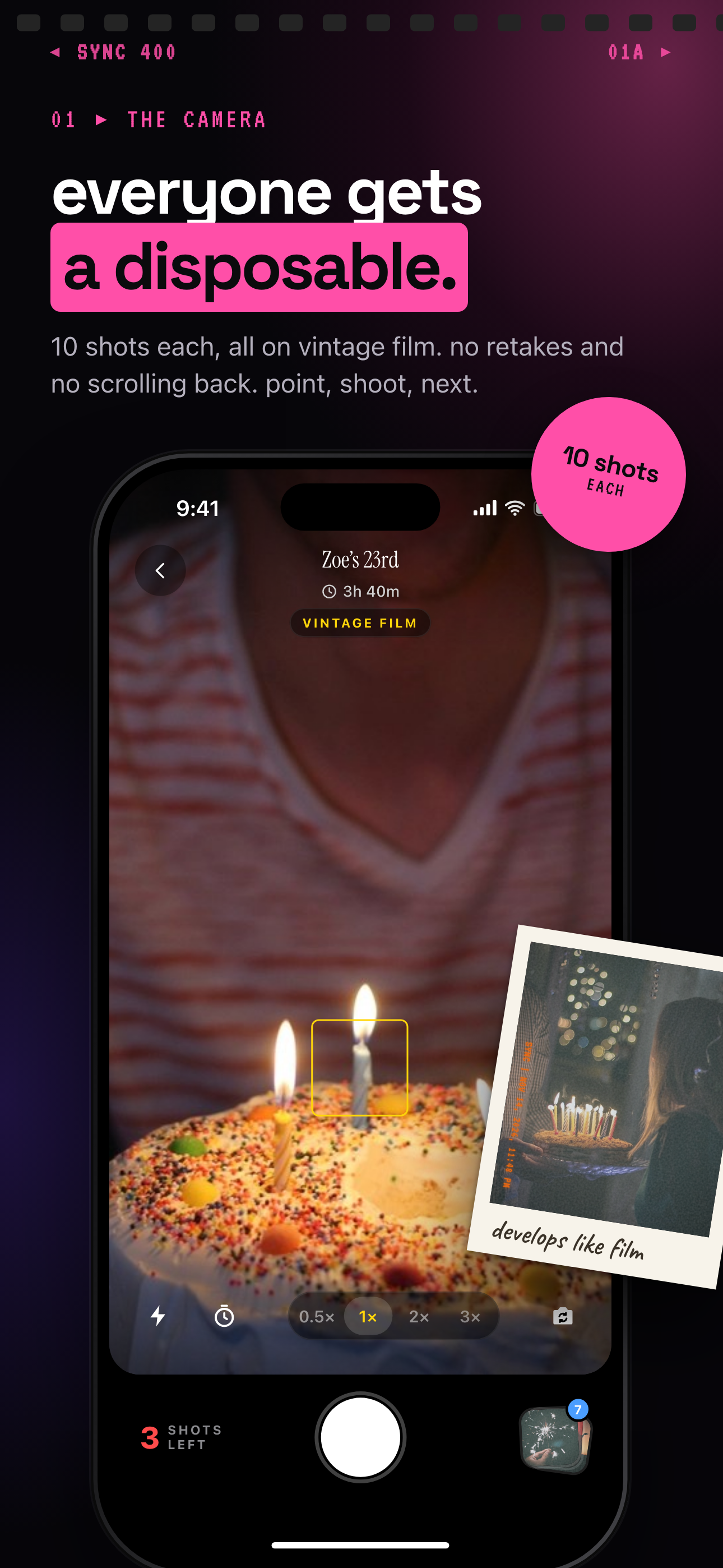 In SYNC, each guest's phone works as the event's camera, and every shot lands in one shared gallery.
The disposable-camera nostalgia, without the drugstore wait
The appeal is the format, not the film. Guests point, shoot, and move on — no filters to browse, no feed to curate, no pressure to make the shot "good." The app just collects what people actually saw, the way a disposable camera did, except the gallery is viewable the same night instead of after a drugstore print run.
Behind that nostalgia sits a real problem: hosts used to leave real disposable cameras on the tables, then had to collect every camera, pay to develop the film, and still text guests afterward hoping someone remembered to send their shots. A disposable camera app solves the same problem without any of that — every guest's candid shots land in one shared gallery automatically, with nothing to collect and no one to chase.
Why it beats texting guests to send photos
The direct answer: a shared gallery removes the follow-up entirely. Texting guests for photos means chasing people days later, guessing who has the best shots, and manually merging files from a dozen different threads. An event gallery app instead gives every guest one QR code to scan at the door — they upload as they go, and the host never has to ask twice.
How Event Photo-Sharing Works, Step by Step (Using Sync as the Example)
The direct answer: hosts set up an event and a guest limit, guests join with one QR scan, and the event's dates decide which photos count — here's each step using Sync as the working example.
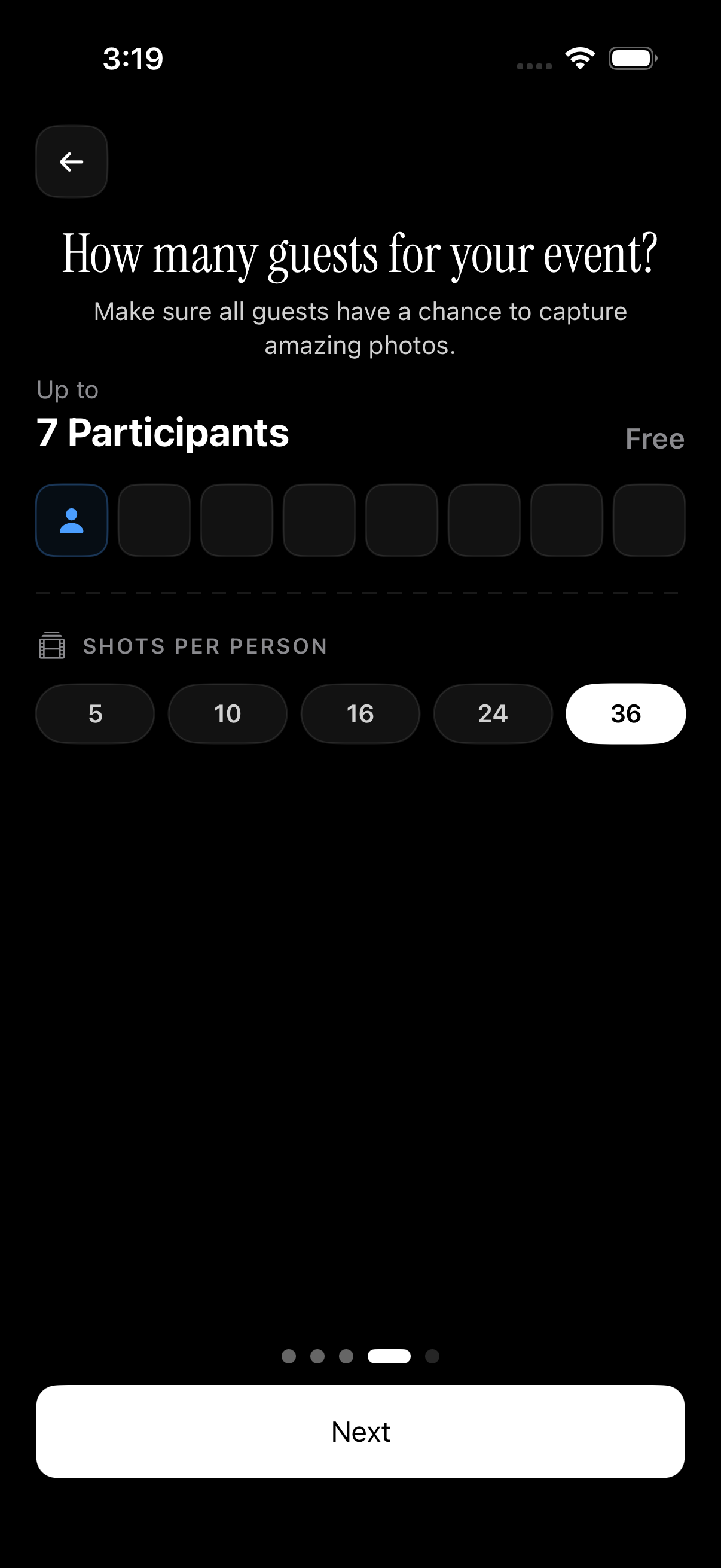 The guest count is picked while creating the event; free events allow up to 7 guest uploaders.
Creating the event and picking a guest limit
The host sets a guest limit the moment the event is created. On Sync's free tier, that cap is currently 7 guests; larger guest lists need the paid tier for unlimited guest uploads. That number matters because it's the difference between a small dinner and a 150-person wedding — the app needs a rough headcount up front to keep pricing tiers fair.
Sharing one QR code instead of an app-store link
Guests join with a single scan — no account, no app-store search, no signup form. Point the phone's camera at the code on the welcome table, and the guest is inside the event's gallery within seconds. Both iPhone and Android cameras can scan a QR code natively now, without installing a separate scanner app — QR-based check-ins have become an everyday habit since 2020, from restaurant menus to event badges (general adoption trends tracked by the Pew Research Center). That familiarity is part of why guests scan without hesitating.
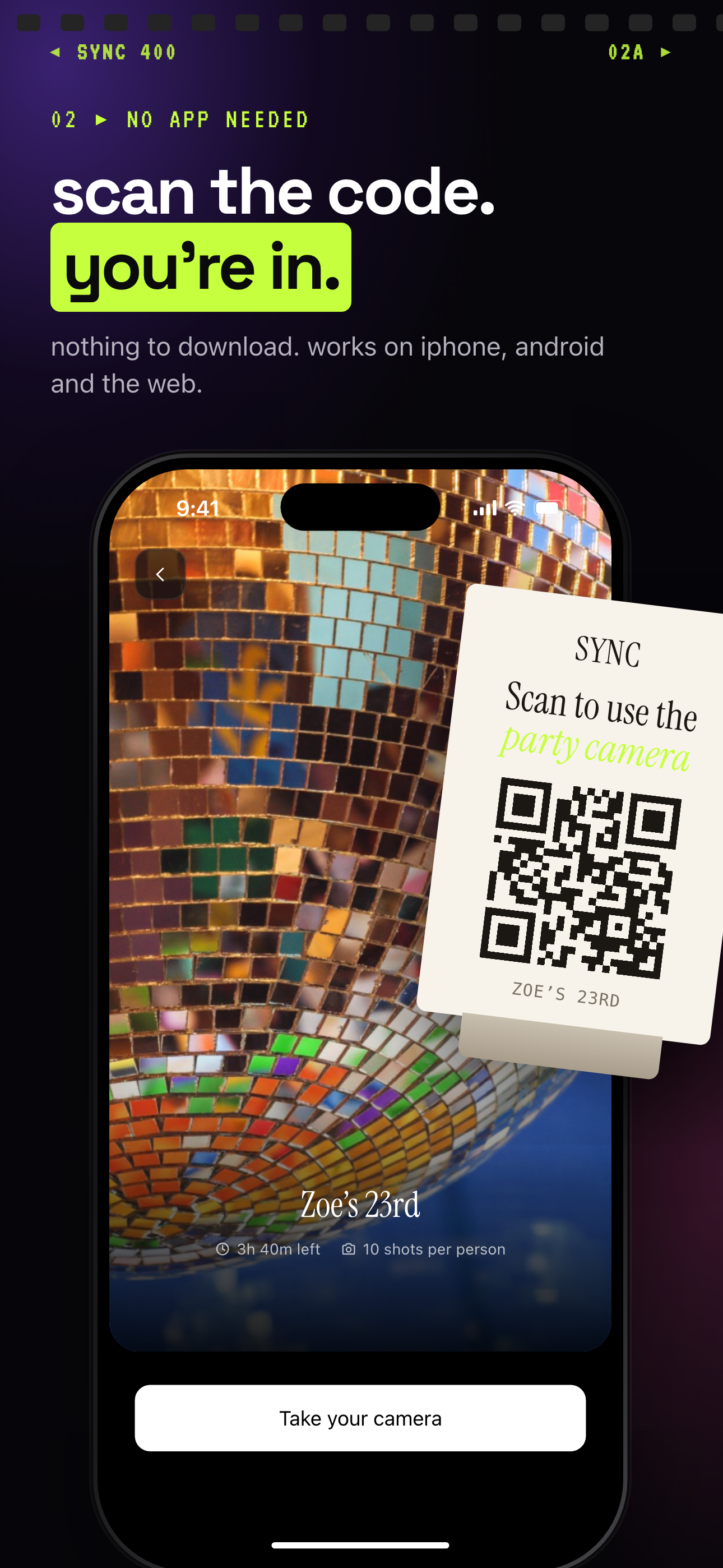
Guests scan the card's QR code and land on the event's join screen, with no account needed.
Setting the photo window so only event-day shots count
The photo upload window — the event's start and end dates, not just "during the party" — is what actually gates which photos land in the gallery. Only shots taken between event creation and the event's end date are accepted, which keeps the finished gallery limited to that occasion instead of pulling in random older photos from a guest's camera roll. Sync also lets the host filter the finished gallery by which guest took each photo — useful for pulling every shot from, say, the wedding photographer's assistant or one specific friend group.
Gallery Reveal Timing: During, After, or Delayed
The direct answer: Sync offers three reveal options — live, after-event, and a host-set delay — and the right pick depends on what you want the room to feel like while the party is still happening.
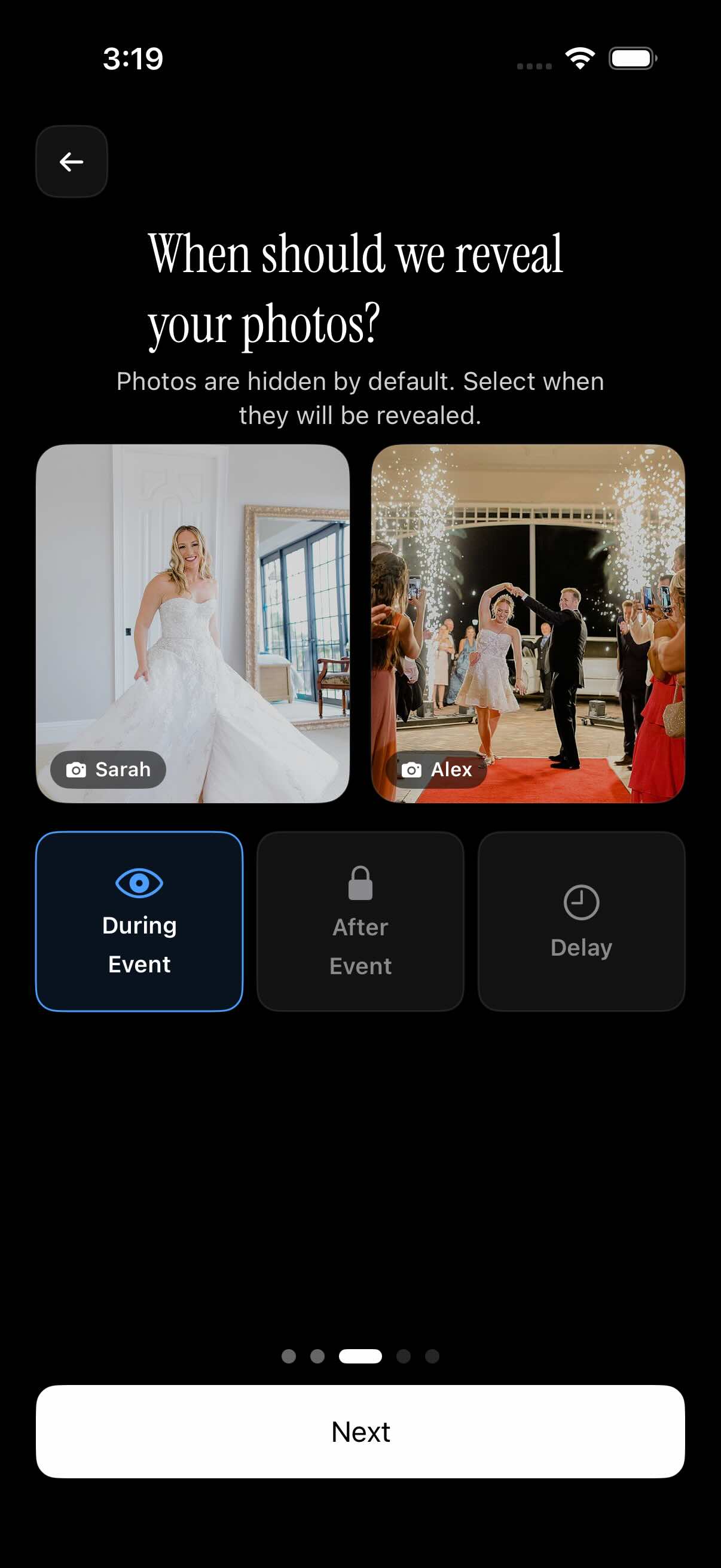 The three reveal modes side by side, set from the same event screen shown above.
| Reveal mode | When photos appear | Best-fit event type |
|---|---|---|
| During the event | Live, as guests upload | Birthdays and casual parties — a live feed adds energy |
| After the event ends | Once the event's end date passes | Weddings, receptions — keeps guests present instead of scrolling |
| Delayed (host-set) | A host-chosen period after the event ends | Surprise slideshows, next-day reveals |
Live reveal for real-time party energy
The direct answer: live reveal shows photos on the gallery as guests upload them, during the event itself. That keeps people checking the feed and reacting to each other's shots in real time, which works well for birthdays and casual parties where a little phone-checking doesn't take away from the room.
After-event reveal to avoid distracting guests
The direct answer: after-event reveal locks the gallery until the event's end date passes, so nobody's staring at a phone during a ceremony or a first dance. It trades real-time engagement for a night guests spend looking up instead of at a screen.
Delayed reveal for a surprise slideshow moment
The direct answer: delayed reveal opens the gallery a host-chosen period after the event ends. There's no fixed, industry-standard wait time here — Sync leaves the exact delay up to the host — which is what makes it work for a surprise slideshow at a reception or a "here's everything from last night" reveal the next morning. For the full breakdown of all three modes, see Sync's gallery-reveal options explained.
Choosing the Right App: Guest Limits, Pricing, and Privacy
The direct answer: match the app's guest cap to your real headcount, and check what its privacy policy says happens to the gallery and guest data once the event ends.
| Tier | Guest cap | Upload limit | Best-fit headcount |
|---|---|---|---|
| Free | 7 guests | Limited | Small dinners, intimate showers |
| Paid | Configurable | Unlimited photo uploads | Weddings, large birthdays, corporate events |
See Sync's current pricing and guest limits for the tiers as they stand today — these are operator-set numbers and can change.
Free tier limits vs. paid unlimited uploads
Free events suit small gatherings — the 7-guest cap covers a dinner party or a small shower without needing a paid plan. Once a guest list crosses that line, the paid tier unlocks unlimited photo uploads, which is what most weddings and larger parties actually need.
What happens to the gallery and guest data afterward
The privacy-forward stance, plainly: the gallery should be tied to your specific event and QR code, not sitting somewhere publicly discoverable, and guests shouldn't have to hand over unrelated personal data — a name, an email, a phone number — just to drop a photo into the pool. Privacy-focused organizations generally recommend that any app collect only the data a task actually requires (see the Electronic Frontier Foundation's privacy resources); for an event gallery, that's a photo and a QR scan, nothing more. For exactly how long a gallery and its photos stay live, and when guest uploads are deleted, check Sync's current privacy and data-handling policy directly — retention windows are the kind of detail that changes, and the policy page is the source of truth, not this article. Regulators generally expect that policy to state retention and deletion practices in plain language (see the FTC's business guidance on privacy and security).
Before you commit to an app, run through this:
- Guest count vs. cap — does the free tier cover your list, or do you need the paid tier?
- Upload window vs. event dates — does the app gate photos by the event's start and end date, or accept anything uploaded later?
- Reveal timing — can you actually choose live, after-event, or delayed reveal yourself?
- Data retention — does the privacy policy say plainly how long galleries and guest data are kept?
Which Party Types Fit Best (Weddings, Birthdays, Reunions, and Corporate Events)
The direct answer: any event where you want every guest's phone acting as a disposable camera, feeding one shared gallery, uses the same setup — weddings, birthdays, reunions, and corporate events all follow the flow described above.
Weddings and receptions
A wedding gallery catches the candid reception shots — the toast, the dance floor, the in-between moments — that guests' phones would otherwise never share with the couple. Hired wedding photography captures the posed, formal shots; the event gallery catches everything else. Delayed reveal fits especially well here: the couple gets a surprise slideshow instead of guests refreshing a feed during dinner. For a deeper walkthrough of this exact use case, see the wedding photo-sharing app guide.
Birthdays and milestone parties
Live reveal tends to fit birthdays best. A feed guests can check during the party adds to the energy rather than taking away from it, and the free tier's guest limit is usually enough for a smaller birthday gathering.
Corporate events and reunions
Larger headcounts — a company party or a class reunion — usually need the paid, unlimited-upload tier, plus the guest filter mentioned earlier to sort photos by attendee afterward. The QR-join mechanic matters even more here: at a reunion with people who haven't seen each other in years, "scan this code" is a much lower bar than "download this app first."
The common thread across every event type: if you want every guest's phone acting as a disposable camera, feeding one shared gallery, the setup is the same no matter what the event is called — create the event, set the guest limit, share the QR code, and pick your reveal timing.