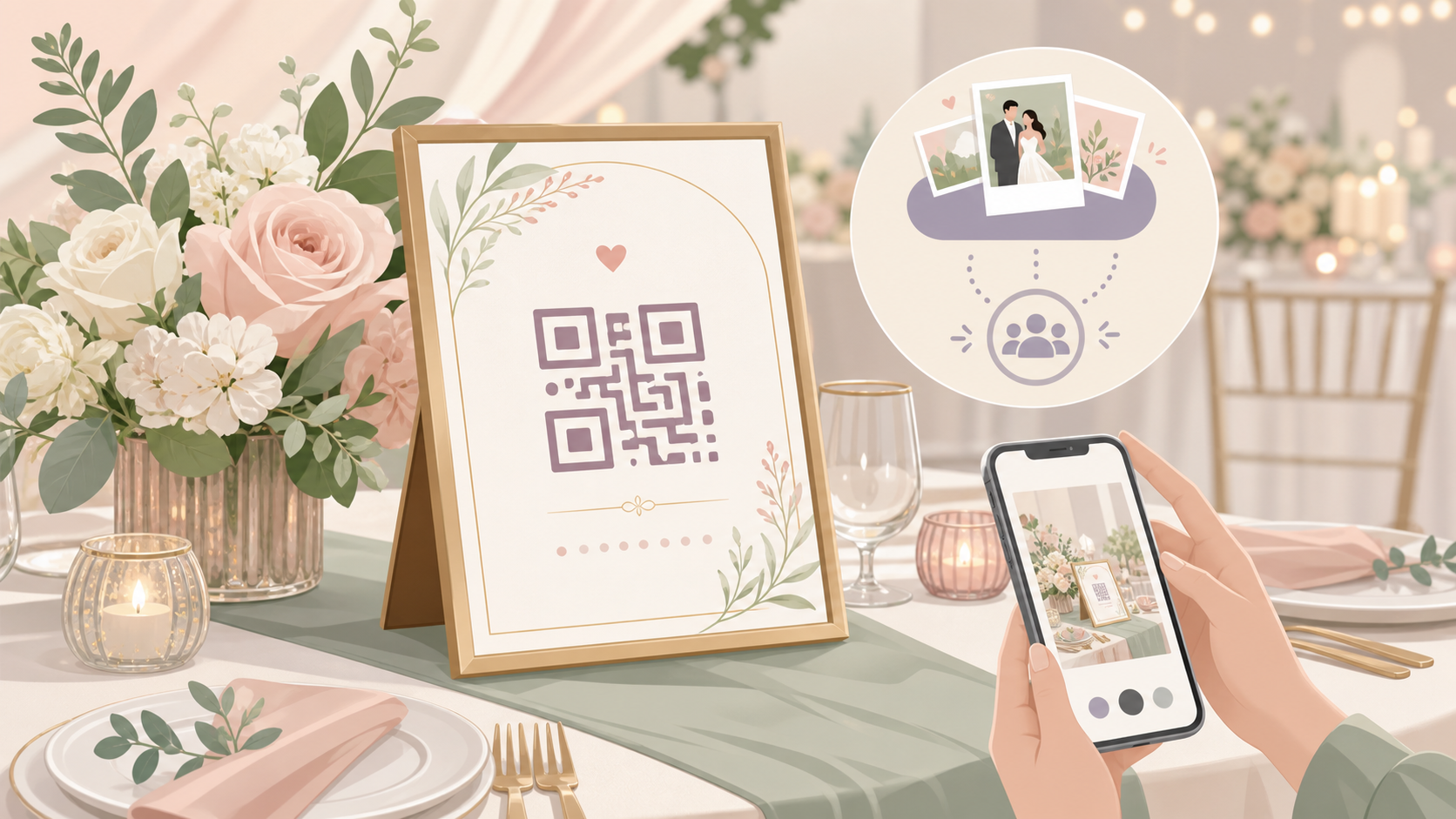
Your guests will take thousands of photos on your wedding day. Candid moments, silly dance-floor shots, table portraits — the kind the photographer never gets. The problem isn't that guests won't shoot. It's getting those photos into one place before they disappear into personal camera rolls.
This guide walks you through why collection breaks down, which methods actually work, and how to set up a frictionless system before the big day.
Why Guest Photos Usually Get Scattered
You've seen it before. Someone makes a WhatsApp group. Everyone agrees to share photos. The group goes quiet two days later, and the photos never arrive.
This isn't a problem with your guests. It's a problem with the method.
The group-chat dead end
Group chats work for conversation. They don't work for photo collection. Messages pile up, photo threads get buried, and people forget. Even the most well-intentioned guests get distracted by life. A photo sitting in their camera roll stays there.
Google Drive links suffer the same fate. You send a shared folder link in the invitation email. Most guests skim past it. A few try to upload. Then nothing. USB sticks are worse still — they require a physical handoff, and that moment rarely happens cleanly at the end of a wedding night.
Why guests don't follow through on sharing links
The biggest hidden barrier is the app-download prompt. When a guest taps a sharing link and sees "Download [App Name] to continue," many simply stop. Installing a new app — even a free one — adds a step that breaks momentum. Any extra installation required on mobile leads to a significant drop in follow-through.
The emotional cost is real. Many couples end up receiving fewer than half the guest photos they were promised. You ask at the reception, everyone nods, and then months pass with nothing in your inbox.
The Main Methods for Collecting Guest Wedding Photos
There are three main approaches to collecting guest wedding photos. Each has genuine trade-offs. Understanding where each one breaks down helps you choose the right system before the wedding.
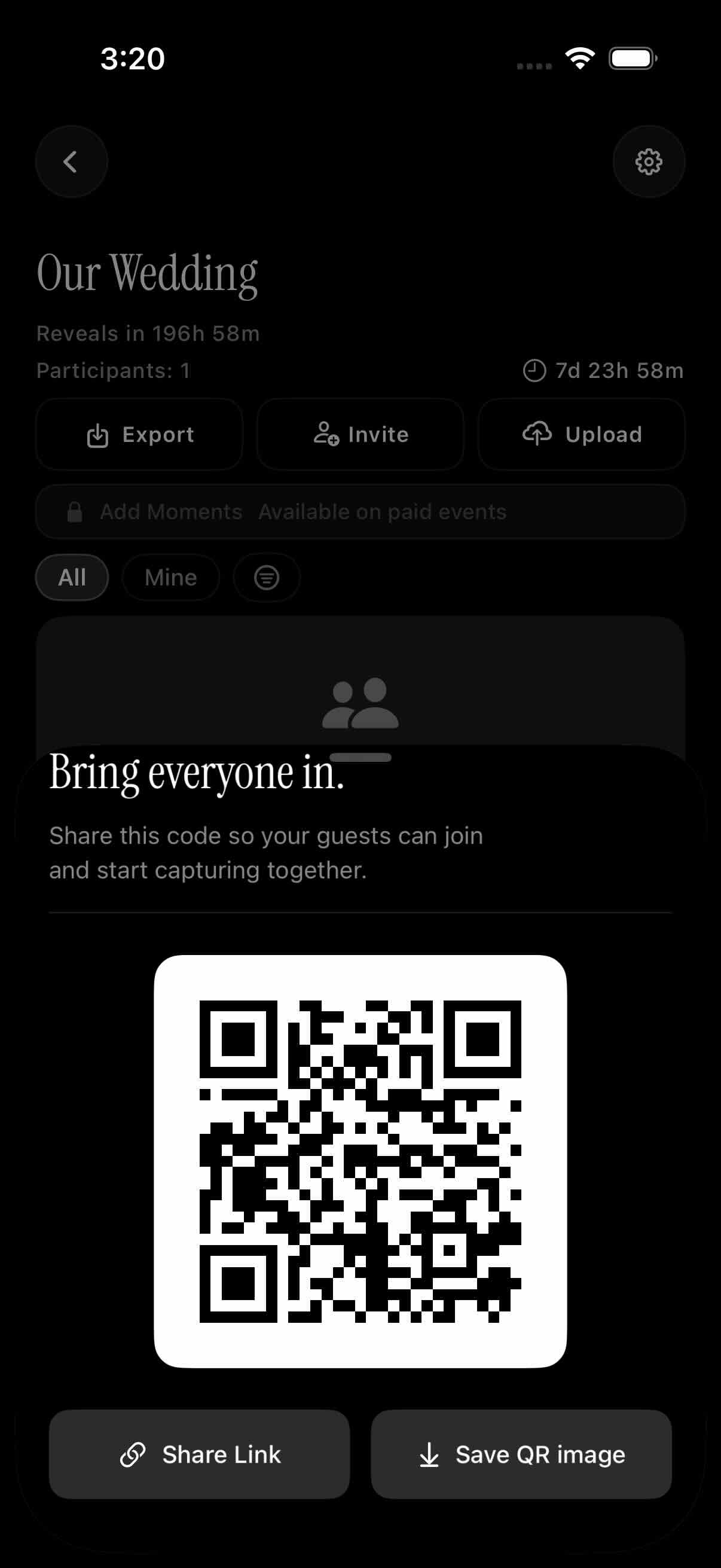 The host side of a QR invite flow: guests scan once and land directly in the shared gallery — no account, no download required.
Shared cloud albums (Google Photos, iCloud)
Google Photos shared albums are free and familiar to many guests. The catch: contributing requires a Google account. For guests on iPhones — or anyone who doesn't regularly use Google services — that's a real barrier.
iCloud Shared Albums have the mirror problem: Apple users contribute easily, but guests on Android or Windows face their own friction. Neither platform was built for a mixed-device guest list. And both show photos to all contributors the moment they're uploaded. There's no way to delay the reveal or review anything before other guests see it.
Wedding website upload forms
Your wedding website may include a photo upload form. These work better than group chats — guests upload directly rather than hoping a thread gets noticed. But they tend to produce disorganized file dumps: no real-time gallery view, no guest attribution, and nothing to browse on the day itself.
They're also easy to forget. A guest who didn't revisit your wedding website after initial planning won't think to go back to it after the reception.
Dedicated event photo apps and QR-code systems
The clearest upgrade is a QR-code-first system. Guests scan a code — from a table card, a sign, or a photo booth backdrop — and land directly in your event gallery. No app to install. No account to create.
On iOS, this works via an Apple App Clip — a lightweight version of the app that loads instantly from a camera scan, without requiring a full download from the App Store. On Android and desktop, the same QR code opens a web app in the browser. Either way, your guests are uploading within a minute.
SYNC was built for this flow. Guests scan, join, and upload straight to a shared gallery. You get a live view the moment photos start coming in. See how the App Clip works for guests if you want to understand what the experience looks like from their side.
Setting Up Guest Photo Collection Before the Wedding
Setup takes about ten minutes. Do it well before the wedding and you won't need to think about it on the day itself.
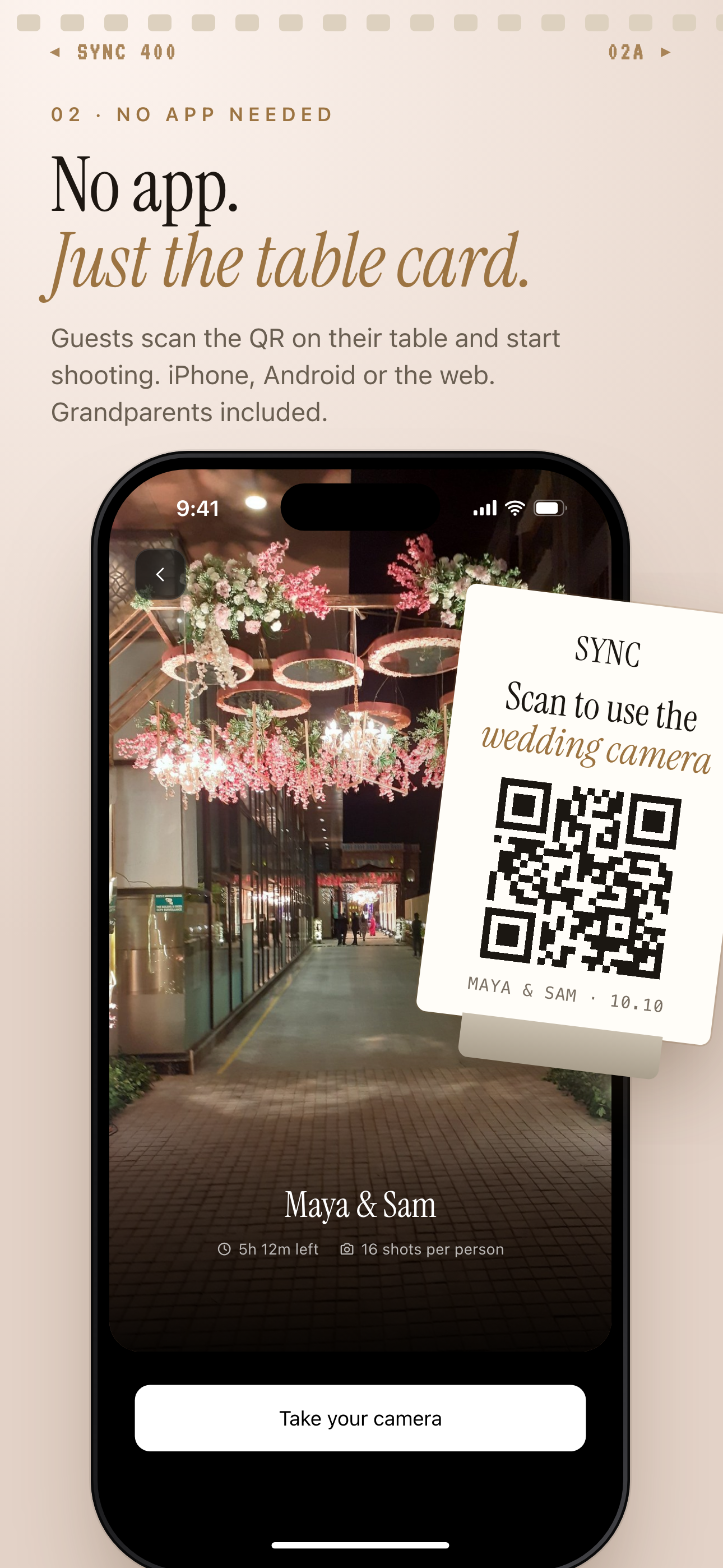 What a guest does on the day: one scan from the table card and they're in the event gallery, ready to upload.
Create your event and set the date window
In SYNC, you create an event and choose a date range. Photos can only be uploaded during that window. This matters more than it sounds.
Without date-gating, guests can upload anything at any time — including photos from the bachelorette party, the rehearsal dinner, or a random Tuesday. A defined window keeps the gallery clean. Only photos from your wedding day appear.
SYNC's free plan supports up to 7 guests. For a larger wedding, the paid plan unlocks unlimited guest uploads. Check the full pricing breakdown before the event so you're not caught out on the day. Most weddings will want the paid plan.
Where to put the QR code (invites, signage, place cards, photo booth)
The QR code is only useful if guests see it. Place it in several locations:
- Table cards — every guest has one in front of them at dinner
- Photo booth backdrop — guests are already in photo mode when they step up
- Printed signage near the bar or entrance
- Digital invitations — include it in the pre-wedding email so guests have it ready on their phones
Send a digital reminder 48 hours before the wedding. Keep it short: "Here's the link to our wedding gallery — you can scan in at the venue or tap here." Guests who have the link ready are far more likely to use it.
If you also want to display guest photos live on a screen at the venue during the reception, see the Live Photo Wall feature — it's designed exactly for that.
Controlling Who Sees Photos and When
Collecting photos is one thing. Controlling who sees them — and when — is just as important. SYNC gives you real choices here, and they're worth thinking through before the event starts.
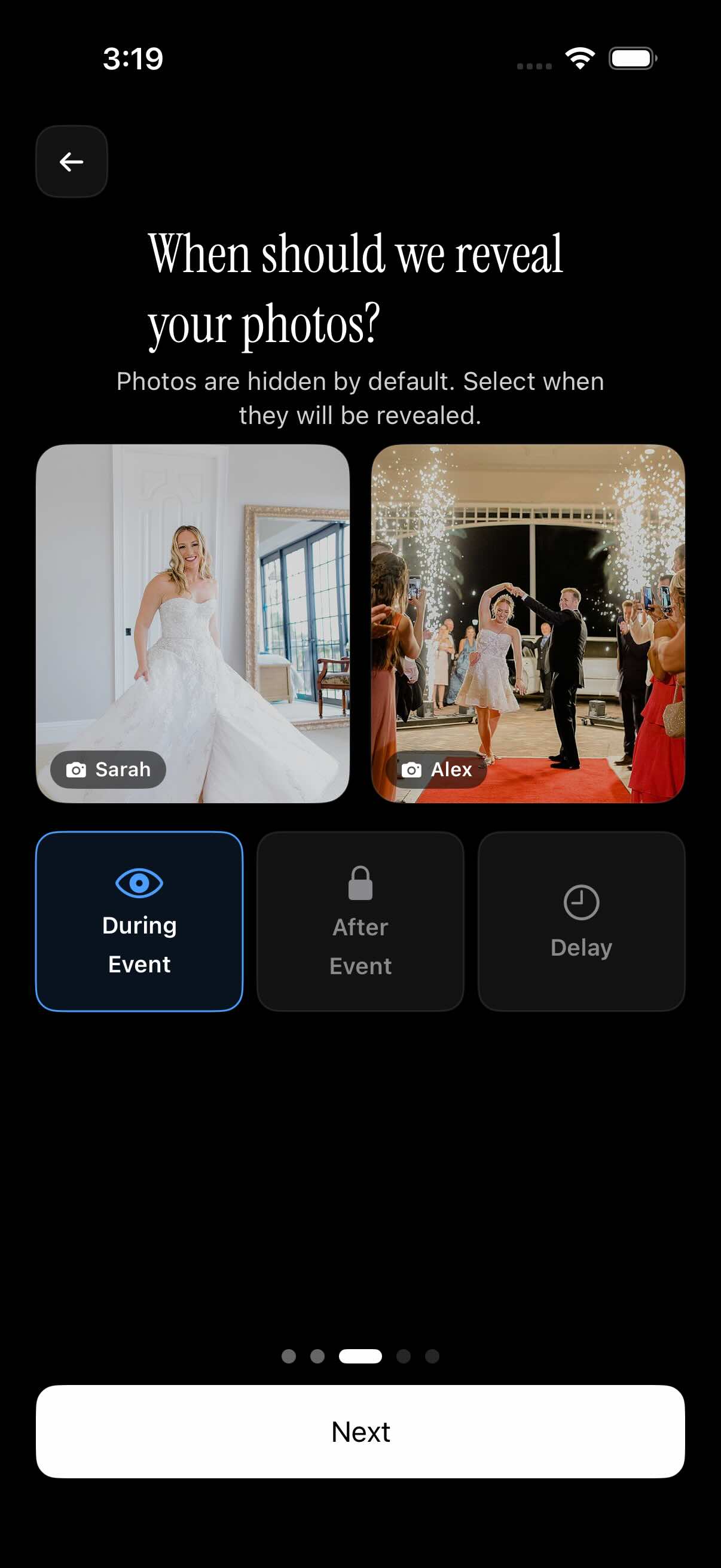 Three reveal modes in SYNC: show photos live during the event, hold them until after it ends, or unlock them after a delay you set.
Gallery reveal modes: during, after, or delayed
SYNC offers three reveal settings:
- During the event — photos appear in the gallery the moment they're uploaded. This creates a live, social feel — especially useful if you're displaying the gallery on a venue screen.
- After the event — the gallery stays hidden until your event window closes. Guests can upload but can't browse until it's over.
- Custom delay — you choose when the gallery unlocks after the event ends. Set it to 48 hours post-wedding if you want time to review before guests can see everything.
The delayed reveal is worth using. It gives you a quiet window to look through everything before the gallery opens. If someone uploaded a batch of blurry or unflattering shots, you can remove them first.
Keeping the gallery private until you're ready
The gallery is not publicly indexed. Nobody finds it via a Google search. Access requires the event link or QR code — the same one you distributed to guests.
Privacy is also built into the guest-facing side. Each contributor appears under a sanitized display name. No guest can see another guest's email address, phone number, or account details through the gallery.
Tips to Get Guests to Actually Share
Even a frictionless system needs a human nudge. The good news: the ask is short, and when you time it right, guests are genuinely glad to help.
The right moments to prompt guests
Two windows work best.
Cocktail hour — guests are relaxed, drinks in hand, phones already out. Most candid photos happen during this part of the evening anyway. A light prompt here catches people at the right moment.
Dinner — the music has quieted down. Guests have time to open their phones, look through what they've shot, and upload. This is your best window for high-volume uploads.
Avoid asking during the ceremony. Guests are present and focused — the request feels intrusive. The same applies to the first dance and key toasts. Let those moments be.
Making the ask feel natural, not awkward
Have the MC or a bridesmaid make a short announcement at the start of dinner. Something like: "Scan the QR code on your table card to add your photos to the couple's album — they'd love to see what you captured today."
Thirty seconds. Done.
You can also mention SYNC's filter-by-photographer view. Each guest can see their own shots credited separately in the gallery. That small personal detail adds motivation — people like knowing their photos are recognized as theirs. Read more about how SYNC works.
What to Do With Guest Photos After the Wedding
The wedding is over. Your gallery is full. Here's how to make the most of what your guests captured.
Downloading your full album
From the SYNC host dashboard, you can download the full album. Photos are stored at the resolution your guests uploaded — nothing is compressed or resized by the platform. What arrives is exactly what they shot.
Use the filter-by-photographer view to sort contributions by guest. It makes it easy to spot the best candid photographers in your crowd. You might find someone who had a perfect angle — or a proper camera — that your wedding photographer never reached.
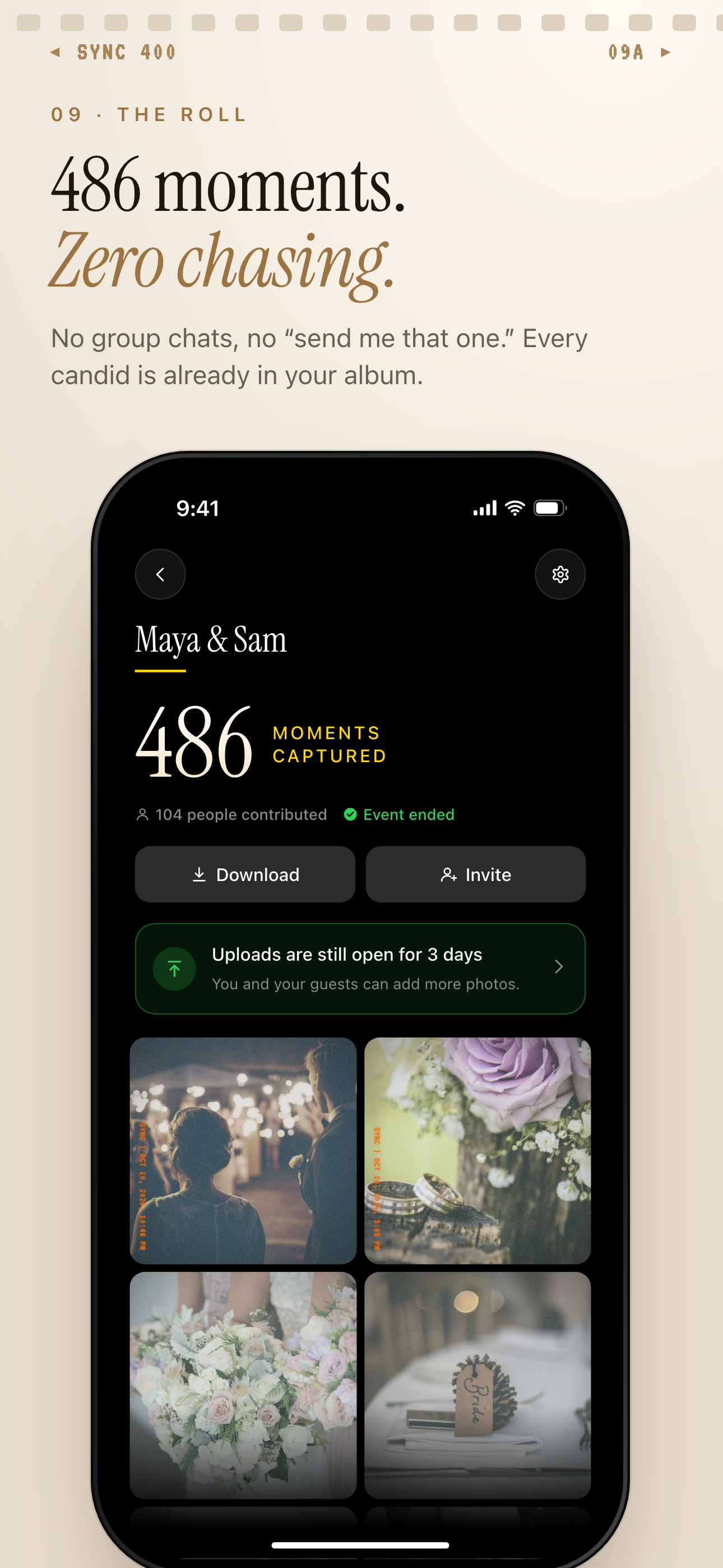
After the event ends, the host downloads the whole guest album from one screen.
Sharing the album with family who couldn't attend
Some of your people couldn't make it. Grandparents, international relatives, friends with conflicting commitments. You can share a read-only album link with them using SYNC's share token — a unique link that gives view-only access to the gallery without requiring any sign-in or account creation.
The recipient opens the link, browses the photos, and saves what they want. No SYNC account needed. Learn more about sharing your wedding album as a post-event gallery.
Finally: consider pulling your top 20–30 guest shots into a printed photo book. A curated physical album of candid moments makes a meaningful keepsake — the kind of thing that sits on a bookshelf for decades.
Guest photos are one of the easiest parts of a wedding to lose. With the right system in place — a date-gated event, QR codes in the right spots, and a clear ask at the right moment — you'll end up with a gallery that actually reflects the whole day.